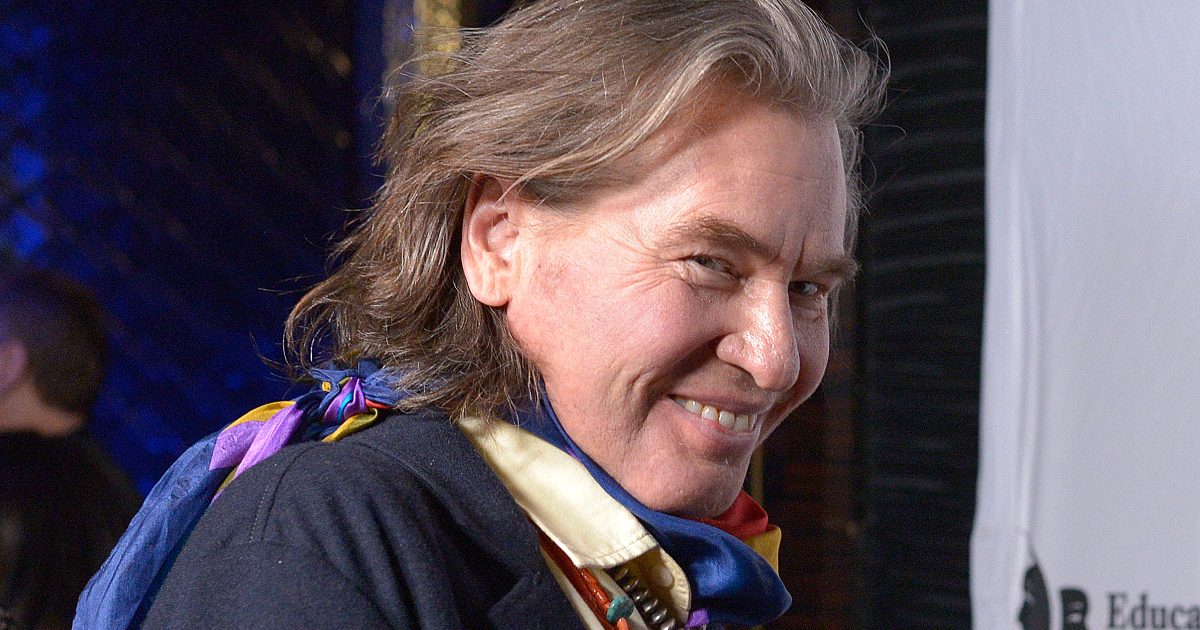
Updating your professional profile shouldn't require booking an expensive studio session just to swap out a t-shirt for a blazer. A free online suit photo editor lets you take any casual upper-body photo and instantly transform it into a sharp, formal portrait. Whether you're refreshing your LinkedIn presence, applying for remote roles, or preparing a speaker bio, modern AI-driven tools handle the garment replacement process in seconds.
You don't need advanced layer masks, Photoshop skills, or manual clothing clipping paths anymore. Generative photo tools map clothing textures to your specific shoulder lines, match ambient lighting, and preserve your natural facial expressions.
Why Traditional Suit Editing Falls Short
In the past, adding formal attire to a casual photo meant manual digital manipulation. Designers relied on stock images of suits, cutting them out with lasso tools and pasting them onto portrait layers.
This older approach created distinct visual flaws:
- The "Sticker" Effect: Cut-and-paste suits lack proper shadows where the lapel meets the collarbone, making the person look pasted onto the background.
- Proportional Mismatch: Standard templates rarely match individual body shapes, resulting in awkwardly wide shoulders or compressed torsos.
- Lighting Discrepancies: Studio lighting on a stock suit rarely matches the natural indoor or outdoor lighting of your original selfie or casual snapshot.
Modern online suit editors use diffusion models and intelligent clothing replacement algorithms. Instead of pasting a flat image, the software analyzes your posture, calculates your skeletal proportions, and renders a custom-fit garment complete with realistic fabric weaves, button closures, and tie textures.
Choosing the Right Tool and Preparation
Getting a realistic final image starts long before you click generate. The quality of your output depends heavily on the source photo you upload.
Step 1: Select or Take the Right Base Photo
Choose a clear, front-facing portrait where your face, neck, and shoulders are fully visible. Selfies taken from slightly above or below work, but straight-on shots produce the most symmetrical jacket lapels. Avoid heavy shadows across your chest or collar, as these confuse the shadow-mapping algorithms.
Step 2: Define Your Described Style
Most online platforms allow you to either pick from pre-set professional templates or type a descriptive prompt. Be specific about what you need:
- Business Professional: A navy blue two-button wool suit, crisp white cotton dress shirt, and a subtle silk tie.
- Modern Executive: A charcoal grey blazer, open-collar light blue shirt, and no tie for a smart-casual tech look.
- Formal Event: A classic black tuxedo with satin lapels and a bow tie.
Step 3: Run the Generation and Inspect Details
Once the tool processes the image, zoom in closely on the transition points. Check the collar alignment, ensure the lapels sit naturally against your chest, and verify that your hair or skin edges haven't been awkwardly cropped. Reliable platforms like Fotor offer quick brush adjustments or prompt tweaks if the initial fit requires minor tuning.
Common Mistakes to Avoid
Even with advanced AI tools, certain user habits result in distorted or obviously fake profile pictures.
- Using Low-Resolution Selfies: Grainy, pixelated source files force the editor to guess fabric textures, resulting in blurry jacket edges. Always upload the highest-resolution version available.
- Ignoring Background Consistency: Swapping a casual backyard shirt for a sharp corporate suit while keeping a cluttered beach background creates a jarring mismatch. Choose tools that allow simultaneous background replacement or clean neutral studio backdrops.
- Overcomplicating Prompts: Asking for overly complex patterns, branded logos, or unusual color combinations often yields warped fabric lines. Stick to classic professional color palettes like navy, charcoal, black, and subtle grey.
- Neglecting Post-Export Checks: Never upload a generated image directly without inspecting it at 100% scale. Look for floating artifacts near the collar or unnatural hand positioning near jacket pockets.
Frequently Asked Questions
Will these online editors alter my facial features?
Quality suit editors are designed to protect your identity. They isolate the transformation to your clothing area—typically below the neck—while leaving your skin tone, facial structure, expression, and hair completely intact.
Can I use these photos for official documents like passports or visas?
Official government documents have strict compliance rules regarding digital alterations. While a clean suit editor works well for professional networking sites, company directories, and resumes, check local passport or visa photo guidelines before submitting digitally modified clothing.
Are my uploaded photos kept secure or private?
Most reputable web-based photo processors automatically purge uploaded files from their servers shortly after generation. Always review the specific platform's privacy policy to confirm how long temporary files remain stored.
Do I need a paid subscription to download watermark-free images?
Many modern platforms offer free tiers or trial credits that allow you to generate and download high-resolution, watermark-free professional portraits without entering credit card information.