Setting up motion controls for Nintendo Wii and GameCube games on a PC requires bridging modern hardware with legacy software architectures. If you're trying to play titles like Super Mario Galaxy or Metroid Prime using a Sony DualSense gamepad, configuring the built-in gyroscope for precise aiming can feel confusing. Modern versions of the Dolphin Emulator feature native input handling that simplifies this process significantly, cutting out the complicated workaround layers of the past.
Getting accurate tracking requires pairing the hardware correctly, utilizing native SDL input options, and mapping the accelerometer and gyro axes cleanly. This breakdown covers how to establish a low-latency connection, configure precise motion tracking without erratic cursor jumps, and bypass common configuration pitfalls.
Connecting Your PS5 Controller to Windows
Before touching any emulation software, your PC must recognize the DualSense controller with full DirectInput or SDL compatibility. While a USB-C cable offers a stable, zero-latency connection, Bluetooth works well if your PC has a reliable adapter (preferably Bluetooth 4.0 or higher).
To pair via Bluetooth, hold down the small Create button (to the left of the touchpad) and the central PlayStation logo button simultaneously until the light bar around the touchpad flashes rapidly. Open your Windows Bluetooth settings, search for new devices, and select "Wireless Controller". To understand the bigger picture, we recommend the recent report by The New York Times.
A wired connection bypasses pairing issues entirely and keeps the battery charged during long emulation sessions, which helps if you experience sudden signal drops. Once Windows detects the device, you're ready to open the emulator settings.
Leveraging Native SDL Support in Dolphin
Older emulation workflows forced users to rely on third-party bridge tools like DS4Windows or UDP motion servers to feed gyroscope data into Dolphin. Fortunately, modern builds of Dolphin include robust native SDL controller support with built-in motion and rumble handling.
- Open Dolphin Emulator and navigate to Options then Controller Settings.
- For Wii games, locate the Wii Remote section and set Player 1 to Emulated Wii Remote.
- Click on Configure next to the emulated remote to open the mapping menu.
- In the top-left Device dropdown menu, select your controller via its SDL identifier (e.g.,
SDL/0/Wireless Controller).
Using native SDL input avoids extra background software overhead and yields cleaner motion translation out of the box. If your device doesn't appear in the SDL list, verify that your controller is powered on and recognized by Windows before launching Dolphin.
Calibrating Gyroscope and Motion Precision
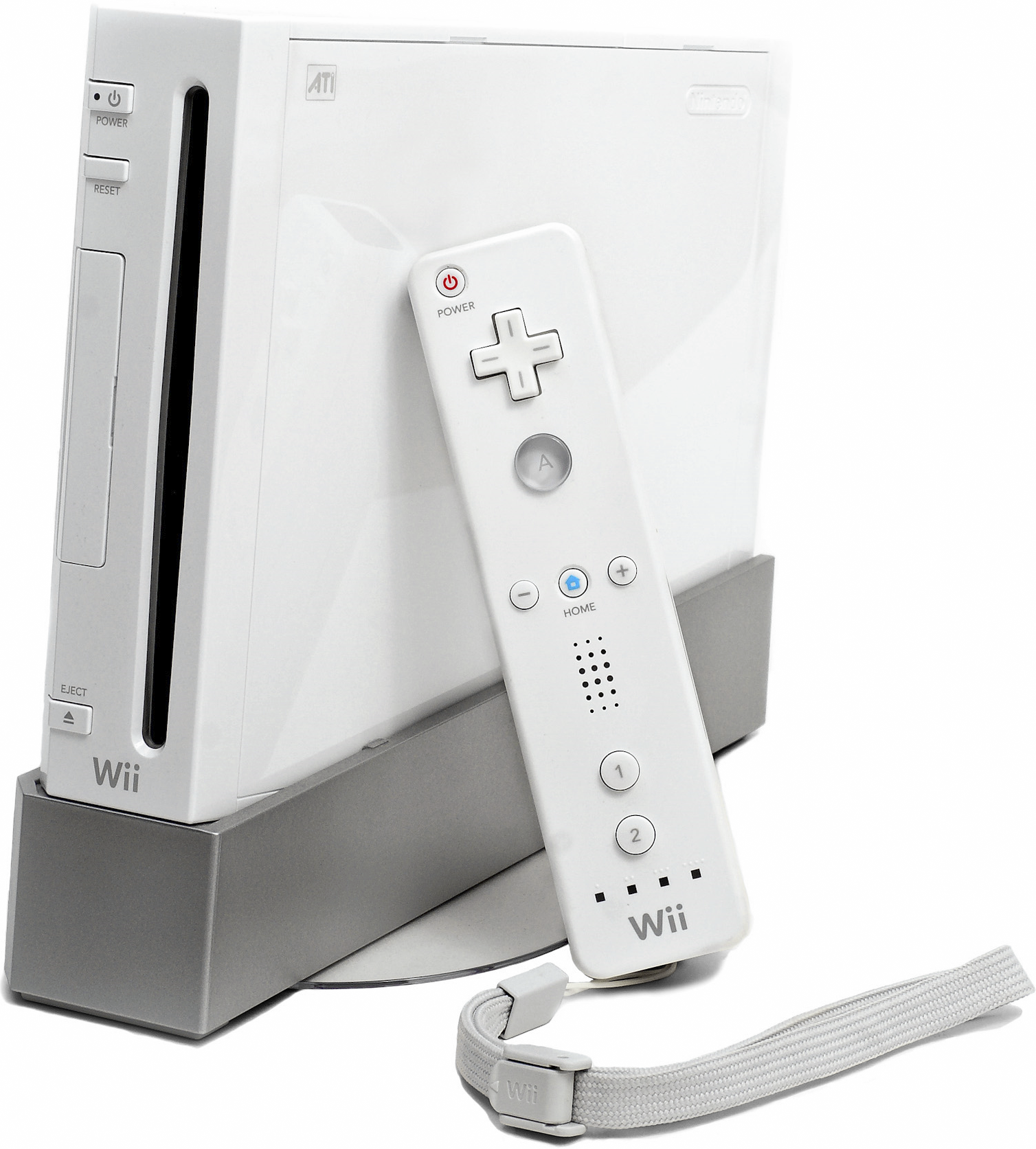
The Wii Remote relied on an infrared sensor bar and an internal accelerometer to track pointing and tilting. Because a DualSense controller lacks an infrared sensor, Dolphin emulates pointer behavior using internal gyroscope and accelerometer data. Fine-tuning these axes prevents the on-screen cursor from drifting or feeling sluggish.
Mapping Motion Axes
- Inside the Emulated Wii Remote configuration window, click on the Motion Input tab.
- Locate the motion parameters for Yaw, Pitch, and Roll.
- Click on the input box for Pitch (vertical tilt) and tilt your controller forward or backward to register the axis.
- Repeat the process for Yaw (horizontal rotation) and Roll (wrist twists).
- For the Pointer section, map the horizontal and vertical movement coordinates to the gyro data so that tilting the gamepad naturally guides the on-screen reticle.
Adjusting Sensitivity and Deadzones
Default motion settings often feel hyper-sensitive, causing the camera or cursor to shake. To fix this, open the motion settings modifier panel by clicking on the small gear icon next to your mapped motion axes. Lower the scale factor slightly to dampen micro-jitters, ensuring that subtle hand movements translate into smooth, deliberate in-game actions rather than erratic jumps.
Using DS4Windows as an Alternative Motion Server
If you encounter compatibility quirks with specific custom builds or older versions of Dolphin, you can fall back on a virtual input mapper like DS4Windows. This tool intercepts your DualSense inputs and exposes them as virtual Xbox or DS4 inputs while broadcasting motion data through a local UDP server.
- Download and install DS4Windows alongside the required ViGEmBus driver.
- Connect your PS5 controller; DS4Windows will pick it up and map it to a profile.
- Open the settings tab inside DS4Windows and make sure the Server or UDP Motion Server option is enabled.
- In Dolphin, configure your controller inputs to pull from the DSU (Dolphin-Search-UDP) client source.
This method is particularly helpful if you want to use the DualSense touchpad as an auxiliary mouse input or bind complex macro toggles to game actions.
Common Mistakes to Avoid
Configuration errors can ruin an emulation session. Watch out for these frequent missteps:
- Leaving Steam Input active in the background: Steam can intercept your controller inputs and conflict with Dolphin's direct hardware hooks, causing erratic behavior or unresponsive buttons. Close Steam or disable desktop configuration support when playing.
- Ignoring deadzones: Failing to set proper stick and motion deadzones leads to unwanted drift where characters or menus move on their own.
- Mixing up input APIs: Trying to force XInput emulation for games that require native motion input strips away gyroscope tracking entirely, leaving you with standard thumbstick movement.
Frequently Asked Questions
Can I play Wii Sports pointer-heavy minigames without an infrared sensor bar?
Yes. Dolphin allows you to bind a button toggle (like holding L1 or pressing the touchpad) to recenter the pointer or lock the cursor in place, compensating for the lack of a physical sensor bar.
Why is my controller rumbling constantly or not rumbling at all?
Rumble issues usually stem from input API mismatches. If you use DS4Windows, ensure your active profile emulates an Xbox 360 controller via XInput, as Dolphin handles force feedback most reliably through standard XInput wrappers.
Is a wired USB connection required for accurate gyro tracking?
No. Bluetooth handles motion axes cleanly as long as your PC uses a stable Bluetooth stack. However, wired connections eliminate interference and latency spikes in dense wireless environments.
Do I need any third-party drivers for the DualSense to work natively?
Modern Windows 10 and 11 installations natively recognize basic DualSense button inputs, and modern Dolphin builds include native SDL drivers that communicate with the controller directly without extra helper applications.