Running Wii U games on modern hardware requires understanding specific disc image formats, decryption keys, and emulator configuration. Unlike older systems that relied on simple single-file ROMs, Nintendo's dual-screen console uses structured directory formats, compressed disc images, and Nintendo Update Server (NUS) packages. If you want to play titles like The Legend of Zelda: The Wind Waker HD or Mario Kart 8 on your PC or Steam Deck, you need to know how these files work and how to set them up correctly.
Navigating Wii U game backups involves dealing with distinct file extensions, decryption keys, and storage structures. This guide breaks down what these files are, how the Cemu emulator processes them, and how to configure your games without running into missing title keys or corrupted directory errors.
Understanding Wii U Game File Formats
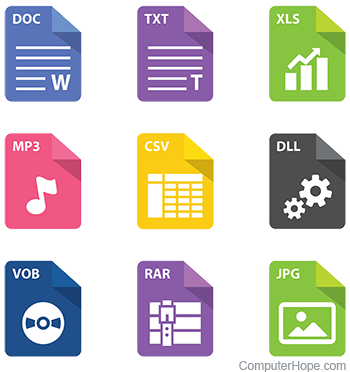
Before downloading or dumping files, you must recognize the standard formats used in the Wii U scene. Each format serves a different purpose depending on whether you're playing via an emulator or real hardware.
- WUD and WUX Files: A
.wudfile is an uncompressed, exact raw dump of a physical Wii U optical disc, usually around 25 GB regardless of game size. A.wuxfile is the compressed version of a WUD, which strips out empty padding sectors to save substantial hard drive space without losing data integrity. - NUS / Loadiine Formats: Games sourced from the eShop or extracted via tools come as NUS content. These consist of encrypted
.appand.h3hash files, accompanied by atitle.tik(ticket) andtitle.tmdmetadata file. Loadiine format organizes these into standardcode,content, andmetafolders, which emulators like Cemu read natively. - RPX Files: The core executable file inside a Wii U game directory is the
.rpxfile. When pointing an emulator or mod loader to a game path, it looks for this executable within the extracted code folder to launch the title.
Setting Up Cemu for Wii U Backups
Cemu is the primary software used to run Wii U backups on Windows, Linux, and compatible handhelds. Getting your files to load properly depends on matching the correct directory structure.
- Organize your directory: Create a dedicated root folder for your library, such as
Emulation/roms/wiiu/. Inside this folder, place each game in its own clearly named subfolder. - Check for required folders: If your game is in Loadiine format, ensure the folder contains the three mandatory subdirectories:
code,content, andmeta. If you're using compressed.wuxfiles, they can sit directly in your main roms directory. - Handle updates and DLC: Updates and downloadable content packages cannot simply be tossed into the main game folder. You must install them through Cemu's built-in title manager interface (
File > Install game update or DLC) by selecting the meta.xml file inside the update package.
For more details on emulator configuration and system compatibility, check out the Cemu Official Website.
Common Mistakes and Troubleshooting
Emulating the Wii U is generally stable, but specific oversights frequently cause games to crash on boot or fail to appear in your game list.
- Missing Keys or Decryption Errors: If you try to load an encrypted NUS folder without its corresponding ticket (
title.tik), Cemu will throw an error indicating that it cannot decrypt the content. Make sure your dumping tools decrypted the files properly using community standards outlined on the RetroReversing Wii U Formats Wiki. - Incorrect File Path Depth: Cemu scans specific directories for games. If you nest your game folders too deep inside extraneous subdirectories, the emulator won't detect the
.rpxor.wuxfiles. Keep the directory tree shallow. - Corrupted Archive Extractions: Large game archives downloaded from the web are often split into multiple parts (.rar or .7z). Using outdated extraction tools can corrupt delicate file hashes. Always use the latest version of 7-Zip to unpack multi-part archives.
Frequently Asked Questions
What is the difference between WUX and Loadiine formats?
WUX is a single compressed file representing a full optical disc dump, while Loadiine breaks the game down into loose folders (code, content, meta) meant for hardware modding or direct emulator loading. Both work well in Cemu, but Loadiine folders make applying individual mods easier.
Do I need a BIOS or system files to run Wii U games?
Unlike older consoles, Cemu does not require a traditional BIOS file to boot games. However, certain online features or specific system applets require official Wii U system files dumped from a real console, such as otp.bin and seeprom.bin.
Why are some game files split into tiny .app files?
These are Nintendo Update Server (NUS) format files. Nintendo splits digital titles into smaller encrypted chunks for downloading. Emulators can read these directly if the ticket file is present, or you can use conversion utilities to bundle them into more manageable formats.
Can I play multiplayer or online games?
Cemu supports online multiplayer through a feature that requires you to dump unique online files (such as your console's specific seed.db and files from a real, modded Wii U). Without unique files from a physical console, online connectivity is unavailable due to Nintendo Network requirements.