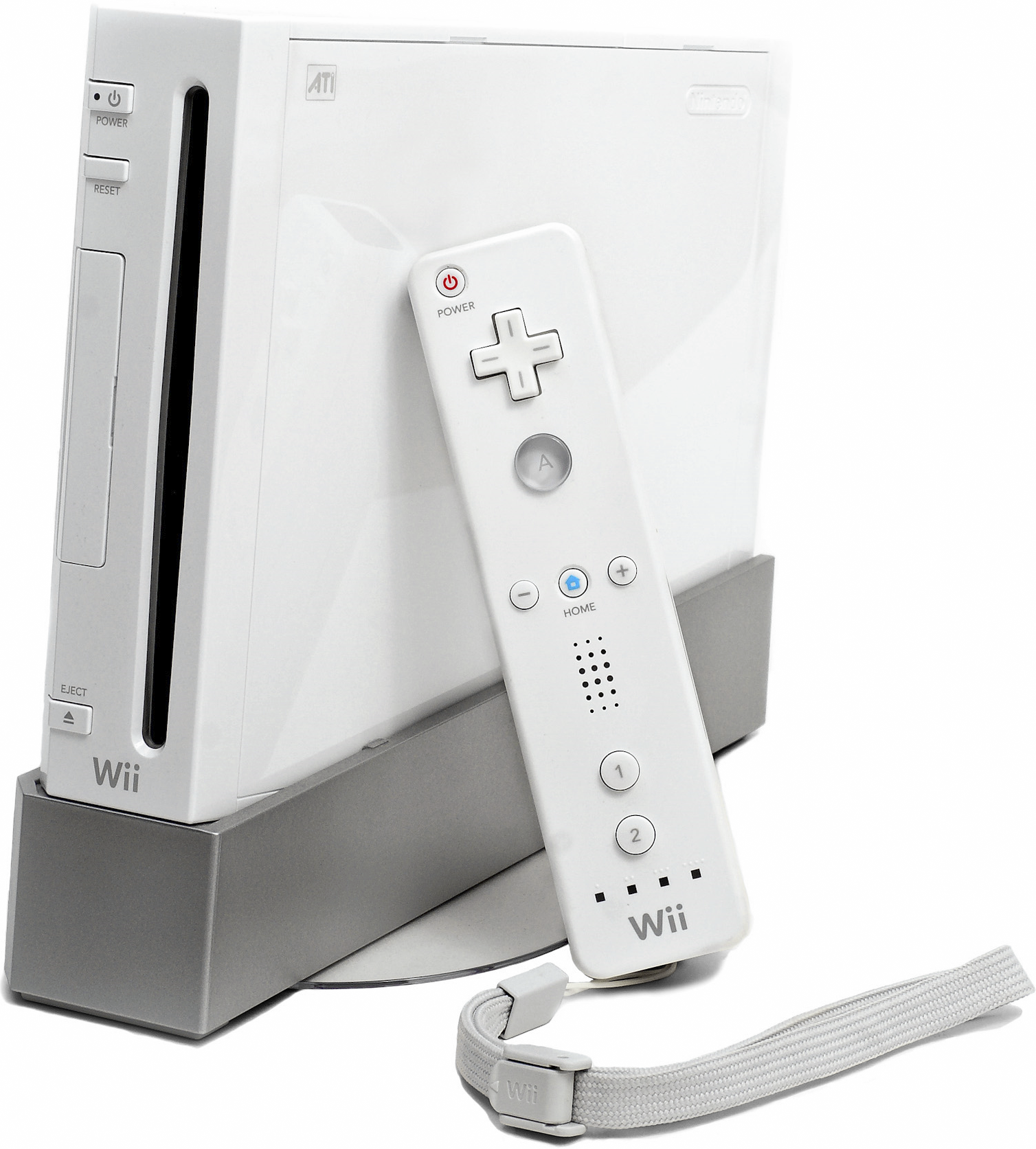
Playing GameCube and Wii games on your phone doesn't require a modified console anymore. With the Dolphin Emulator, you can run console classics directly on your Android device, complete with upscaled resolutions, texture packs, and Bluetooth controller support. While mobile processors have grown powerful enough to handle sixth-generation hardware, getting stable frame rates requires specific configuration choices depending on your phone's processor and graphics chip.
Success depends heavily on matching your hardware limitations to the correct software settings. Qualcomm Snapdragon processors with Adreno graphics handle the Vulkan graphics backend much better than most MediaTek or Exynos alternatives. This guide walks through installation requirements, optimal settings for smooth gameplay, file management, and practical fixes for common performance bottlenecks.
Hardware Requirements and Compatibility
Emulating sixth-generation consoles is vastly more demanding than running retro systems like the PlayStation 1 or Game Boy Advance. Your phone needs a 64-bit operating system and a capable processor to maintain a steady 60 frames per second.
- Minimum Specifications: Devices running Android 9.0 or newer with at least 4GB of RAM and a processor comparable to the Snapdragon 845 can boot many GameCube titles at basic speeds.
- Recommended Specifications: For smooth GameCube performance at higher resolutions and playable Wii emulation, look for a device featuring a Snapdragon 8 Gen 1 or newer chip paired with 8GB of RAM.
- GPU Architecture: Adreno graphics chips offer superior driver optimization within Dolphin. Mali and PowerVR GPUs can run the emulator, but you may encounter graphical glitches or shader compilation stutters.
Dolphin does not require a BIOS file to run games. The app relies on High-Level Emulation (HLE) to mimic the console operating system internally, meaning you only need to supply your own legally dumped game files.
Installing and Organizing Your Game Library
You can download the stable release directly from the Google Play Store, or grab the latest development builds from the official Dolphin website for bug fixes and feature updates. Once installed, structuring your files correctly prevents loading errors.
- Create a dedicated folder on your internal storage or SD card named "Dolphin" with subfolders for GameCube and Wii ISOs.
- Place your game files inside. Dolphin accepts uncompressed ISO formats, GCZ, and RVZ compressed images. Avoid split files or compressed ZIP archives, as the Android app cannot decompress archives on the fly.
- Open Dolphin, tap the plus icon or navigate to settings, and select your game directory. The app will scan the path and populate your library with cover art.
Best Settings for Performance and Visuals
Default settings prioritize broad compatibility, which often leaves performance on the table. Adjusting these options stabilizes frame rates across demanding titles.
- Graphics Backend: Set this to Vulkan if you use a Snapdragon device. It drastically reduces CPU overhead compared to OpenGL. Use OpenGL only if Vulkan causes visual corruption on your specific hardware.
- Internal Resolution: Start at 1x (Native). If your device handles a game easily, scale up to 2x or 3x for sharper graphics. Going above 3x on mobile hardware usually triggers severe thermal throttling.
- Shader Compilation: Choose Hybrid Ubershaders to minimize sudden stuttering when new visual effects appear on screen for the first time.
- Audio Backend: Keep OpenSL ES as your primary audio backend for stability. If you notice crackling or audio delay, raise the audio latency buffer in the advanced settings.
Setting Up Controllers and Motion Controls
Touchscreen controls work for turn-based games, but fast-paced action titles require physical inputs. Pair your gamepad via Android Bluetooth settings before launching the app. Xbox Wireless controllers, PlayStation DualSense pads, and standard mobile telescopic gamepads map seamlessly.
- GameCube Mapping: Go to controller settings, assign Port 1 to a Standard Controller, and map your physical buttons. Note that mobile triggers are usually digital rather than analog; adjust your configuration so a full press registers cleanly.
- Wii Remote Emulation: For Wii games, you can map standard buttons or configure the phone's built-in accelerometer and gyroscope to handle motion inputs. Pointing-heavy games can map the onscreen pointer to your right analog stick for a more comfortable experience.
Frequently Asked Questions
Why do games slow down after playing for ten minutes?
Thermal throttling is the most common culprit. As mobile processors heat up, the phone automatically reduces clock speeds to manage temperature. Remove thick phone cases during long gaming sessions, lower your internal resolution back to 1x, or use a mobile cooling fan.
Can I transfer my game saves between PC and Android?
Yes. Dolphin utilizes the exact same save file architecture across desktop and mobile platforms. You can copy memory card files (.raw) or save states directly between your computer and your phone to pick up where you left off.
Why is a game crashing immediately upon boot?
Corrupted game dumps or incompatible file formats usually cause instant crashes. Verify that your game file is cleanly dumped from an original disc into an RVZ or ISO format rather than a trimmed or split format. Updating to a newer development build of the emulator often resolves compatibility bugs for newly tested titles.