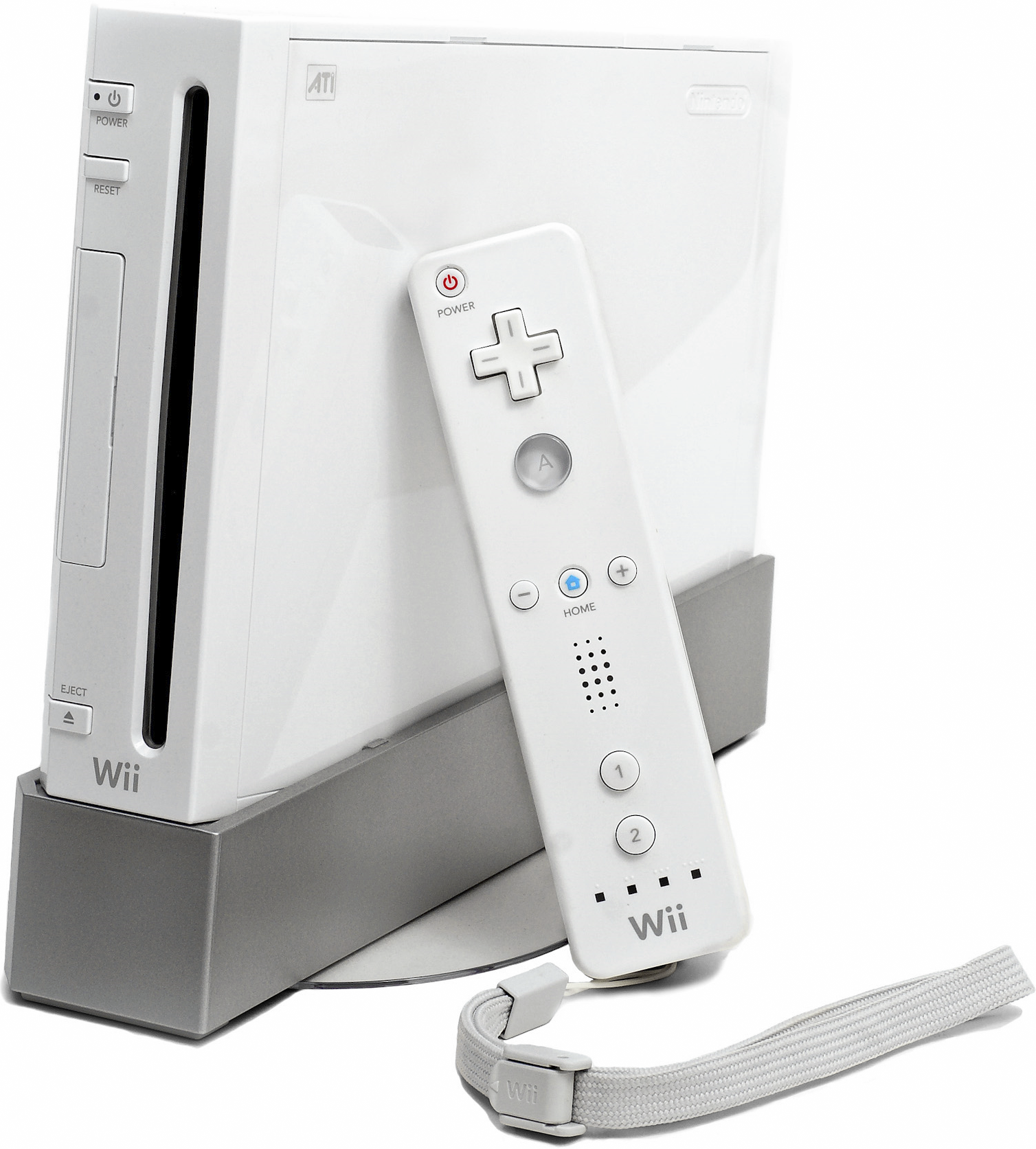
Yes, you can use a PlayStation Move controller with the Dolphin emulator. While it takes some configuration, you aren't restricted to standard gamepads or original Wii hardware when playing Wii titles on your PC. By bridging the controller inputs through a specialized protocol, you can replicate authentic motion tracking for games like Wii Sports or Super Mario Galaxy without buying an aging infrared sensor bar.
Achieving this requires translating the PlayStation peripheral's built-in accelerometer and gyroscope data into a format that Dolphin understands. Because Dolphin natively supports DualShock UDP (DSU) clients, third-party software can act as a bridge between your hardware and the emulator. Let's walk through what you need and how to complete the setup process step by step.
What You Need Before Starting
Before you begin configuring files and pairing devices, gather the necessary tools. You'll need:
- A working Bluetooth adapter on your PC (either built-in or a reliable USB dongle).
- A standard USB cable to pair the PlayStation Move controller initially.
- The official PS Move API binaries or source packages for Windows.
- The PSMove-DSU application, which acts as the server transmitting motion data.
- An up-to-ended installation of the Dolphin Emulator.
Make sure you download both the core PS Move API library files and the DSU executable package, extracting them into a dedicated folder on your computer. Keeping everything inside a single, clean directory prevents missing DLL errors when the tools initialize.
Step-by-Step Configuration Guide
Configuring motion controls requires precise ordering. Follow these sequential steps to ensure your PC recognizes the hardware and streams inputs correctly into the emulator.
1. Pair the Controller via Bluetooth
Your PC needs a secure Bluetooth handshake with the Move controller before it can stream positional data.
- Open the folder containing your extracted PS Move API and DSU files.
- Copy the folder path from your file explorer address bar.
- Open Command Prompt with administrator privileges.
- Type
cdfollowed by a space, then paste your folder path inside quotation marks. - Ensure your PC's Bluetooth radio is turned on.
- Run the pairing command by typing
psmoveapi.exe pairordsu_server_psmove_win64.exe --pairdepending on your specific package version. - Connect the controller to your PC using the USB cable when prompted, then unplug it once the pairing handshake succeeds.
2. Start the DSU Server
Dolphin doesn't read native PlayStation protocols directly, meaning a background server must run while you play.
- Keep your administrator Command Prompt window open inside your working directory.
- Launch the DSU server executable directly by typing its file name, such as
dsu_server_psmove_win64.exe, and pressing Enter. - Look for active text lines confirming that the server is listening for input.
- Leave this command window open. Closing it terminates the data stream to your emulator.
3. Enable DSU Client Inside Dolphin
Now you can link the emulator to the active server stream.
- Open the Dolphin Emulator and navigate to Controllers.
- Open the Alternate Input Sources settings menu under the common configurations.
- Check the box to enable the DSU Client, leaving the default local IP and port settings intact unless you configured a custom port.
- Save your changes and close out of the alternate input window.
4. Configure the Emulated Wii Remote
The final step maps your physical inputs to Dolphin's virtual console environment.
- Open the Wii Remote configuration panel within Dolphin.
- Set your active controller type to Emulated Wii Remote.
- Assign the input device dropdown source to the DSU Client.
- Open the motion input tab to verify that accelerometer and gyroscope metrics respond when you tilt your physical controller.
- Bind a quick keyboard key or spare button to Recenter the pointer, fixing any drift issues that occur during long play sessions.
Common Mistakes to Avoid
Setting up custom motion peripherals often introduces minor roadblocks. Watch out for these frequent missteps:
- Closing the Server Prompt: Many users configure Dolphin successfully, close the command line window running the DSU server, and wonder why motion tracking stops. The server app must run simultaneously with the emulator.
- Missing DLL Dependencies: If the DSU executable immediately crashes upon opening, you likely forgot to place the
psmoveapi.dlland tracker files in the exact same directory as the executable. - Ignoring Pointer Drift: Gyroscopes naturally drift over time. Failing to map a quick centering hotkey will leave your on-screen cursor stuck near the edges of the display.
Frequently Asked Questions
Do I need a PlayStation Eye camera for this setup?
No. Standard DSU mapping relies primarily on the internal accelerometer and gyroscope inside the controller rather than optical tracking via the PlayStation Eye camera.
Can I use multiple Move controllers at once?
Yes, provided your Bluetooth stack and the DSU server support multi-device handling. However, most single-player Wii titles only require a single pointer and nunchuk configuration.
Why is my cursor spinning uncontrollably?
This usually happens when motion axes are inverted or conflicting input sources overlap. Double-check your DSU client settings and ensure no other controller mapping software is trying to control the same virtual port.
Does this method work with original Nintendo Wii Remote software?
It emulates a Wii Remote through software translation. Games that rely strictly on a real Nintendo sensor bar for infrared pointer precision may require fine-tuning the cursor bounds inside Dolphin's motion settings.