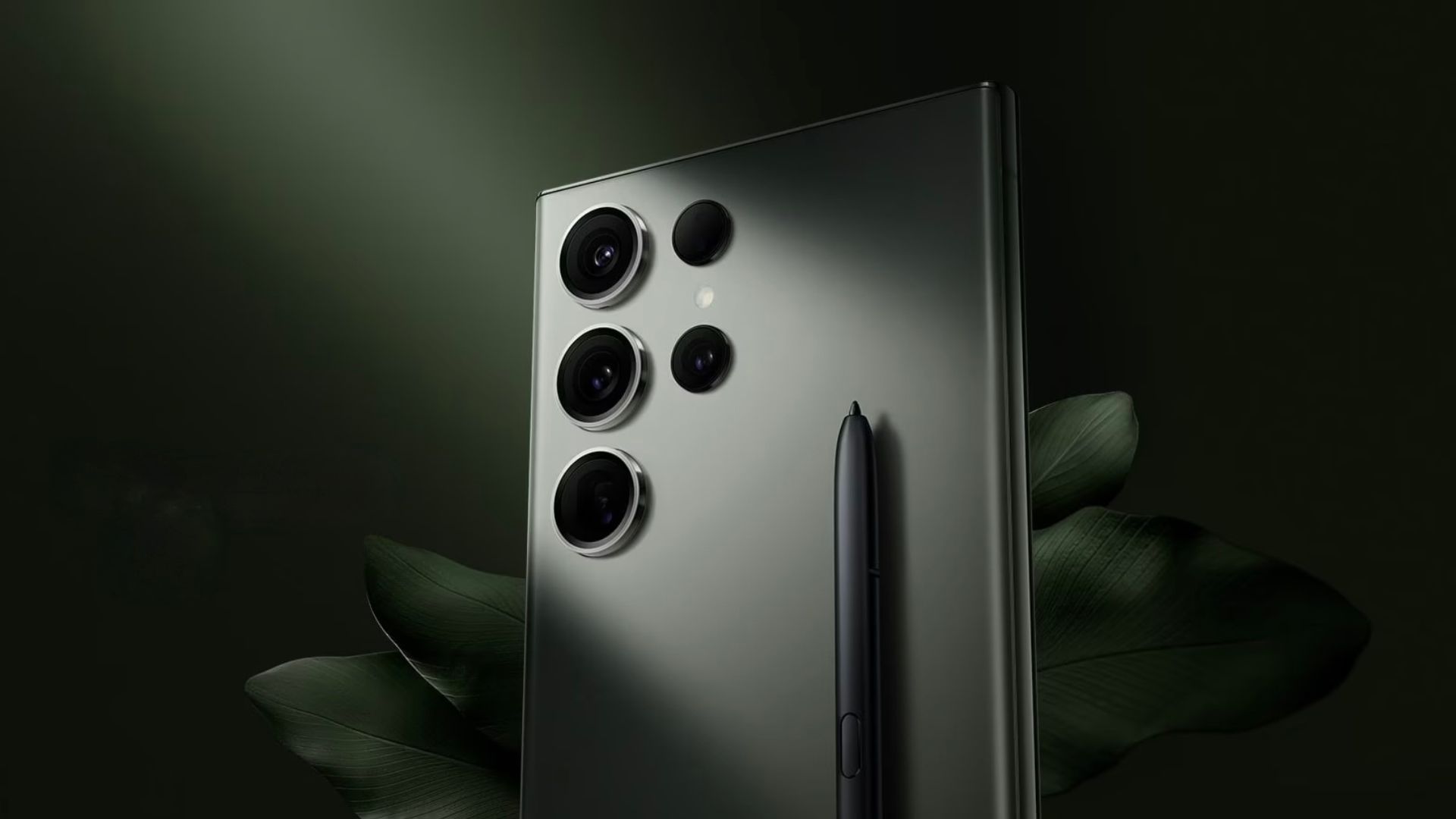
Samsung's One UI 7 software update represents one of the most radical overhauls in the history of the Galaxy ecosystem. Built on top of Android 15, the interface introduces split notification panels, deeper Galaxy AI integrations, redesigned application icons, and fluid motion physics that completely change how a Galaxy phone feels in daily use.
If you're wondering how this update alters your device, what new layout changes to expect, and whether your specific phone model makes the cut, you're in the right place. Let's look past the marketing hype and examine what One UI 7 actually changes on your screen.
Core Interface Changes and Design Layouts
The most immediate visual difference you'll notice after updating is the layout of your daily controls. Samsung split the traditional drop-down shade into two distinct areas, mirroring modern mobile design trends found across rival operating systems.
- Notification Panel: Swiping down from the top-left or center of your screen now opens strictly your incoming alerts.
- Quick Settings Panel: Swiping down from the top-right corner reveals your toggles, brightness sliders, and connectivity controls.
- Combined View Option: If you prefer the legacy style, you can jump into display settings and merge the panels back together with a single toggle.
Beyond the split shade, Samsung redesigned system application icons to feature richer depth and cleaner geometries. Animation curves were rebuilt from scratch, introducing interruptible physics. When you close an app mid-animation or switch rapidly between tasks, the software responds instantly to your touch without stuttering.
The Now Bar and Lock Screen Enhancements
Lock screen utility shifts dramatically with the introduction of the Now Bar. Located at the bottom of the lock screen, this dynamic pill provides live updates without requiring you to fully unlock your device.
During a workout, it displays real-time fitness metrics or media playback controls for your wireless earbuds. If you have an active timer running or an ongoing voice recording, the status capsule expands cleanly. Paired with the Now Brief widget, the software aggregates daily weather alerts, calendar highlights, and sleep metrics into digestible morning summaries.
To customize these lock screen elements, navigate to your phone's main settings menu:
- Open Settings on your Galaxy device.
- Tap on Lock screen and AOD.
- Select Now bar to toggle specific live notification types on or off.
Galaxy AI Expansion and Natural Language Settings
Artificial intelligence features receive a significant functional boost in One UI 7. Writing Assist and advanced video cleanup tools operate with lower latency. More importantly, natural language processing now extends directly into the system settings menu.
Instead of digging through nested menus to adjust display parameters, you can open settings and type or say conversational phrases like "My eyes feel tired." The system instantly surfaces options to enable Eye Comfort Shield or dim system brightness. Furthermore, privacy controls include a dedicated toggle to process your AI tasks strictly on-device rather than in the cloud.
You can review official ecosystem guidance directly via Samsung Support or check broader industry reporting on Android Authority.
Complete Eligible Device Rollout List
Samsung rolls out One UI 7 across a massive footprint of devices, extending support back to select hardware released several years ago.
- Galaxy S Series: Galaxy S24, S23, and S22 lineups, along with S21 series devices and Galaxy S-series FE variants.
- Galaxy Z Fold & Flip: Foldables ranging from the recent Galaxy Z Fold 6 and Z Flip 6 back to the Z Fold 3 and Z Flip 3.
- Galaxy Tab Slates: Galaxy Tab S10 series, Tab S9 lineup, Tab S8 models, and select budget-friendly options like the Tab S6 Lite.
- Galaxy A, M, and F Series: A wide selection of mid-range smartphones including the A55, A54, A35, and A34.
To check if your specific regional model is ready to download the upgrade, open your device settings, scroll to Software update, and tap Download and install.
Common Questions Answered
Can I change the notification panel back to the old style?
Yes. If you dislike the separated layout, open the Quick Settings panel, tap the pencil edit icon, select panel settings, and choose the combined view.
Does One UI 7 slow down older phones?
No. Thanks to refined background process optimization and interruptible animation curves, older supported flagships often feel more responsive after upgrading.
Is an internet connection required for natural language settings?
Basic navigation relies on local dictionaries, but advanced cloud models require an active Wi-Fi or cellular data connection alongside a logged-in Samsung account.
Where did the search icon go on the home screen?
Samsung streamlined the top search interface in One UI 7; you can now access global device search directly through the top of the Quick Panel.


