Getting professional stage lighting control software up and running smoothly requires careful attention to hardware specifications and network protocols. Obsidian ONYX runs lighting rigs for concerts, theaters, and corporate events, but it demands specific PC configurations to prevent frame drops or MIDI latency during live shows. If your rig stutters during heavy pixel-mapping cues, your hardware specs are likely falling short of what the software needs.
This guide breaks down exact hardware specifications, operating system requirements, network compatibility, and hardware dongle tiers for Obsidian ONYX. You'll learn how to match your PC components to your universe count, avoid common performance bottlenecks, and configure stable Art-Net and sACN outputs.
Core System Requirements for Obsidian ONYX
Operating a lighting console software platform on a standard PC requires meeting baseline specifications set by Obsidian Control Systems. While ONYX is free to download and runs in free mode on minimal hardware for offline programming, live production environments demand robust components.
- Operating System: Windows 10 or Windows 11 (64-bit, Home, Pro, or Enterprise editions). Mac OS is not natively supported.
- Processor: Intel Core i5 6th Generation or newer (or equivalent multi-core AMD processor). Quad-core configurations are the absolute baseline, though modern six-core or eight-core chips handle heavy DMX calculations much better.
- Memory: 8 GB RAM minimum. Systems running heavy media or pixel mapping via DyLOS should use 16 GB RAM or higher.
- Storage: Solid-state drive (SSD) required with at least 40 GB of free space. Mechanical hard drives cause asset loading delays and cue execution stutter.
- Display: 1280x768 minimum screen resolution. Multi-touch monitors are strongly recommended for efficient cue triggering and fixture selection.
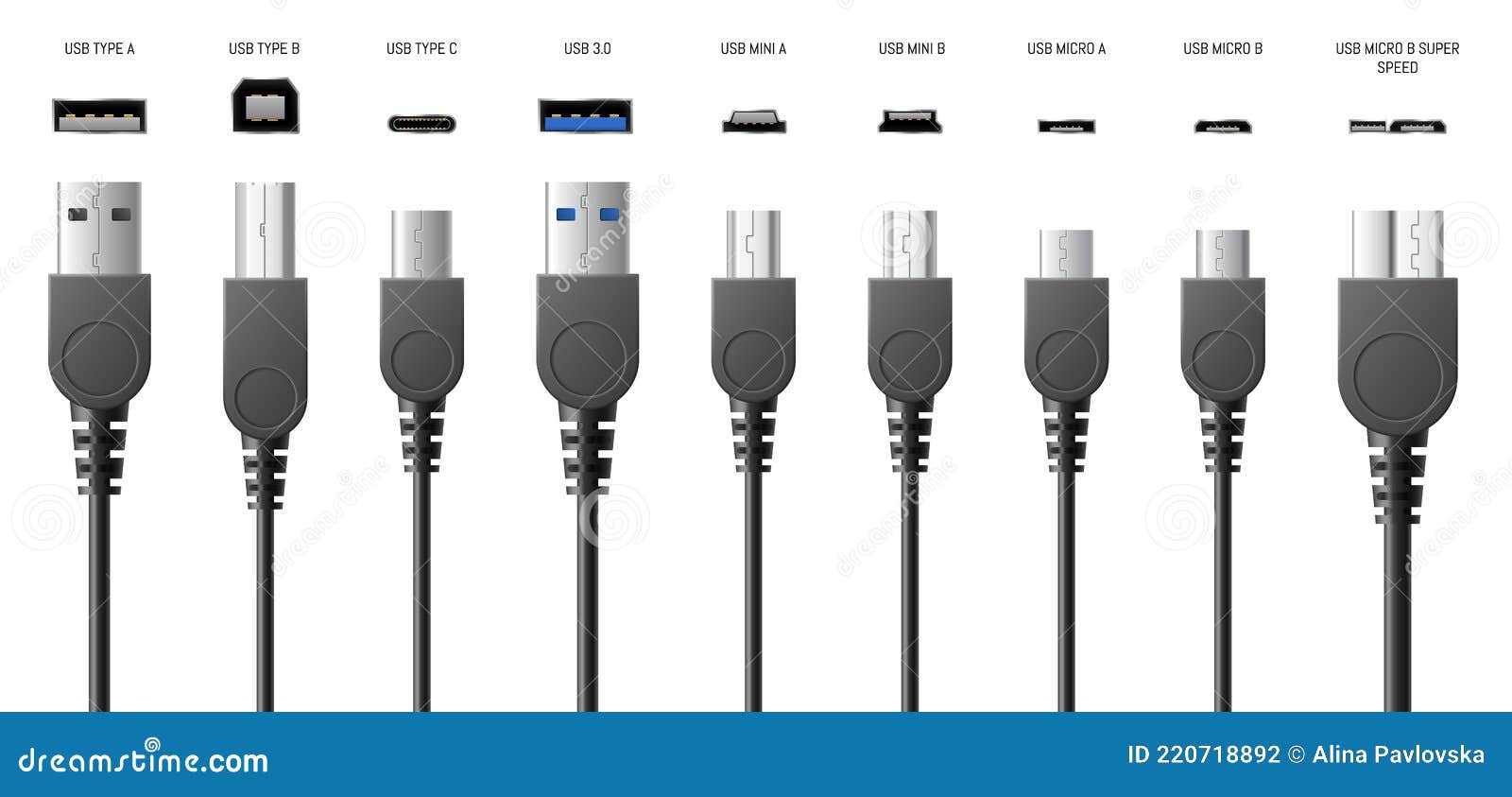
- USB Ports: Dedicated USB 2.0 or USB 3.0 ports for connecting hardware wings, MIDI controllers, and USB license keys.
Understanding Universe Tiers and License Keys
The software scales its capabilities based on connected hardware or USB license keys. Without a license or hardware attached, ONYX operates in Free Mode, outputting a single universe for testing and pre-vis. Expanding your universe count requires specific USB keys or native console hardware.
- Free Mode: 1 DMX Universe, local output only, ideal for learning and show file preparation.
- Nova / One Key: Expands output up to 4 or 8 universes for small club rigs and portable setups.
- PC Key / Netron Integration: Mid-tier keys unlock 16 to 64 universes, adding external protocol support like MIDI, Timecode, and OSC.
- Premier Key: Unlocks up to 64 or 128 universes alongside advanced DyLOS pixel mapping zones.
Network Compatibility and Protocol Integration
Live shows rely heavily on Ethernet-based lighting protocols to transmit data from your computer to nodes and fixtures. ONYX supports standard industry transmission methods over local area networks. Always use dedicated network switches and avoid sharing lighting data networks with general internet traffic.
- Art-Net: Supported natively for transmitting multiple universes over standard 10/100 or Gigabit Ethernet infrastructure.
- sACN (Streaming ACN / E1.31): Highly efficient multicast or unicast protocol preferred for large-scale LED mapping and dense fixture layouts.
- X-Net: Proprietary protocol used for multi-console networking, tracking backup sessions, and remote client connections.
- OSC and MIDI: Requires mid-to-high tier license keys to integrate show control triggers from external audio software or show automation desks.
Common Performance Bottlenecks and Mistakes
Many technicians run into unexpected lagging issues during live execution due to preventable configuration errors.
- Using Mechanical Hard Drives: Storing large show files and DyLOS media clips on an old HDD leads to stuttering during playback. Always install ONYX and show assets on a dedicated SSD.
- Ignoring Windows Power Plans: Leaving a laptop on balanced or power-saving mode throttles CPU clock speeds during quiet moments, causing micro-stutters when a heavy cue list fires. Always set Windows to High Performance mode.
- Overlooking Background Services: Running antivirus scans, cloud sync tools, or web browsers on a show computer introduces background CPU spikes. Keep your show rig clean and disconnected from the internet during performances.
- Network Adapter Conflicts: Having Wi-Fi and Ethernet active simultaneously often confuses Art-Net and sACN binding addresses. Disable wireless adapters entirely on dedicated lighting control laptops.
Frequently Asked Questions
Can I run Obsidian ONYX natively on a Mac or iPad?
No. The platform runs exclusively on 64-bit Windows environments. Mac users must utilize a reliable Boot Camp partition (on older Intel Macs) or dedicated virtualization software, though running live production software on bare-metal Windows hardware is heavily recommended for stability.
What is DyLOS and does it require special hardware?
DyLOS is the built-in media and pixel-mapping engine inside ONYX. While basic functions work on standard system configurations, running multiple high-resolution DyLOS zones requires a faster multi-core processor, dedicated graphics capability, and higher-tier license keys.
How do I back up my show files safely?
Always save your show file locally onto your primary SSD, and keep a secondary copy on a portable USB thumb drive. If you run a dual-console setup, configure an X-Net session to maintain a live tracking backup console that mirrors your primary cue execution in real time.
Can I use third-party DMX interfaces with ONYX?
ONYX outputs network protocols like Art-Net and sACN to any compatible Ethernet-to-DMX node, such as Obsidian Netron devices. However, direct USB-to-DMX hardware connections are restricted to official Obsidian hardware lines and certified accessories.