Gemini Code Assist YOLO mode removes authorization hurdles from agentic coding workflows. When enabled via the command-line interface or editor settings, it strips away permission prompts so the AI agent can read code, edit files, and execute shell commands autonomously. Developers use it to accelerate prototyping, run batch code refactors, and execute complex multi-step scripts without constant manual confirmation.
Understanding how to balance this execution speed with security controls determines whether YOLO mode saves hours or breaks production. This guide details how the feature works, configuration steps, and safety practices for high-speed development.
Core Mechanics of YOLO Mode
Traditional coding assistants operate on a request-and-verify loop. You prompt the model, it generates a snippet, and you review every line before pasting it into your project. Agentic CLI tools shift this model by granting the AI read-write access to your environment.
In standard operation, the agent halts before executing shell commands, modifying system files, or calling model context protocol (MCP) tools. It waits for a manual keyboard confirmation. YOLO mode overrides this pause. It answers yes to every authorization check automatically. To explore the bigger picture, we recommend the detailed article by The New York Times.
- Autonomous Execution: The model sequences multi-step tasks—such as initializing a database schema, writing API routes, and generating unit tests—without interruption.
- Tool Integration: Built-in tools and external utilities run immediately when the agent decides they are necessary to complete the task.
- State Preservation: Changes apply directly to your working tree, requiring disciplined version control habits before launch.
Enabling YOLO Mode in Your Environment
Activation depends on whether you are working inside the standalone terminal CLI or an integrated development environment like Visual Studio Code.
Command-Line Interface Setup
For terminal-based workflows using the Gemini CLI, start your session with the explicit approval flag:
gemini --approval-mode=yolo
Older shorthand flags like --yolo or -y may still function in legacy scripts, but Google's reference documentation marks them deprecated in favor of --approval-mode=yolo. If you are already inside an active session, press Ctrl + Y to toggle YOLO mode on or off instantly.
IDE Configuration
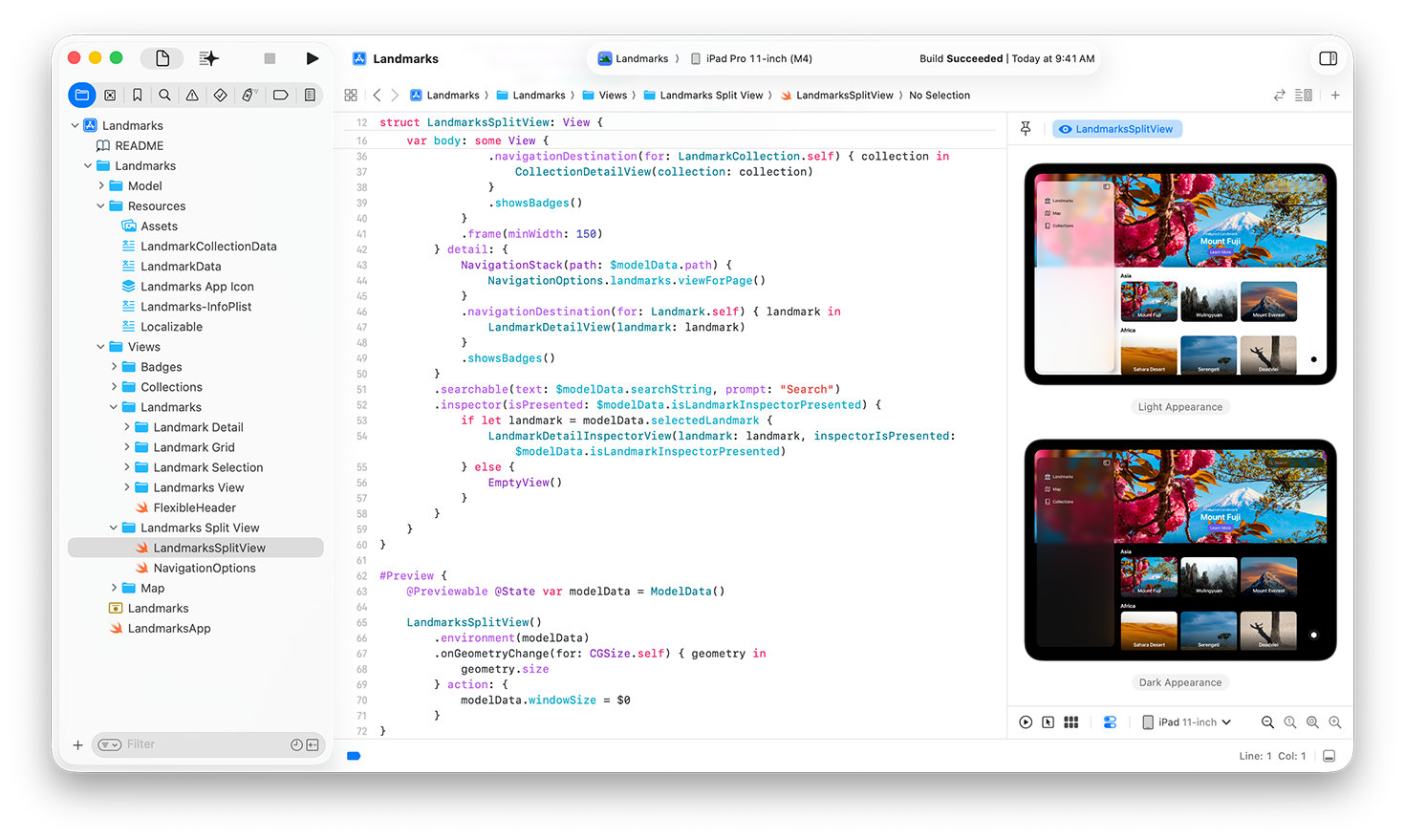
For developers working inside Visual Studio Code with the Gemini Code Assist extension, agentic execution is controlled via local settings. Open your user settings file (settings.json) and add the explicit boolean flag:
{
  "geminicodeassist.agentYoloMode": true
}
After updating the JSON file, reload your window to apply the change. Note that editor-based YOLO configurations typically require a trusted workspace; restricted folders retain manual permission prompts as a safeguard.
Managing Risks and Maintaining Control
Removing human-in-the-loop checkpoints introduces distinct risks. An unconstrained agent can overwrite critical configuration files, execute destructive database queries, or install incompatible packages. Protect your codebase by implementing structural safeguards before turning on autonomous execution.
- Isolate with Sandboxing: Always run autonomous sessions inside a containerized environment or use OS-level restrictions like macOS Seatbelt to limit the blast radius of terminal commands.
- Start From a Clean Tree: Commit or stash all local modifications before triggering a YOLO task. If the model introduces regressions, rolling back takes a single command (
git reset --hard). - Granular Rule Enforcement: Rather than utilizing global workspace bypasses, use selective tool permissions or task-specific overrides to grant autonomy only to safe file-editing functions while keeping destructive system commands restricted.
Frequently Asked Questions
Can I save YOLO mode as a permanent default in settings?
No. Gemini CLI deliberately prevents saving YOLO mode as a persistent default in configuration files to prevent accidental unmonitored executions. If you want a permanent shortcut, create a custom shell alias in your .bashrc or .zshrc file: alias gemini-yolo='gemini --approval-mode=yolo --sandbox'.
Does YOLO mode bypass project ignore rules?
No. The agent respects standard exclusion patterns defined in .gitignore and .aiexclude files, preventing it from reading or modifying sensitive credentials, environment variables, or build outputs.
What happens if the agent encounters a syntax error while running autonomously?
Because the approval prompt is disabled, the model will read the error output from the terminal or compiler, reason through the traceback, and attempt to write a corrective patch on its own until the process succeeds or hits a repetition limit.
Is my proprietary code used to train future models when using YOLO mode?
Enterprise and standard editions of Gemini Code Assist adhere to strict data governance policies. Prompts, local code context, and autonomous tool outputs are encrypted and not used to train shared Google models.