Configuring a keyboard and mouse to handle the erratic motion tracking and unique layout of a Nintendo Wii remote can feel frustrating. Standard emulated setups often leave players struggling to point, shake, and press buttons at the same time. Playing Wii titles on a PC through the Dolphin Emulator requires a thoughtful layout that maps motion data to keys without making your hands cramp.
Setting up effective Dolphin keyboard controls transforms how you play titles like Super Mario Galaxy or Metroid Prime on a computer. By mapping directional keys for movement, auxiliary keys for extensions like the Nunchuk, and your mouse for cursor input, you can achieve a responsive layout that rivals physical hardware.
Accessing the Wii Remote Configuration Menu
Before changing any keybinds, you need to navigate to the correct settings panel inside the emulator. Launch the Dolphin application, locate the toolbar at the top of the interface, and open the controller menu.
- Click on Options in the top menu bar, then select Controller Settings.
- Look at the section labeled Wii Remotes.
- Ensure Wii Remote 1 is set to Emulated Wii Remote using the dropdown menu.
- Click the Configure button right next to it to open the mapping window.
This window displays tabs for general buttons, extensions, and motion simulation. You will spend most of your time here assigning your keyboard keys to the virtual Wii inputs.
Mapping Core Buttons and the Nunchuk Extension
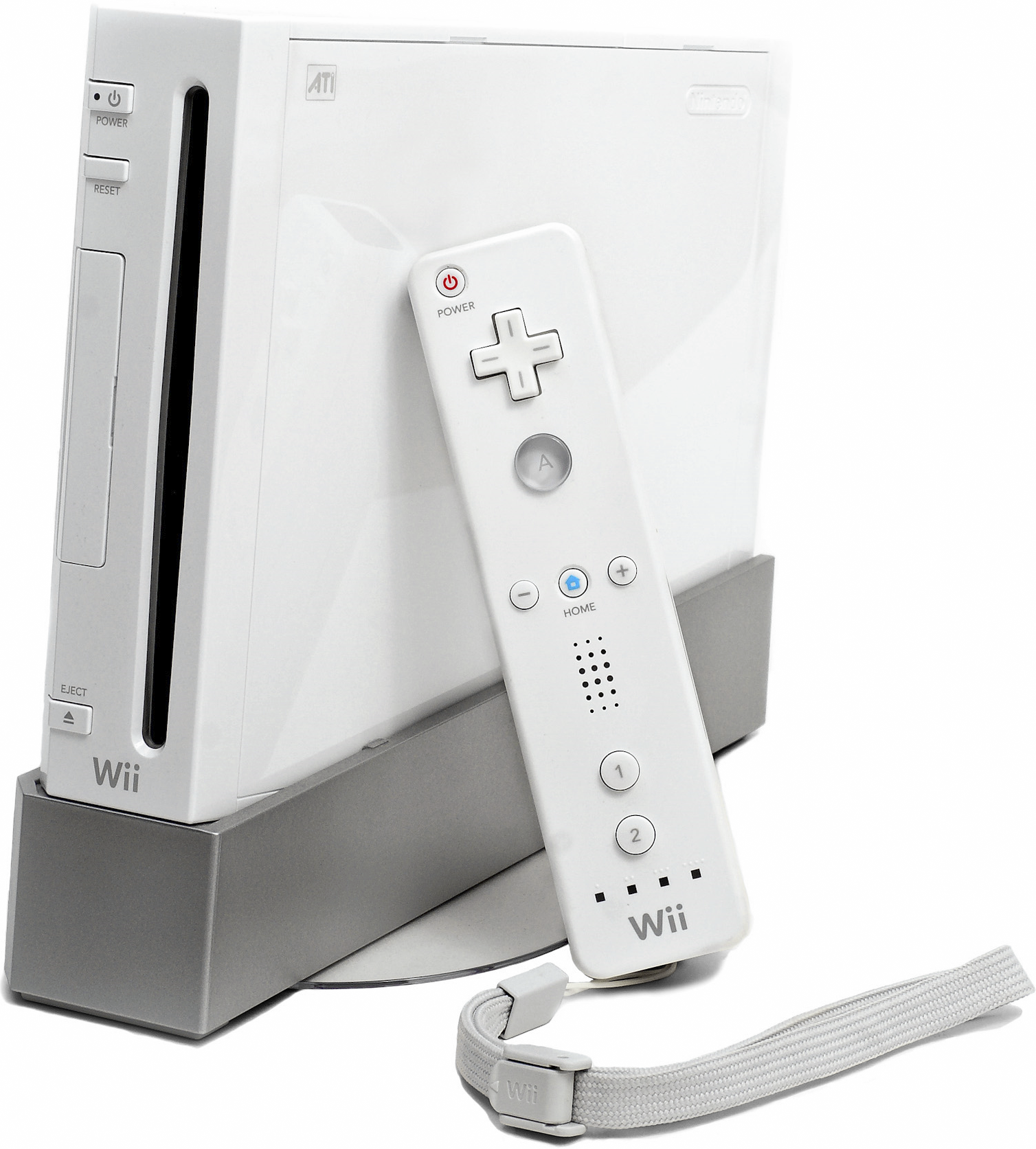
The standard Wii remote features a directional pad, an A button, a B trigger on the bottom, and buttons 1 and 2. Most games also require the Nunchuk attachment, which adds an analog stick and C/Z shoulder buttons.
Set up your core buttons and Nunchuk bindings logically so your left and right hands share the workload efficiently:
- Directional Pad (D-Pad): Map these to the arrow keys (Up, Down, Left, Right) for menu navigation and item selection.
- A Button: Assign this to the spacebar or the J key for primary actions and jumping.
- B Button: Assign this to the left mouse click or the K key for firing or interacting.
- Buttons 1 and 2: Map these to U and I for secondary actions.
- Nunchuk Analog Stick: Map the Nunchuk stick to the W, A, S, D keys for character movement.
- Nunchuk C and Z Buttons: Map these to Left Shift and Left Control for crouching or targeting.
Keeping movement on your left hand via WASD and actions on your right hand via nearby keys prevents finger tangling during fast-paced sequences.
Configuring Mouse Input for the Wii Pointer
Wii games rely heavily on pointing at the screen. Since you don't have an infrared sensor bar connected to a physical remote, your computer mouse must take over this job.
Navigate to the Motion Simulation tab within the Wii Remote configuration window. Under the Point section, you will see fields for Up, Down, Left, and Right.
- Click on the input box for Up under the Point header.
- Select your mouse cursor or map relative movements so that moving your physical mouse pans the on-screen reticle.
- Adjust the deadzone values if your cursor drifts or feels overly sensitive when you aren't moving the mouse.
Many players prefer to bind a toggle key—such as the middle mouse button—to freeze or release the pointer. This lets you look around the screen freely without constantly dragging your mouse off the edge of your desk.
Handling Motion Shakes and Tilts
Many Wii games require you to shake the remote or tilt it sideways to trigger specific mechanics. Because a standard keyboard only registers digital presses (on or off), you must assign a specific key to act as a toggle for motion triggers.
Go back to the Motion Simulation tab and look for the Shake options (X, Y, and Z axes). Instead of mapping these to physical movement, assign them to a single accessible key like Q or the E key. Whenever a game prompts you to shake the controller, tapping that key sends the emulated shake signal instantly. For tilting mechanics, map the Roll and Pitch options to nearby keys like your numeric keypad or secondary letter keys.
Saving and Loading Custom Profiles
Different Wii games demand completely different control schemes. A side-scrolling platformer needs a traditional layout, while a first-person shooter requires heavy mouse integration. Once you find a layout that works, save it as a profile so you don't have to reconfigure your keys manually every time you switch games.
- Look near the top right of the Wii Remote configuration window for the Profile section.
- Type a descriptive name into the text box (for example, "PlatformerKeys" or "ShooterLayout").
- Click the Save button.
To load this profile later, open the same menu, select your saved name from the dropdown list, and click Load. You can also assign per-game overrides by right-clicking a game title in your Dolphin library, selecting Properties, and inputting custom configuration strings under the text editor tab.
Common Setup Mistakes to Avoid
- Forgetting Extension Settings: If a game refuses to recognize your WASD movement, check the extension dropdown at the bottom of the main configuration window to ensure Nunchuk is explicitly selected and enabled.
- Axis Conflicts: Avoid assigning the same keyboard key to both a button press and an analog stick direction, as overlapping inputs will cause erratic character behavior.
- Ignoring Deadzones: Leaving default deadzone settings on mouse-emulated pointers often results in the camera drifting on its own. Fine-tune the sensitivity sliders to keep your cursor stable.
Frequently Asked Questions
Can I use my keyboard and mouse at the same time as a gamepad?
Yes. Dolphin allows you to combine input devices by using the pipe symbol (|) in the configuration boxes to separate multiple assigned keys or devices, letting you swap between keyboard and controller inputs seamlessly.
Why is my on-screen cursor stuck in the corner of the screen?
This usually happens when the mouse input mapping in the Motion Simulation tab lacks proper deadzones or relative input scaling. Check that your cursor bounds are calibrated correctly.
How do I play games that require a horizontal Wii Remote?
You can create a dedicated profile for horizontal play by remapping the D-pad and face buttons (A, B, 1, 2) to match a traditional NES or SNES layout, then save it under a unique profile name.
Are real Wii remotes better than keyboard controls?
Real Wii remotes offer authentic motion tracking via an infrared sensor bar like the Mayflash DolphinBar, but a well-tuned keyboard and mouse setup provides superior precision for aiming in shooter and adventure titles.