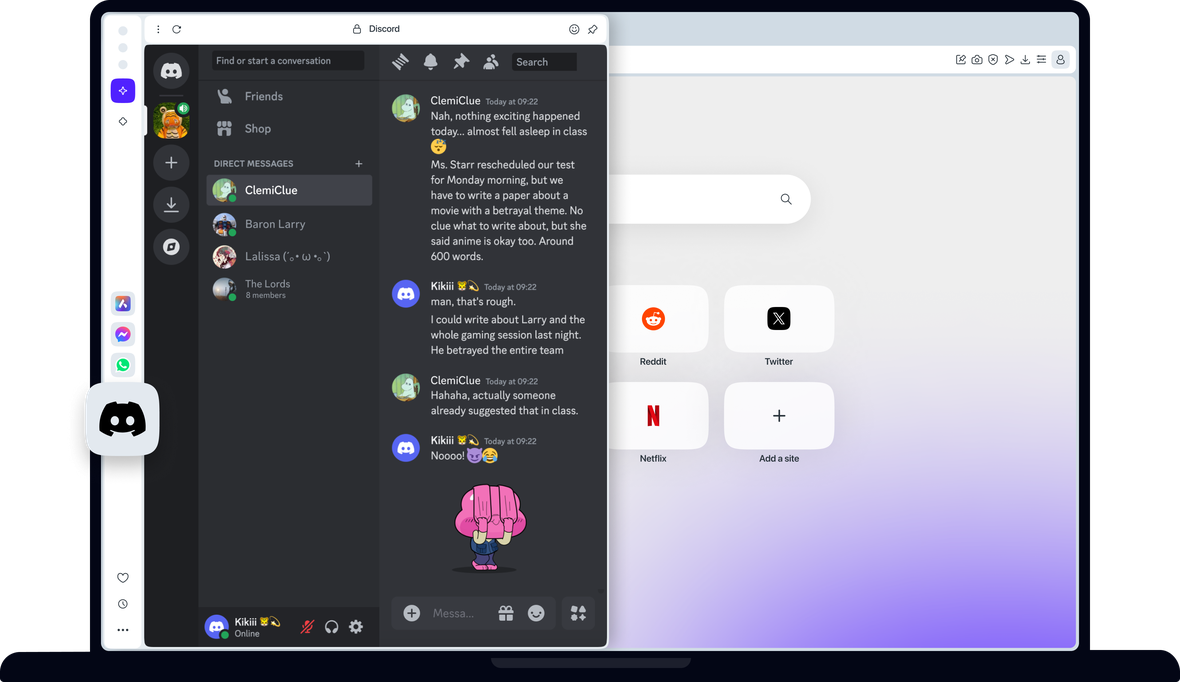
If you've ever tried to coordinate a multiplayer video game match, join a study group, or follow a creator's community update, you've likely bumped into Discord. At its core, what is Discord? It's a free instant messaging and VoIP social platform that lets users interact through voice calls, video calls, text messaging, and media sharing. Originally built for video game players, it's evolved into a general-use hub for all kinds of online communities, from art collectives to cryptocurrency hobbyists and school clubs.
Unlike traditional social media feeds or rigid corporate Slack channels, this application organizes communication around independent, invite-only or public communities called servers. Each server is split into specific channels for different topics, keeping conversations orderly. Whether you're setting up a private chat room for three friends or managing a public community of thousands, understanding how the layout works helps you get the most out of the software.
Understanding Discord Servers and Channels
Every space on the platform exists inside a server. Think of a server as a virtual house, and channels as the individual rooms inside that house.
Servers are managed by owners and moderators who set the rules, assign user roles, and determine permissions. When you join a server, you'll typically see two types of channels lining the sidebar:
- Text Channels: These are designated spaces for typing messages, sharing images, posting links, and dropping emojis. You can pin important messages, react to comments with emoji buttons, and thread conversations so main chat rooms don't get cluttered.
- Voice and Video Channels: Unlike a traditional phone call where you dial a number, these operate as drop-in spaces. You simply click on a voice channel name, and you're instantly connected to anyone else already sitting in that room. You can turn on your webcam, share your computer screen, or stream gameplay with a couple of clicks.
This structure allows large groups to stay organized. Instead of one massive, chaotic stream of text, members can keep gaming talk in one channel, memes in another, and announcements in a dedicated broadcast room.
Core Features That Drive the Platform
The software gained massive popularity because it combines several communication tools into a lightweight, resource-friendly package. Here are the primary features you'll use day-to-day:
- Direct Messages (DMs): Outside of servers, you can message any user privately or start group chats with up to ten people. These function independently of any server membership.
- Screen Sharing and Streaming: Users can broadcast their desktop or mobile screens to friends in DMs or server voice channels. This makes it easy to show a friend how to edit a video, watch a movie together synchronously, or stream a live game session.
- Bots and Automation: Server owners can add automated bots to handle moderation tasks, play music in voice channels, run minigames, or send automated welcome messages to newcomers.
- Cross-Platform Availability: The application runs natively on Windows, macOS, Linux, iOS, Android, and modern web browsers. It also integrates directly with PlayStation and Xbox consoles, letting you join voice parties straight from your gaming hardware.
How to Get Started and Set Up Your Account
Getting up and running takes less than five minutes. You don't even need to download software immediately, as it runs right inside a web browser window.
- Head over to the Discord Download Page and grab the desktop application or mobile app, or simply open the web version.
- Click Register to create a free account using your email address, a username, and a secure password.
- Verify your account via the email confirmation link sent to your inbox.
- Click the plus (+) icon on the left sidebar to create your own server from scratch, or use an invite link provided by a friend or community to join an existing server.
- Adjust your audio settings in the User Settings menu (the gear icon near your username) to ensure your microphone and headphones are selected properly.
Common Mistakes to Avoid
New users often run into a few predictable pitfalls when navigating the platform for the first time. Keep these tips in mind to avoid common frustrations:
- Ignoring Privacy Settings: By default, anyone on a shared server might be able to send you direct messages. Go into your Privacy & Safety settings to block unsolicited DMs from strangers and server members.
- Joining Unvetted Public Servers: Large public spaces can sometimes expose users to spam or malicious links. Always exercise caution before clicking external links shared by unfamiliar accounts.
- Overlooking Audio Input Devices: If your friends can't hear you, it's usually because the app selected the wrong microphone input in settings. Double-check your audio hardware selection before troubleshooting further.
Frequently Asked Questions
Is Discord completely free to use?
Yes, the core communication features—including text chat, voice calls, video streaming, and server creation—are entirely free. The company makes money through an optional monthly subscription called Discord Nitro, which unlocks cosmetic perks like custom emojis, larger file upload limits, and HD video streaming.
Can I use the platform without downloading anything?
Yes. You can access the application directly through supported web browsers like Google Chrome, Mozilla Firefox, or Microsoft Edge without installing software on your computer.
How do people find servers to join?
You can find communities through word-of-mouth, creator websites, social media links, or by using the built-in Server Discovery tab inside the app to browse public communities based on gaming, music, education, and hobbies.
Is it safe for younger users?
The platform offers robust safety tools, including explicit media content filters, blocking features, and family center controls. However, because servers are largely user-moderated, parents should review safety guidelines and help younger users configure strict privacy settings before they join public communities.



