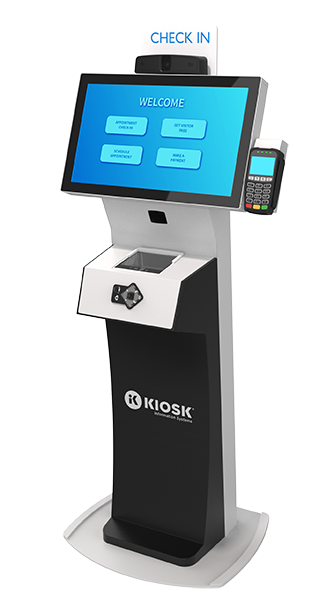
A kiosk is a small, standalone physical structure or computer terminal that provides information, sells products, or handles transactions without requiring a staff member. You interact with these systems almost every day, whether you're ordering fast food, checking into a flight at the airport, or paying for parking downtown.
Understanding what a kiosk is requires looking past the simple touchscreen interface. Modern self-service terminals combine specialized hardware, secure operating systems, and automated software to complete complex tasks in seconds.
What Is a Kiosk? Definition and Evolution
Historically, a kiosk referred to a small open-air pavilion or a staffed street booth selling newspapers and refreshments. The modern definition has shifted entirely toward digital self-service. Today's interactive kiosk is an automated computer terminal equipped with a display—usually a touchscreen—along with specialized peripherals like card readers, barcode scanners, and receipt printers.
The technology evolved to solve a fundamental business problem: scaling customer service without inflating labor costs. By offloading routine data entry and transactions to automated terminals, businesses can process high volumes of users simultaneously. For another perspective on this development, check out the recent coverage from Mashable.
The Core Technology Behind Kiosks
A functioning kiosk relies on a tight integration of physical hardware and locked-down software. If any single layer fails, the terminal becomes unusable or vulnerable to security breaches.
Hardware Components
- Enclosure: A durable housing unit, typically built from steel, heavy-duty plastic, or wood, designed to protect internal components from physical damage, weather, and tampering.
- Display Interface: An interactive touchscreen monitor that handles user input. Most commercial units use projected capacitive touch technology for durability and responsiveness.
- Processing Unit: An internal computer (such as an industrial PC, system-on-chip, or secured tablet) running the primary operating system.
- Peripherals: Integrated hardware addons including EMV chip readers, magnetic stripe readers, barcode scanners, thermal receipt printers, and near-field communication (NFC) modules for mobile payments.
Software and Security (Kiosk Mode)
Public-facing computers cannot run standard desktop operating systems out of the box. If a user can minimize an application or open a web browser, the terminal is compromised.
To prevent this, developers use kiosk mode—a configuration setting that locks the operating system to a single application or a restricted set of approved URLs. Mobile Device Management (MDM) platforms allow IT teams to monitor these endpoints remotely, push automated software updates, and clear user sessions after a period of inactivity to protect personal data.
Real-World Examples You Use Daily
You encounter various types of self-service terminals across daily routines. Each variant is engineered for a specific workflow.
- Quick-Service Restaurant Terminals: Fast-food chains use large touchscreen panels to let customers customize burgers, select side items, and pay via card or phone. This cuts down queue times and increases average order value through automated upselling prompts.
- Transit and Airport Check-In: Self-service airline terminals verify passport data, print boarding passes, and tag luggage without forcing travelers to stand in long ticket-counter lines.
- Healthcare Check-In Desks: Medical clinics and hospital lobbies utilize secure tablets to let patients sign privacy forms, update insurance details, and notify staff of their arrival.
- Retail Price Checkers and Endless Aisles: Department stores deploy stationary screens where shoppers can scan a barcode to check stock availability or order out-of-stock sizes online for home delivery.
- Municipal Parking Meters: Streetside payment stations process license plate numbers, calculate parking durations, and issue printed dashboard receipts.
Common Pitfalls and Implementation Mistakes
Deploying public-facing hardware comes with distinct operational hurdles. Organizations frequently miscalculate software constraints or user behavior.
- Neglecting Accessibility Standards: Designing touch targets that are too high or using tiny fonts alienates users with physical disabilities and violates digital accessibility compliance regulations like the Americans with Disabilities Act (ADA).
- Poor Session Timeouts: If a kiosk doesn't clear user data immediately after an abandoned transaction, the next person in line might view sensitive personal information or financial inputs.
- Inadequate Network Redundancy: Relying solely on unstable wireless connections causes continuous transaction downtime. Hardwired Ethernet connections are mandatory for payment processing stability.
- Ignoring Physical Ergonomics: Placing screens at an awkward angle or failing to account for wheelchair clearance creates immediate friction for customers.
Frequently Asked Questions
What is the difference between an ATM and a kiosk?
An ATM (Automated Teller Machine) is a specialized financial terminal strictly regulated for cash dispensing and banking transactions. A kiosk is a broader term encompassing any interactive self-service terminal used for retail ordering, ticketing, information lookup, or check-ins. All ATMs function as transactional terminals, but not all kiosks handle banking.
How do kiosks handle secure credit card payments?
Kiosks use Payment Card Industry Data Security Standard (PCI DSS) compliant hardware. Card readers encrypt data at the point of swipe or tap, meaning raw credit card numbers are never stored locally on the kiosk’s internal hard drive.
Can a regular tablet be turned into a kiosk?
Yes. Standard tablets running iPadOS or Android can be converted into basic kiosks by placing them inside a secure wall mount or floor stand and enabling native operating system restrictions like Guided Access or App Pinning. However, high-traffic commercial environments typically require heavy-duty enclosures and dedicated enterprise management tools.
What happens if a kiosk loses internet connectivity?
Depending on how the software is configured, offline kiosks may either queue transactions locally until the network reconnects or display an out-of-order screen. Critical payment functions usually require an active, uninterrupted connection to authorize card payments instantly.
For official technical guidelines on securing self-service endpoints, review the NIST Computer Security Resource Center standards. To explore device management frameworks used to lock down modern hardware, visit Microsoft IT Pro Center.



