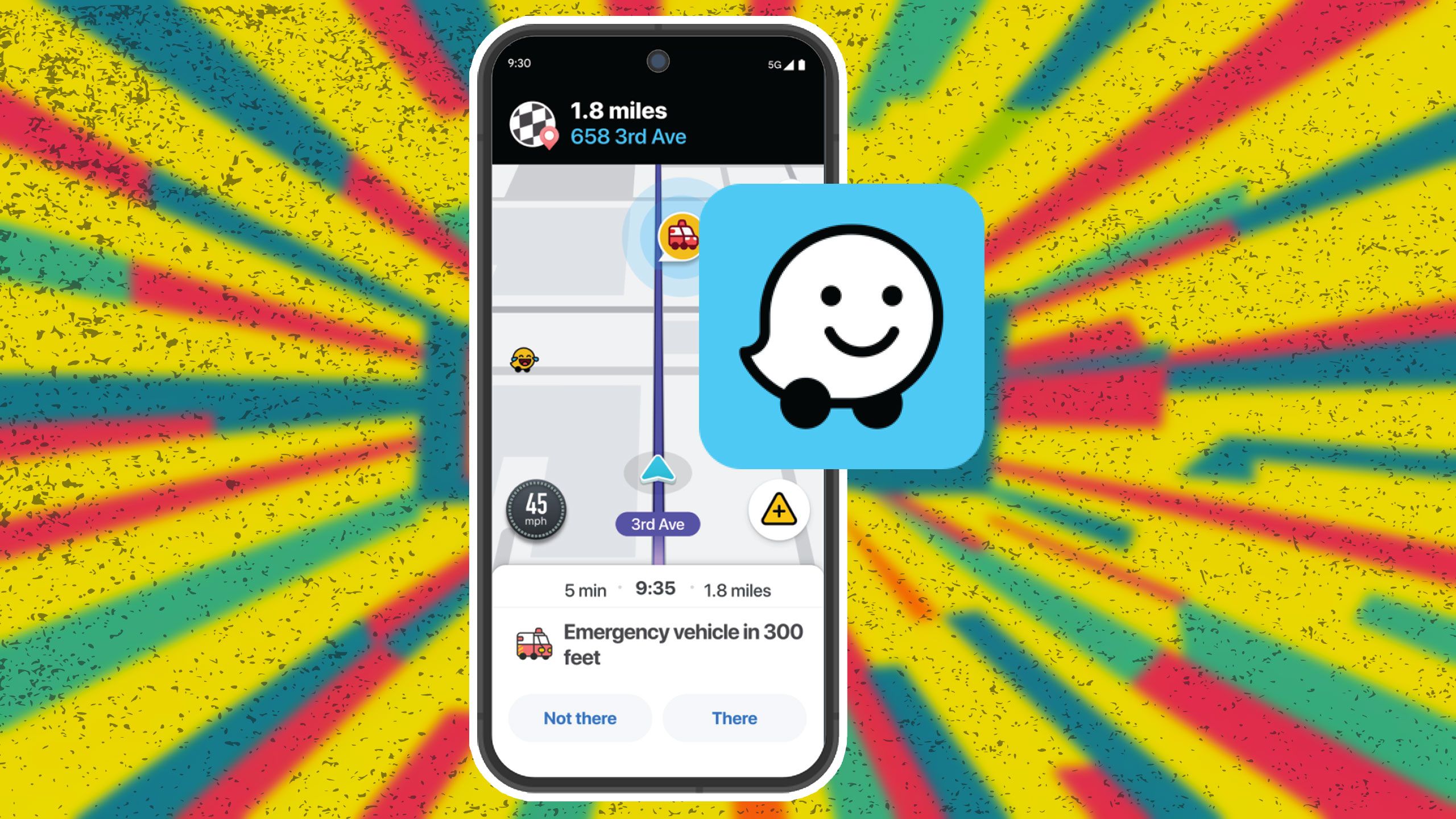
Waze navigation packs let you swap out standard directions for celebrity voices, localized accents, or custom recordings you make yourself. Changing your route audio takes less than a minute through the app settings, but finding the right pack or building a custom option requires knowing where the menus hide.
If you're tired of standard GPS prompts, you can switch languages, download promotional celebrity editions, or record your own voice line by line. Here's how to manage your options, fix missing audio files, and set up custom packs without running into app bugs.
Navigating Waze Audio Categories
Waze splits navigation audio into distinct types. Understanding how they work keeps you from hunting for features the app doesn't support.
Standard built-in voices come preloaded in multiple languages and regional accents. They cover basic prompts like turns and hazards, but they usually don't pronounce specific street names unless you pick a text-to-speech option.
Celebrity and promotional voice packs appear temporarily during film releases or brand partnerships. These packs download directly inside the app menu while active. Once promotional windows close, Waze often removes them from active rotations, though community archives sometimes preserve the audio files.
Custom recorded voices use your phone's microphone to replace standard prompts. You record individual phrases manually, and the app plays your clips back during turns.
How to Change Your Waze Voice
Switching between preinstalled options takes a few taps on iOS or Android devices.
- Open Waze on your phone and tap My Waze or the magnifying glass icon at the bottom of the screen.
- Tap the gear icon in the upper corner to open Settings.
- Scroll down and select Voice & sound.
- Tap Waze voice to open the complete catalog.
- Browse the list of available languages, accents, and special characters.
- Tap your preferred voice. Waze will download the audio files automatically if they aren't already on your device, and the change applies immediately.
If you want text-to-speech capabilities so the app reads street names aloud, look for options explicitly marked as supporting street names in the language menu.
Recording Your Own Custom Voice Pack
If standard options get boring, you can record custom navigation prompts using the built-in recorder.
- Go to Settings > Voice & sound > Waze voice.
- Tap Add a voice near the top of the screen.
- Read the safety prompt and tap OK.
- Name your voice pack so you can identify it later.
- Waze presents a categorized list of navigation phrases, including start-of-drive prompts, distance markers, and turn instructions.
- Tap an individual phrase, tap the red recording button, speak clearly into your phone's microphone, and hit stop.
- Play back your recording to check audio quality. Re-record if there's background noise, then tap Save.
You don't have to record every single line in one sitting, but any unrecorded phrases default to the standard app voice until you fill them in.
Troubleshooting Common Audio Glitches
Waze audio packs occasionally run into playback bugs or missing files. Here's how to fix the most frequent issues:
- Dual-voice glitch: If Waze suddenly alternates between two different voices during a single trip, go back into Settings > Voice & sound and re-select your preferred voice. Clearing the app cache or restarting your phone usually stops the overlap.
- Missing prompts: Custom voices can sound disjointed if phrases were skipped during recording. Open your custom voice settings to verify that every required action has a saved audio file attached.
- Corrupted downloads: If a downloaded voice cuts out halfway through instructions, delete the pack, restart the app, and download it again over a stable Wi-Fi connection.
Frequently Asked Questions
Can I download third-party celebrity voices from the internet?
Official voice packs must be downloaded directly through the Waze app settings. While community forums share extracted audio files, importing external files manually isn't officially supported on modern app versions and can cause playback errors.
Do Waze voices work without an internet connection?
Once a voice pack finishes downloading to your device, it works offline for standard navigation. However, you need an active cellular or Wi-Fi connection to download new packs or update existing ones.
Why won't my custom voice play street names?
Custom voice packs consist entirely of your own manual audio recordings. Because they rely on static sound files rather than dynamic text-to-speech software, they cannot dynamically spell out unique or unfamiliar street names.
How do I delete a custom voice I created?
Navigate to Settings > Voice & sound > Waze voice, locate your custom pack in the list, and select the delete or remove option to clear it from your device storage.



