Skipping the checkout queue entirely sounds like a luxury reserved for premium club stores, but it's available directly on your phone at Walmart. If you're tired of waiting behind overloaded carts while cashiers slowly scan items, the built-in mobile scanning feature within the official app lets you scan, bag, and pay as you move through the aisles.
Yet, figuring out how to access the feature, what membership requirements apply, and how receipt checks work at the exit can be confusing. This breakdown covers everything you need to know to use Walmart Scan & Go smoothly without running into app glitches or register errors.
What Is Walmart Scan and Go?
Walmart Scan and Go is a mobile checkout feature embedded inside the Walmart app. Instead of unloading your items onto a conveyor belt at the front of the store, you use your smartphone camera to scan barcodes on products as you pick them off the shelves.
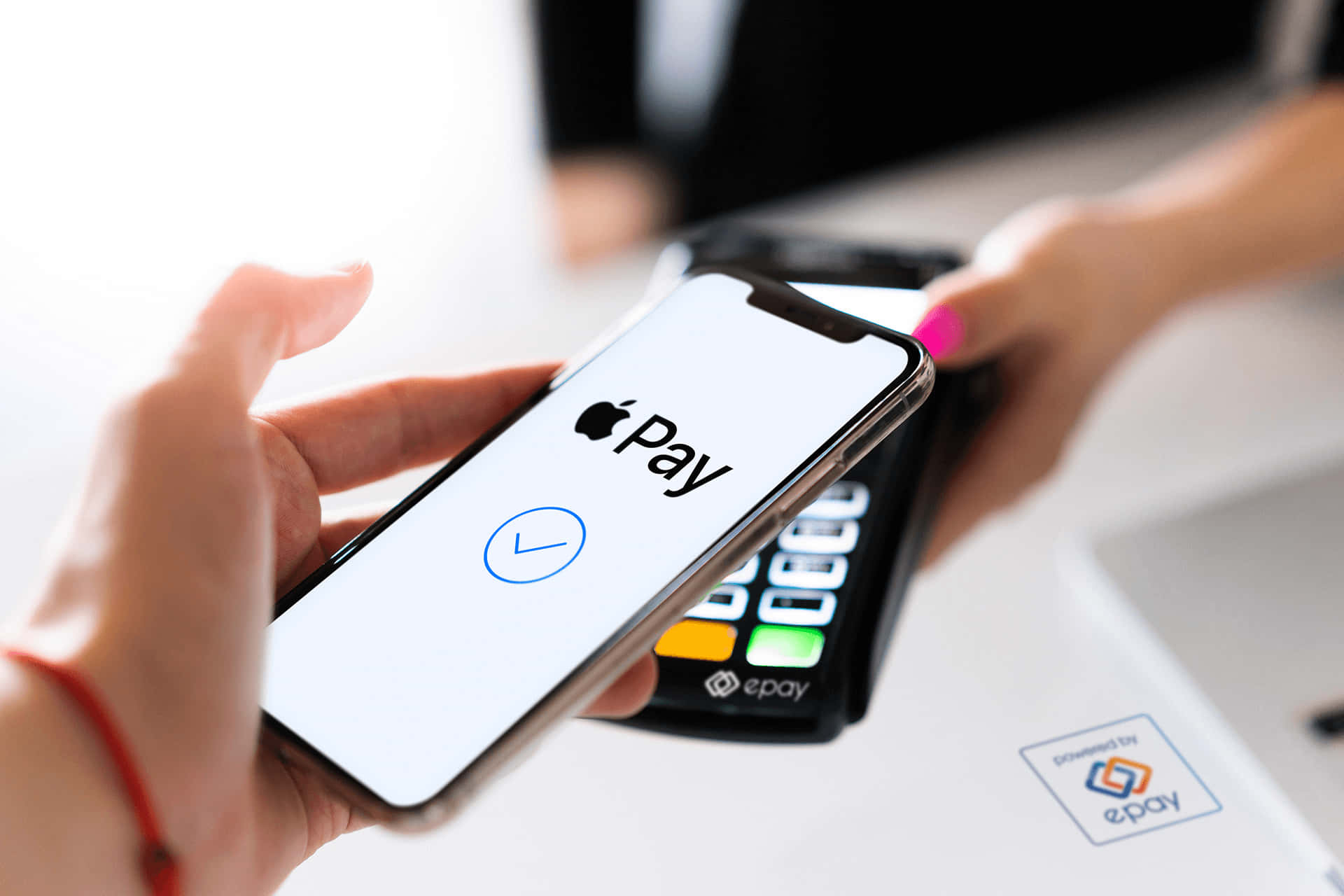
Once your items are in your cart, you pay digitally using a saved credit card, debit card, or mobile wallet like Apple Pay or Google Pay. You then receive a digital barcode, which you show to the associate at the exit door for a quick verification before walking out.
Membership Requirements
The feature requires an active Walmart Plus membership. While basic browsing and standard shopping lists on the app are free for everyone, the mobile checkout and scan-as-you-go capability is locked behind the subscription tier.
If you aren't a subscriber, opening the feature in-store will prompt you to join or start a free trial. Once subscribed, the tool unlocks automatically inside your local store interface.
Step-by-Step Instructions: How to Use Scan and Go
Using mobile checkout takes only a few minutes to learn. Follow these exact steps during your next shopping trip to avoid friction at the registers.
- Open the app and set your store: Launch the Walmart app on your phone and ensure your local store is correctly selected at the top of the screen. Prices and inventory can vary by location.
- Launch the feature: Tap the search bar or navigate to services in the app, and select Scan & Go. You can also tap the barcode scanner icon directly on the main screen when you walk through the sliding doors.
- Scan items as you shop: Point your phone camera at the barcode of each item you place into your cart or shopping bags. The app will display the unit price, tax, and a running total at the bottom of your screen.
- Handle weighted items: For produce items priced by weight (like apples or bananas), place them on the produce scale first, select the item category in the app, enter the weight or quantity displayed on the scale, and the app will generate a barcode or price tag to scan.
- Review and checkout: Tap the cart icon when you're finished shopping. Review your item list, verify discounts or coupons, and select your preferred payment method.
- Scan the register QR code: The app will prompt you to scan the large QR code displayed on the screen of any self-checkout register near the exit to finalize your payment transaction.
- Show your exit pass: The app generates a animated QR receipt code. Show this screen to the employee stationed at the exit door scanner before you exit the building.
Outbound References & Further Reading
For official updates on retail technology and store policies, consult these authoritative resources:
- Learn more about store perks and shipping benefits on the official Walmart Help Center.
- Read retail industry analysis and consumer trends via Reuters Retail Coverage.
- Review consumer rights and digital receipt standards through the Federal Trade Commission.
Common Mistakes to Avoid
Even though mobile checkout is designed to save time, small errors can cause frustrating delays at the exit door or trigger payment blocks.
- Forgetting to scan weighted produce: Trying to scan a regular sticker on loose vegetables won't work. Always weigh produce at the designated station and input the exact weight into the app.
- Ignoring Wi-Fi or cellular signal drops: Large concrete supercenters can have dead zones. Make sure your phone's data connection is stable while shopping, or connect to the free in-store Wi-Fi network before you start scanning.
- Failing to scan the register QR code: Many shoppers try to pay entirely in their hands and walk out. You must scan the physical register terminal at the end of the trip to complete the transaction handshake with the store's POS system.
- Leaving bags unorganized: Keep your items grouped neatly in your cart. When the exit associate asks to inspect a few items against your digital receipt, having a messy cart makes the random check take longer than necessary.
Frequently Asked Questions
Do I need a Walmart Plus membership for Scan and Go?
Yes. Mobile checkout functionality is restricted to active Walmart Plus members. Free accounts can use the app for standard online ordering and store navigation, but in-store scanning requires the subscription.
How does the exit check work?
When your payment goes through, the app displays a moving, color-coded QR code. The exit greeter or receipt checker will scan this code with their handheld device. They may randomly select one or two items in your cart to verify against your digital receipt.
Can I use coupons or gift cards with mobile checkout?
Digital coupons linked directly to your Walmart account apply automatically during checkout. However, physical paper manufacturer coupons or certain store-issued gift cards cannot always be processed through the mobile interface, requiring a traditional register instead.
What happens if an item doesn't scan?
If a barcode is damaged or won't scan, you can manually type the Universal Product Code (UPC) number printed beneath the barcode into the app search field. If the item still fails to register, you'll need to purchase it at a standard checkout lane.