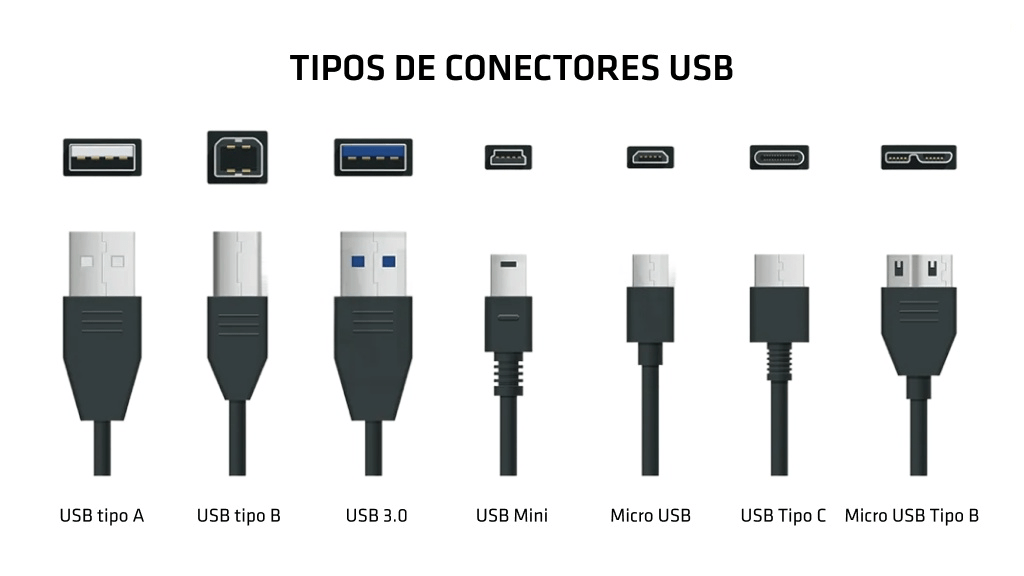
Understanding USB-C Ethernet Performance
When Wi-Fi stutters during an important video call or a large file transfer crawls to a halt, you don't need another software update. You need a physical connection. A USB-C Ethernet adapter bypasses wireless congestion by routing your internet traffic through a direct copper cable. This hardware link delivers stable gigabit speeds, lower latency, and freedom from intermittent signal drops caused by physical obstructions.
Modern laptops are thinner than ever, which means manufacturers routinely omit dedicated RJ45 Ethernet ports in favor of streamlined profiles. While this design choice saves space, it leaves professionals, gamers, and remote workers stranded on crowded wireless networks. Plugging an Ethernet adapter into a USB-C port restores wired reliability instantly without requiring internal hardware modifications.
Why Wired Connections Still Outperform Wi-Fi
Wireless protocols like Wi-Fi 6 and Wi-Fi 7 offer impressive theoretical speeds, but real-world performance depends heavily on your environment. Walls, interference from Bluetooth devices, and network congestion from neighboring routers degrade wireless stability. A wired connection avoids these variables entirely.
When you plug in an adapter, your device establishes a dedicated communication channel with your router or switch. This dedicated channel eliminates packet loss and jitter. For activities requiring rapid data transmission, such as competitive gaming, remote desktop access, or uploading multi-gigabyte video files, a wired connection provides a distinct advantage.
- Consistent Bandwidth: Unlike wireless signals that fluctuate based on distance and interference, copper cables maintain uniform data rates over standard distances.
- Minimal Latency: Ping spikes disappear, resulting in near-instantaneous response times for online applications.
- Full-Duplex Transmission: Wired connections send and receive data simultaneously at maximum rated speeds without splitting radio frequencies.
Technical Specifications and Adapter Types
Not all adapters perform identically. Choosing the right hardware depends on your specific networking equipment and workflow demands. Understanding chipsets and speed ratings prevents you from accidentally bottlenecking your internet connection.
Gigabit Versus Fast Ethernet
Older or budget-friendly adapters often cap out at 10/100 Mbps (Fast Ethernet). If you pay an Internet Service Provider for speeds exceeding 100 Mbps, a Fast Ethernet adapter will throttle your connection. Look explicitly for adapters supporting Gigabit Ethernet (10/100/1000 Mbps) or 2.5 Gigabit Ethernet to match modern fiber and cable modem speeds.
Chipset Considerations
Operating systems interact with hardware via specific controllers. Adapters built with Realtek or ASIX chipsets are widely supported across Windows, macOS, and Linux. Linux distributions and enterprise environments often favor ASIX chipsets for native driver support in minimal kernel installations.
Power Delivery Pass-Through
Many slim laptops feature only one or two USB-C ports. If you plug an Ethernet adapter into your only port, you lose the ability to charge your device. Multiport adapters, often called dongles or docks, feature a USB-C Power Delivery (PD) charging port alongside the RJ45 jack. These allow you to charge your laptop and maintain a wired network connection simultaneously. According to specifications from the USB-IF, Power Delivery standards can safely route up to 240W depending on the cable and charger used.
Installation and Driver Setup
Most USB-C Ethernet adapters operate on a plug-and-play basis, but minor configuration steps ensure optimal performance across different operating systems.
[Laptop USB-C Port] ---> [USB-C Ethernet Adapter] ---> [Cat6 Cable] ---> [Router/Switch]
Windows Setup
When you plug the adapter into a Windows 11 machine, the operating system usually installs the necessary drivers automatically via Windows Update. If the network icon in your taskbar doesn't switch from Wi-Fi to Ethernet within ten seconds, open the Device Manager to check for missing network adapters with yellow warning flags. You can download certified drivers directly from the manufacturer's support site, such as Intel.
macOS Configuration
Apple silicon Macs handle USB-C network accessories natively. Once connected, navigate to System Settings > Network to verify that a new USB 10/100/1000 LAN interface appears in the sidebar. Ensure the service order prioritizes Ethernet over Wi-Fi so your Mac defaults to the wired connection whenever it's plugged in.
Linux Troubleshooting
Most modern Linux kernels include open-source drivers for common Ethernet chipsets. If your interface doesn't initialize, open a terminal and run the command ip link to see if the kernel detects the physical device. If it appears as eth0 or enp0s20f0, you can bring the interface up manually using network management utilities like NetworkManager or systemd-networkd.
Common Mistakes and How to Avoid Them
Even with straightforward hardware, small oversights can ruin your network performance. Avoiding these pitfalls saves troubleshooting time.
- Using Low-Quality Cables: Connecting a gigabit adapter to your router with an old Cat5 cable limits your maximum speed to 100 Mbps. Always use Cat5e, Cat6, or Cat6a cables for gigabit throughput.
- Ignoring USB Port Speeds: Plugging a high-performance 2.5G Ethernet adapter into an older USB 2.0-compatible Type-C port caps your data transfer rate at USB 2.0 speeds (around 480 Mbps theoretical, much lower in practice). Ensure you plug into a USB 3.0 or Thunderbolt port.
- Failing to Disable Wi-Fi: Some operating systems maintain active Wi-Fi connections even when an Ethernet cable is plugged in, leading to routing conflicts. Turn off Wi-Fi manually when testing wired speeds.
Frequently Asked Questions
Do USB-C Ethernet adapters work with tablets and smartphones?
Yes. Most modern iPads, Android tablets, and smartphones running USB-C support plug-and-play Ethernet adapters. This provides a stable, zero-latency internet connection for mobile devices when local Wi-Fi is unavailable or insecure.
Can a USB-C Ethernet adapter improve my gaming ping?
It won't lower your base latency below what your internet service provider delivers, but it will eliminate ping spikes and packet loss caused by wireless interference. This results in a much more stable gaming experience.
Why is my adapter getting warm during use?
Ethernet adapters process high-speed data packets continuously, which generates heat. Metal-cased adapters dissipate this heat more efficiently than plastic ones. Mild warmth is normal during heavy file transfers or video streaming.
Do I need to install software drivers before plugging it in?
In most cases, no. Windows, macOS, ChromeOS, and modern Linux distributions contain built-in drivers for standard network chipsets. You only need manual drivers if your operating system is offline and lacks built-in generic drivers for specialized enterprise hardware.



