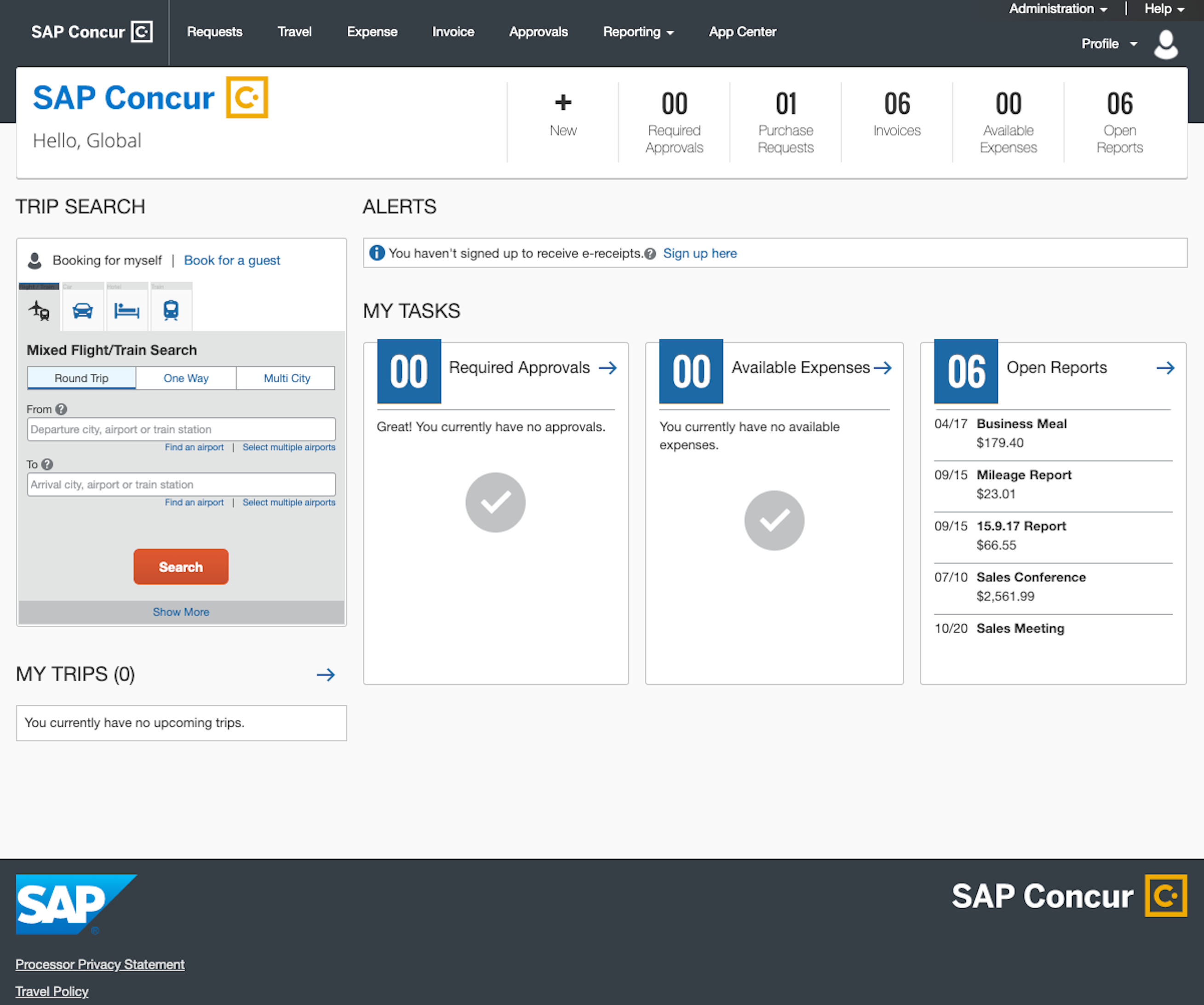
Navigating campus expense management at the University of California, Santa Barbara requires mastering the UCSB Concur platform. Whether you're a student employee tracking conference travel or a staff member processing department entertainment costs, manual paper forms are a thing of the past. This guide breaks down how the system works, how to avoid common reimbursement delays, and how to use the tool efficiently.
The transition to digital expense tracking means every travel authorization, procurement card reconciliation, and reimbursement request flows through a centralized digital pipeline. Understanding how to set up your profile, attach valid documentation, and route approvals correctly will save you weeks of administrative back-and-forth.
Accessing and Setting Up Your UCSB Concur Account
Before you can submit any paperwork, you need to ensure your profile is active and configured correctly. Accessing the platform is tied directly to your campus credentials, but new hires often experience a brief waiting period while HR and payroll systems sync.
Login and Initial Profile Setup
You can log into the portal directly through the UCSB Business & Financial Services Portal. Use your campus Single Sign-On (SSO) credentials. Once you're inside, take these immediate steps:
- Verify your legal name: It must match your university payroll records to prevent reimbursement rejections.
- Add your banking information: Set up direct deposit for faster payouts. Reimbursements won't go to your student financial account; they require a separate direct deposit setup for travel and business expenses.
- Assign delegates if needed: If you're a faculty member or busy researcher, you can assign a preparer delegate to build reports on your behalf, though you must submit them yourself.
Understanding User Roles
Different campus members have distinct permissions within the portal. Regular employees, student workers, and sponsored affiliates interact with the software based on their departmental mapping. Make sure your default accounting code (chartstring) is set correctly in your profile preferences to route expenses to the right departmental budget automatically.
Submitting Travel and Entertainment Reimbursements
Submitting a claim requires more than just uploading a receipt. Campus policy dictates strict timelines and documentation standards that the software enforces automatically.
Pre-Authorizations and Travel Requests
For any official university travel, you must submit a Travel Request in the system before your trip occurs. Skipping this step can jeopardize your ability to get reimbursed later.
- Enter your exact travel dates, destination, and estimated costs for lodging, airfare, and per diem.
- Link any conference registration fees directly to your departmental funding source.
- If you plan to use a campus Travel & Entertainment Card, ensure the card is linked to your profile beforehand.
Building and Submitting Expense Reports
Once your trip or event concludes, you have a limited window—typically 30 days under standard university guidelines—to submit your expense report.
- Match every out-of-pocket expense with an itemized receipt. Credit card slips that only show total amounts are generally rejected by auditors.
- Categorize expenses accurately, separating lodging, meals, and transport.
- For group entertainment expenses, list every attendee's name and affiliation directly in the report fields.
Leveraging Mobile Tools and Receipt Capture
Managing paperwork on the go is much easier when you use the official mobile applications linked to the expense ecosystem.
Using the SAP Concur Mobile App
You can download the SAP Concur app from your device's app store. To sync it with your university account:
- Log in using your institutional SSO credentials.
- Use the ExpenseIt feature to snap photos of paper receipts immediately after a purchase.
- The software will automatically read the vendor, date, and amount, generating a line item for your review.
Pairing with TripIt Pro
If you travel frequently for academic conferences, connect your profile to TripIt. Forward your flight and hotel confirmation emails to plans@tripit.com, and the app will automatically build a master travel itinerary that feeds directly into your portal data, cutting down manual data entry.
Common Mistakes That Cause Reimbursement Delays
Even with a streamlined digital platform, human error frequently stalls payouts. Watch out for these pitfalls:
- Missing itemized receipts: Uploading a credit card receipt instead of the restaurant's itemized bill is the number one cause of rejection.
- Exceeding per diem limits: Meals purchased outside of allowable conference per diem rates without prior departmental exception will be out-of-pocket losses.
- Forgetting the business purpose: Vague descriptions like "dinner" will trigger an audit flag. Always specify who met, why it benefited the university, and what was discussed.
- Delegating final submission: While delegates can build and prepare reports, the traveler or cardholder must personally log in and click submit to satisfy compliance certifications.
Frequently Asked Questions
How long does it take to receive my reimbursement?
Once your supervisor and department approver sign off, and the central accounting office processes the file, direct deposits typically hit bank accounts within 3 to 5 business days. Delays usually happen when a receipt is missing or coding is incorrect.
Can students who aren't formal employees use this system?
Students traveling for authorized university business or presenting research funded by a department can be set up as non-employee guest travelers or sponsored affiliates by their department administrator to receive expense reimbursements.
What should I do if a transaction doesn't show up on my T&E Card?
Transactions made on a campus procurement or travel card take 2 to 3 business days to populate in your available expenses list. Don't create manual out-of-pocket entries for official card charges; wait for the feed to sync.
Who should I contact if my expense report gets stuck in approval?
If an expense report sits unapproved for more than a week, check the workflow tab to see whose queue it's sitting in. Reach out directly to your department's financial coordinator or submit a ticket through the UCSB ServiceNow Support Portal.



