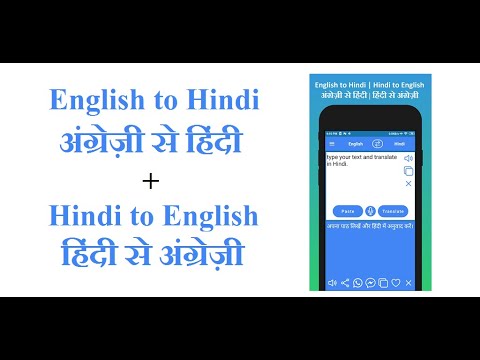
Typing in Nepali using a standard QWERTY English keyboard doesn't require memorizing a complex physical layout or buying custom hardware. You can convert English keystrokes into Devanagari script instantly using phonetic transliteration tools, browser extensions, or built-in operating system settings.
Most people encounter friction when trying to type conjunct characters, handle half-letters, or switch seamlessly between languages on Windows, Mac, or mobile devices. This guide covers exact setup steps, phonetic mapping rules, common typing mistakes, and solutions for every major platform.
How Phonetic Transliteration Works
Phonetic transliteration maps the sound of an English word to the corresponding Nepali character. When you type "namaste", the software reads the phonetic sound and converts it into नमस्ते rather than translating the literal meaning.
This approach works because Nepali and English share phonetic roots within the Indo-European language family. Consonants and vowels have direct acoustic equivalents, though mapping requires specific combinations for aspirated sounds and dependent vowels.
- Direct mapping: Typing "a" outputs अ, "ka" outputs क, and "ma" outputs म.
- Vowel modifiers: Adding trailing characters alters the base consonant sound, such as "ki" for कि or "ko" for को.
- Halant suppression: Typing special combinations handles half-letters and complex conjuncts like "tra" for त्र.
Built-In Operating System Setup
You don't always need third-party apps. Modern operating systems include native language packs that enable Nepali input instantly.
Setting Up Nepali on Windows
Windows includes a built-in Microsoft Indic Language Input Tool and phonetic keyboard layouts.
- Open Settings from your Start menu.
- Navigate to Time & Language, then select Language & Region.
- Click Add a language, search for "Nepali", and install the language pack.
- Switch to the Nepali keyboard layout using the taskbar language indicator or the shortcut
Windows Key + Spacebar.
Configuring Nepali on macOS
Apple computers support Devanagari input natively through built-in keyboard sources.
- Open System Settings and click on Keyboard.
- Under Text Input, find Input Sources and click Edit.
- Click the plus button, search for "Nepali", and choose the Nepali - Romanized or standard layout.
- Use the input menu in the top menu bar or
Control + Spaceto toggle between English and Nepali.
Web-Based and Browser Solutions
If you're using a public computer or prefer not to change system settings, browser tools offer instant Nepali typing.
Google Input Tools and Browser Extensions
Google Input Tools provides reliable phonetic conversion across web browsers without permanent installations.
- Install the Google Chrome browser if you haven't already.
- Add the official Google Input Tools extension from the Chrome Web Store.
- Pin the extension, select Nepali from the language menu, and type phonetically inside any text box on the web.
Online Unicode Converters
Websites like Nepali Unicode allow you to type romanized text in a dedicated box and copy the resulting Devanagari script into documents, emails, or social media posts. This method requires zero setup and works on any device with an internet browser.
Mobile Keyboard Implementation
Typing Nepali on smartphones is often faster than on desktop computers because mobile keyboards feature predictive text and swipe typing.
- Android: Open Settings, go to System, select Languages & input, and add Nepali to your virtual keyboards. Alternatively, download Google Gboard and add the Nepali language layout with phonetic input enabled.
- iOS: Open Settings, tap General, select Keyboard, choose Keyboards, and add Nepali from the list of available options.
Handling Complex Conjuncts and Half-Letters
The hardest part of typing Nepali on an English keyboard is mastering half-letters (adha akshar) and conjunct consonants like क्ष, त्र, and ज्ञ.
- The Halant (Virama): To force a consonant to appear as a half-letter without an inherent "a" vowel sound, type the halant key or use a virama character (represented by
}or+depending on the layout). For example, typing "k" followed by a halant and "s" forms क्ष्. - Special Consonants: Standard phonetic mappings assign compound characters to single keys or intuitive combinations. Typing "gy" produces ज्ञ, and "sh" produces श or ष depending on capitalization.
- Independent Vowels: To start a word with an independent vowel sound like "ī", type "ii" or use capital letters according to your specific input tool's reference chart.
Common Mistakes to Avoid
- Relying on literal translation: Tools translate sounds, not grammar. Typing English words directly will result in broken phonetic output. Stick to romanized spelling rules.
- Ignoring font encoding: Older websites use non-Unicode fonts like Preeti. Always use Unicode (UTF-8) so your Nepali text displays correctly across all modern devices and operating systems.
- Mixing keyboard layouts: Switching between traditional Devanagari layouts and Romanized phonetic layouts causes typing errors. Pick one system and practice consistently.
Frequently Asked Questions
Do I need to install a special font to view Nepali text?
No. Modern operating systems and web browsers support Unicode (UTF-8) natively. As long as the text is written in Unicode Nepali, it will display correctly on phones, tablets, and computers worldwide.
What is the difference between Romanized Nepali and Traditional Nepali layouts?
Romanized layouts allow you to type phonetically using English sounds (typing "nepal" for नेपाल). Traditional layouts map physical English keys to specific Devanagari characters based on typewriter standards, requiring you to memorize a brand-new key arrangement.
Why are my Nepali characters showing up as question marks?
This happens when old software or text editors don't support UTF-8 encoding. Ensure your document editor or website backend is set to UTF-8 Unicode to prevent character corruption.
Can I use voice typing for Nepali instead?
Yes. Both Google Docs and mobile keyboards like Gboard support voice typing in Nepali. Speak clearly into your microphone, and the software will transcribe your spoken words directly into Devanagari script.