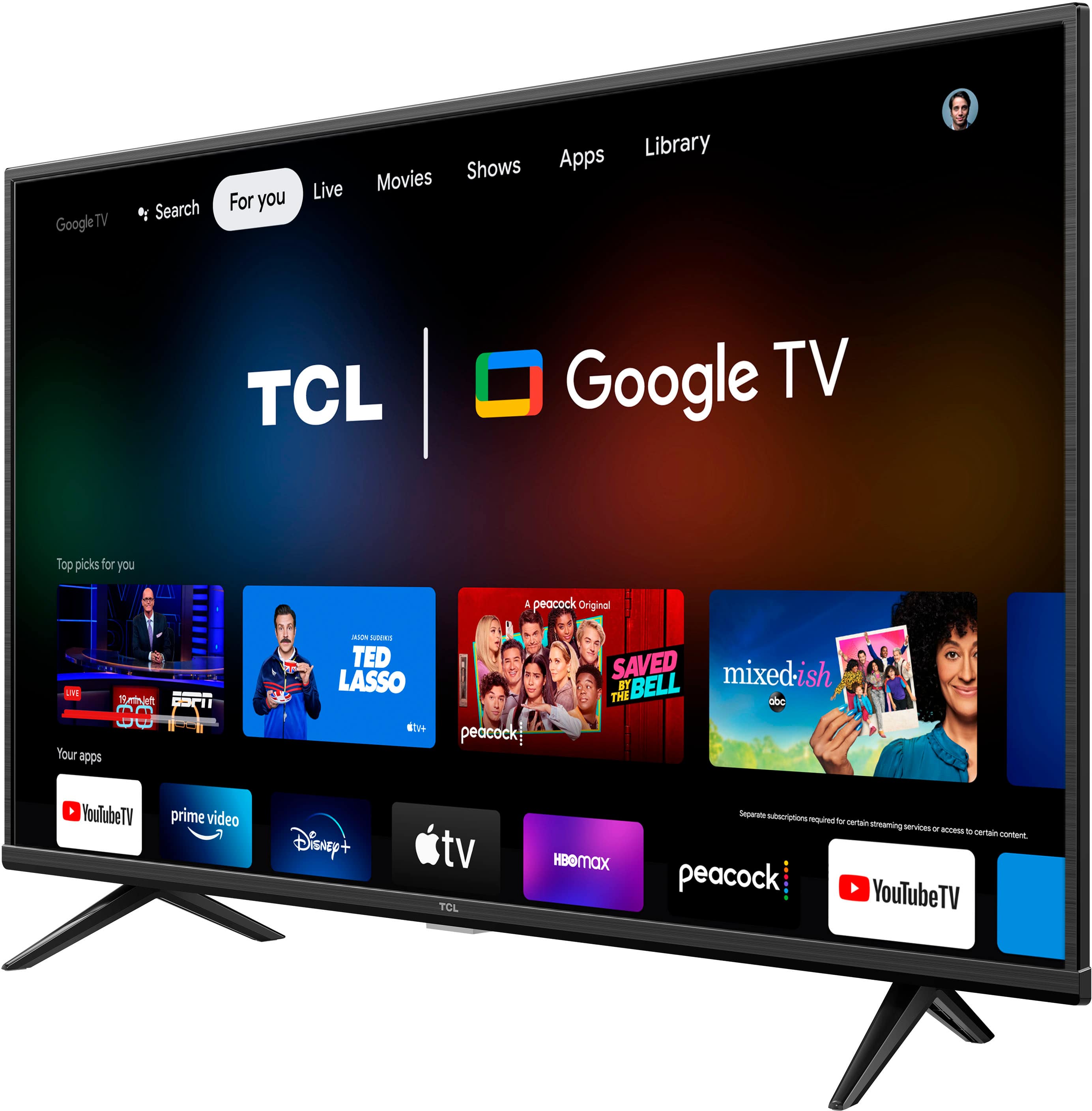
When your screen suddenly flashes a prompt telling you to run a channel search, it usually means your television's internal tuner can't locate any active broadcast frequencies. You're left staring at a blank screen or an error loop, wondering what happened to your shows. This message pops up most frequently on over-the-air antenna setups, secondary inputs, or after a recent software glitch wipes out saved tuner memory.
Understanding why this happens takes less time than running the actual fix. Let's break down the exact root causes behind this annoying prompt and walk through practical steps to clear it for good.
Why Your TV Displays the Scan Message
Your television relies on an internal component called a tuner to decode broadcast signals into picture and sound. When it displays a warning telling you to scan, it's signalling a disconnect between its software memory and the incoming signal source.
The Wrong Input Source Selected
This is the most common culprit by a wide margin. Modern smart TVs feature multiple input slots like HDMI 1, HDMI 2, and AV. If you accidentally switch your active input to "Live TV" or "Antenna" while your cable box, satellite receiver, or streaming stick remains plugged into an HDMI port, the TV's tuner looks at an empty antenna jack. Finding nothing, it demands a channel scan.
Cleared Tuner Memory After Power Outages or Resets
Television tuners store mapped frequencies in volatile or semi-volatile memory. If your house experiences a brief power surge, or if you performed a soft reset, the TV might wipe its stored channel list. Without that cached data, the software assumes it's being set up for the first time and forces you back to the scanning wizard.
Loose Coaxial Cables or Damaged Antennas
If you actually watch free over-the-air TV using a digital rooftop or indoor antenna, the physical connection matters immensely. A slightly loose coaxial cable or a shifted antenna element causes signal strength to drop to zero. Once the tuner loses the carrier frequency, it prompts you to search for new channels to rebuild its database.
Step-by-Step Troubleshooting Guide
You don't need a professional technician to fix this error. Work through these targeted actions to restore your picture.
1. Switch Away from the Antenna Input
Before you touch any settings menu, check what source your TV is currently displaying.
- Grab your remote and press the Input or Source button.
- Look at the active selection on screen. If it's set to TV, Antenna, or Air, but you use a separate box, change it.
- Select the exact HDMI port (for example, HDMI 1 or HDMI 2) where your cable box, streaming device, or satellite receiver plugs in.
2. Verify Your Coaxial Connection
If you rely on an indoor or outdoor antenna for local broadcasts, the physical link deserves a close inspection.
- Unplug the round coaxial cable from the ANT/CABLE port on the back of your television.
- Inspect the tiny copper pin inside the connector. It shouldn't be bent or pushed inward.
- Screw the connector back on finger-tight. Ensure it isn't crooked, which prevents a clean electrical contact.
3. Run a Proper Channel Auto-Scan
If you genuinely use an antenna and need to pull in local networks, you must let the TV complete its search process without interruption.
- Press the Menu or Settings button on your remote control.
- Navigate to the Broadcasting, Channels, or Setup tab.
- Select Auto Tune or Channel Scan.
- Choose Antenna (rather than Cable) if prompted, then let the progress bar run all the way to 100 percent without changing the channel or turning off the screen. For official guidelines on broadcast frequencies, check the Federal Communications Commission.
4. Perform a Hard Power Reset
Sometimes the internal operating system gets stuck in a loop and refuses to recognize saved channels even after you plug everything in correctly.
- Unplug your television's power cord directly from the wall outlet.
- Leave it completely unplugged for a full 60 seconds to drain residual electrical charge from the capacitors.
- While it's unplugged, press and hold the physical power button on the TV chassis for 15 seconds.
- Plug the cord back into the wall and turn the set on.
Preventing Future Channel Dropouts
Once you clear the error message, you want to keep it from coming back next week. Broadcasters occasionally shift frequencies or update PSIP data, which can temporarily disrupt reception.
If you use an indoor antenna, keep it positioned near an exterior wall or window. Large appliances, thick concrete walls, and metal studs block high-frequency digital signals. For deeper hardware troubleshooting help or brand-specific menu paths, consult the Consumer Technology Association.
Frequently Asked Questions
Why does my TV ask to scan channels every time I turn it on?
This usually happens because your TV defaults to the built-in tuner input upon startup instead of your cable box input. Check your settings menu for a "Power On" or "Startup Input" option and lock it to your preferred HDMI port.
Can I skip the channel scan if I don't use an antenna?
Yes. If you see the scan prompt while using streaming boxes or cable boxes, it means you're simply on the wrong video channel. Change your input source to HDMI, and the warning will disappear immediately.
Why did my working channels suddenly disappear?
Local broadcast towers occasionally update their transmission frequencies or bandwidth allocations. When this happens, your TV's saved map becomes outdated, requiring a fresh auto-scan to locate the new signal paths.
Do I need internet access to run a channel scan?
No. An over-the-air channel scan uses the internal digital tuner to capture radio frequency waves floating through the air via an antenna. It operates independently of your home Wi-Fi network.



