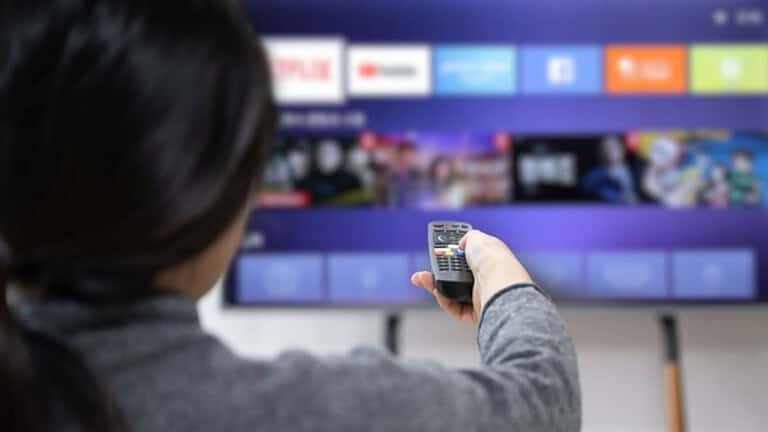
Dealing with a sudden blue screen on your television can instantly ruin your evening entertainment. If you use Sky TV services, a blue screen usually means your display panel is receiving power and working normally, but it's failing to receive a proper audio-video signal from your Sky Q box, Sky Stream puck, or older set-top box. You don't need to call a technician right away. Most of these signal disconnects stem from loose hardware connections, temporary handshake errors between devices, or minor software freezes that you can resolve in a few minutes.
To fix your Sky TV's blue screen issue in an instant, you need to isolate whether the fault lies in your HDMI cable, your television's input source selection, or the Sky box itself. When your screen turns completely blue or displays a "No Signal" banner alongside a blue background, start by checking your physical hardware. Loose plugs are remarkably common. Dust, minor vibrations from household traffic, or accidental cable nudges while cleaning can cause HDMI leads to slip just a fraction of a millimeter out of port alignment. This microscopic shift breaks the digital data transmission between your box and your screen.
Inspecting Physical Connections and HDMI Handshakes
Begin your troubleshooting process at the back of your television and your Sky box. Unplug the HDMI cable from both ends completely. Look inside the ports for any dust buildup or bent pins. Firmly push the connector back into HDMI Port 1 or HDMI Port 2, making sure it clicks or seats flush. If you have a spare HDMI cable lying around in a drawer, swap out the current one. Faulty or degraded copper wires inside cheap cables frequently fail to carry high-bandwidth HDCP signals, resulting in blank or blue screens.
Next, verify your television input channel. Modern televisions feature multiple HDMI inputs, and it's remarkably easy to switch channels by accidentally pressing a button on your TV remote rather than your Sky remote. Press the Input or Source button on your television remote and cycle through HDMI 1, HDMI 2, and HDMI 3 until your Sky interface reappears. If your television came with setup instructions from an installer, confirm you're tuned to the exact port designated for your equipment.
If your physical setup looks correct and your input source matches, the problem is likely an HDMI handshake failure. This occurs when your TV and your Sky device fail to synchronize their digital copy-protection credentials. To clear a frozen handshake, power down both your television and your Sky box completely. Unplug both power cords from the wall outlets. Wait for at least sixty seconds to allow the internal capacitors to drain fully. Plug your television back in first, turn it on, and then plug your Sky box back into the wall outlet. This sequence forces both devices to negotiate a fresh digital handshake when they boot up.
Performing a Power Cycle on Sky Q and Sky Stream
If a standard restart doesn't clear the blue screen, you'll need to perform a complete system reboot tailored to your specific Sky hardware model. Sky Q boxes and newer Sky Stream devices handle software states differently, meaning the reset process requires exact steps.
For Sky Q users experiencing persistent blue screens across all channels, follow this procedure:
- Press the Standby button on your Sky Q remote or on the front panel of the main box.
- Switch off the power supply at the wall socket and unplug the mains cable.
- Wait for at least four full minutes while the front LED light turns completely off.
- Plug the power cable back into the wall socket and switch the power on.
- Watch the front LED light on the box; it will turn amber, and then return to green or red.
- Wait for on-screen instructions to vanish and press the Home button on your remote.
If you use a Sky Stream puck and face a blue screen or freezing interface, the process is even faster. Unplug the power adapter directly from the back of the puck or the wall socket. Leave it disconnected for thirty seconds, then plug it back in. This clears temporary cache loops that prevent video streams from decoding. If you run a multi-room setup with Sky Q Mini boxes displaying blue screens while menus still load, always reboot your main Sky Q box first. Wait until the main box is fully online before restarting any secondary mini boxes to ensure proper network re-pairing. You can consult official guidance directly on the Sky Help Home portal for model-specific firmware updates.
Resolving Network and Resolution Mismatches
Sometimes a blue screen isn't caused by a loose wire, but by an incompatible resolution setting between your Sky box and your television panel. This typically happens if you connect your Sky box to an older secondary TV or after a software update that resets default display settings. If you can see the main Sky menu or settings pages but get a blue screen the moment you try to watch live broadcasts or playback recordings, your video output resolution might be set too high for your display.
To check and fix display settings on a Sky Q box:
- Press Home on your Sky Q remote.
- Scroll down to Settings, then select Setup.
- Choose Audio Visual, enter your PIN if prompted, and navigate to Picture Resolution.
- Change the setting from 2160p (Ultra HD) down to 1080i or 1080p.
- Save your changes and test a live channel.
Network disconnects can also trigger blank or blue screens on internet-reliant devices like Sky Stream or Sky Glass. If your broadband connection drops during a stream buffer cycle, the player window may freeze on a solid color backdrop. Check your local network status or review broader service outages via the BBC News Technology section if you suspect a widespread regional internet disruption.
Common Mistakes to Avoid During Troubleshooting
Homeowners often make simple errors when trying to fix equipment bugs, which can make troubleshooting take much longer than necessary. Avoid these common pitfalls:
- Don't ignore power drain timings. Simply tapping the power button on the remote puts the box into standby mode instead of clearing its volatile memory. You must pull the plug from the wall.
- Don't mix up router buttons. When resetting network connections on mini boxes, make sure you press the WPS button on your main hub rather than the factory reset pinhole, which wipes your entire home internet configuration.
- Don't assume the cable is fine just because it looks intact externally. Internal wire breakage happens frequently without any visible exterior damage.
Frequently Asked Questions
Why does my Sky box show a blue screen only during commercial breaks?
This glitch is often tied to dynamic ad-insertion handshakes where regional broadcast streams switch bitrates. If your box freezes or drops signal during ad transitions, a simple power cycle of the main box usually clears the glitch.
Can bad weather cause a blue screen on my television?
Severe weather like heavy rain, snow, or high winds can disrupt satellite signals received by external dish antennas. While satellite loss usually triggers a "No Satellite Signal Found" message, severe interference can occasionally freeze set-top decoders into a blank or blue screen state.
How do I know if my television panel is broken instead of the Sky box?
Try pressing the menu button on your television's original remote control. If the television's built-in settings menu appears clearly on top of the blue screen, your TV panel and HDMI port are functioning properly, meaning the fault lies with your Sky device or cable.
What should I do if resetting the box doesn't work at all?
If multiple reboots, cable swaps, and input checks fail to restore picture quality, your set-top box hardware may have suffered an internal component failure. Reach out to official customer support via the Sky Community Forums to arrange a replacement unit.