Accessing your chats on a desktop shouldn't require complex troubleshooting or security guesswork. When you scan WhatsApp Web QR code sequences correctly, your phone bridges securely to your browser in under three seconds. This guide covers the exact workflow to pair your devices, avoid common camera detection failures, and keep your multi-device sessions secure without relying on outdated workarounds.
Understanding How WhatsApp Web Pairing Works
WhatsApp Web acts as a mirror of your mobile account rather than an independent client. Your phone holds the master encryption keys, while your browser renders the messages transmitted through an end-to-end encrypted socket connection. When you load the official web portal at WhatsApp Web, the page fetches a dynamic, single-use visual token from the servers.
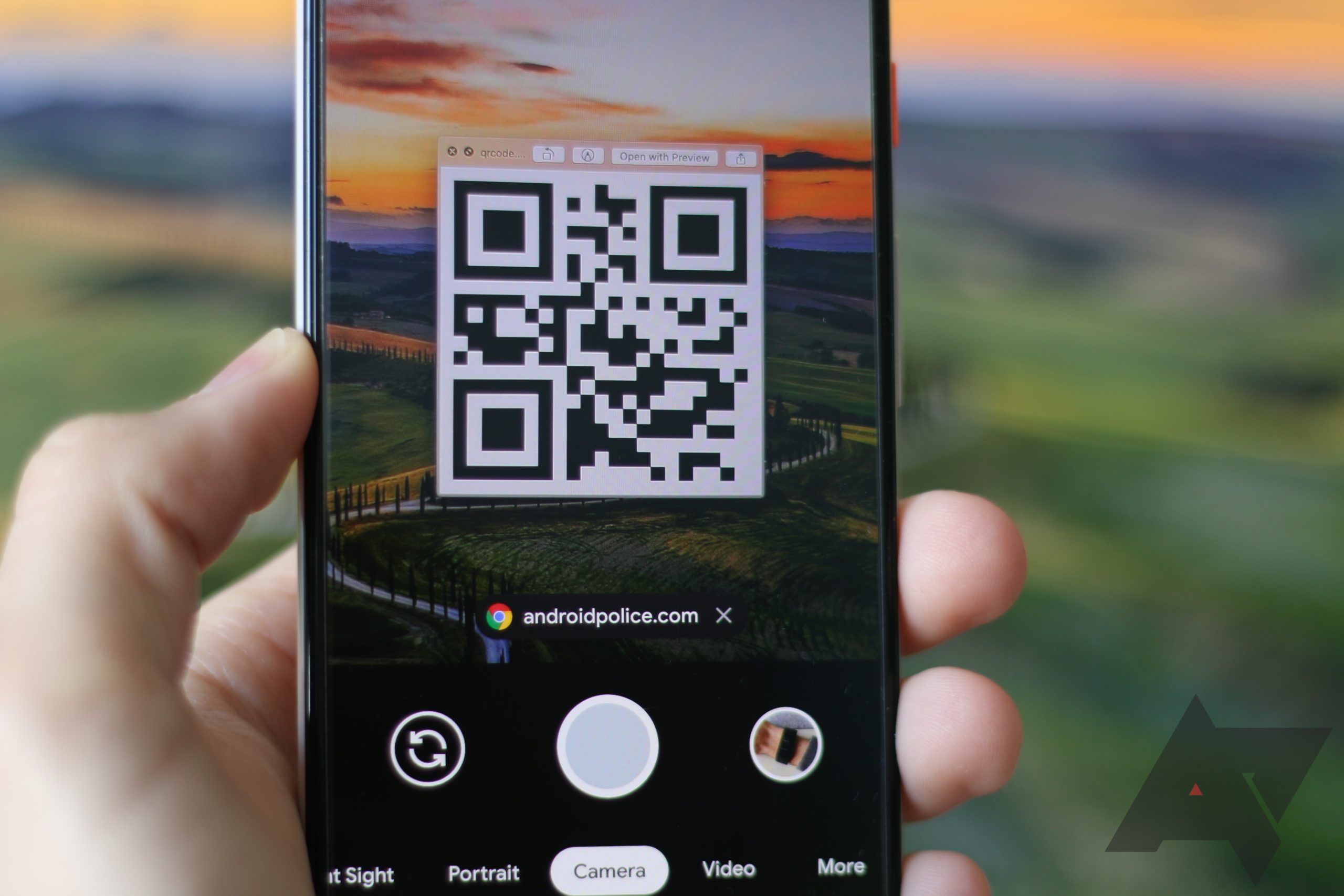
Your smartphone camera captures this visual matrix, verifies the cryptographic signature locally, and sends a secure handshake back to the server. This design means your phone doesn't need to stay online continuously in the exact same way it did years ago, but it does need an active internet connection at least once every fourteen days to maintain authentication tokens.
Step-by-Step Instructions to Scan Your QR Code
Getting connected takes just a few distinct taps on your device. Follow this sequence depending on your operating system to establish a stable connection immediately.
On Android Devices
- Open the WhatsApp application on your smartphone.
- Tap the three vertical dots in the upper right corner to open the main menu.
- Select Linked devices from the dropdown list.
- Tap the green Link a device button near the top of your screen.
- Unlock your phone using your fingerprint, face ID, or PIN when prompted.
- Point your rear camera directly at the visual code displayed on your computer screen.
On iOS Devices
- Launch WhatsApp on your iPhone.
- Tap the Settings gear icon in the lower right corner of the navigation bar.
- Select Linked Devices from the menu options.
- Tap Link a Device and authenticate using Face ID, Touch ID, or your passcode.
- Align the camera viewfinder with the square matrix shown in your web browser.
Once the camera registers the pattern, the web page updates instantly and populates your chat history. You can now type, send media, and manage group chats straight from your desktop keyboard.
Troubleshooting Common Scanning Failures
Even with a straightforward process, technical snags happen. If your camera refuses to register the code or throws an error, check these common points of failure.
Camera Lens and Screen Glare
Smudges on your smartphone camera lens scatter light, making it impossible for the software to parse the high-contrast squares. Wipe your lens with a microfiber cloth. Similarly, if your computer monitor has a high-gloss finish, overhead lights can create a glare patch right across the center of the code. Tilt your monitor slightly or dim nearby desk lamps to clear up reflections.
Browser Zoom and Display Scaling
If your browser is zoomed in past one hundred percent, the visual pattern can distort pixel alignments. Press Control and Zero on Windows or Command and Zero on a Mac to reset your browser zoom to the default scale. Additionally, verify that your browser window isn't half-minimized, which can crop the edges of the dynamic matrix.
Internet Latency and Time Sync
The pairing code expires every twenty seconds for security reasons. If your computer's system clock is off by even a few minutes, the token validation will fail instantly, showing a refresh icon. Check your computer's date and time settings to ensure they sync automatically with network time servers.
Multi-Device Capabilities and Limitations
Recent updates allow you to link up to four companion devices alongside your primary phone without needing your mobile device to stay connected to the internet twenty-four hours a day. However, certain limitations remain in place for security and performance reasons.
- Primary Phone Dependency: Your primary smartphone must remain the account anchor. If you don't use your phone for over two weeks, all linked companion sessions log out automatically.
- Feature Parity: Certain actions, such as viewing live locations, broadcasting status updates, or managing message broadcast lists, must still be performed directly from the mobile app.
- Chat History Sync: When you link a new browser, WhatsApp downloads a rolling buffer of recent messages from your primary phone, which can take a minute if your connection is slow.
Security Best Practices for Web Sessions
Leaving your messaging portal open on a shared or public computer invites unauthorized access. Protecting your account requires active session management.
Always verify your active links by navigating back to the Linked Devices menu in your mobile app. If you see an unfamiliar browser location or operating system listed, tap it and select Log out immediately. Furthermore, avoid checking the "Keep me signed in" box on library computers, office workstations, or shared family laptops.
When you finish working on a desktop, click the three vertical dots above your chat list in the web browser and select Log out. Alternatively, you can terminate all remote sessions simultaneously from your phone with a single tap.
For official security updates regarding end-to-end protocols, check out the WhatsApp Privacy Overview.
Frequently Asked Questions
Why does WhatsApp keep asking me to rescan the QR code?
If your browser clears cookies and local storage cache upon closing, your session token gets wiped out. Check your browser privacy settings to ensure cookies from trusted sites aren't wiped out every time you close the window.
Can I link WhatsApp Web using my phone's photo gallery?
No. The application requires a live camera feed scanning a real-time browser session. You cannot upload a saved screenshot of the code from your camera roll to log in.
Is it possible to use WhatsApp Web without a smartphone nearby?
You can use linked companion devices for up to fourteen days without your primary phone connecting to the internet. After that window closes, you must reconnect your phone to re-authenticate the session tokens.
How many computers can I link to one account at the same time?
You can link up to four companion devices, including a mix of web browsers, desktop apps, and tablet companions, alongside your primary smartphone.
What should I do if my camera viewfinder freezes while trying to scan?
Force close the WhatsApp app on your phone, clear your browser cache, and reload the web page to generate a fresh token before opening the camera interface again.