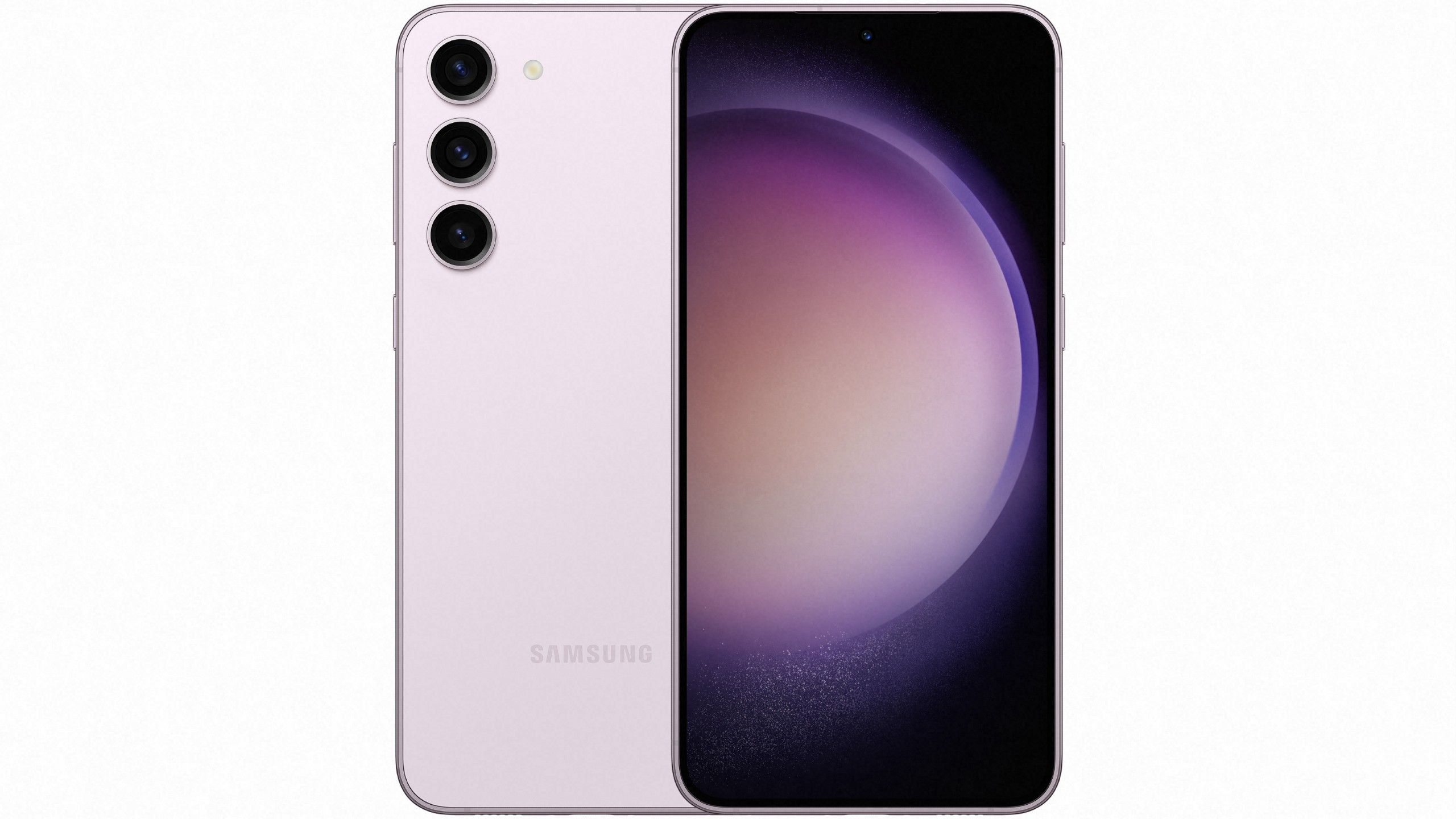
Personalizing a Galaxy smartphone doesn't require third-party launchers or risky system modifications. Samsung's native One UI themes engine allows deep interface transformation, changing lock screens, system color palettes, icon packs, and notification panels directly through official tools. You can download custom aesthetics, manage installed packs, and fine-tune your layout in minutes without sacrificing system stability or performance.
Getting started is simple. Touch and hold any empty space on your home screen, tap Themes, and browse the integrated store to find free or paid design packages. This guide covers how to source, download, and apply these themes, alongside advanced customization tricks using Samsung's native ecosystem.
Accessing and Downloading Galaxy Themes
The official Galaxy Store serves as the secure repository for all certified One UI visual packages. Because third-party APK downloads from unverified sites can compromise device security, sticking to the built-in marketplace keeps your data safe.
- Navigate to your home screen, press and hold an empty area, and select Themes to open the customization dashboard.
- Use the search bar or browse trending categories like Featured, Top, or Staff Picks to locate an aesthetic that fits your preference.
- Tap on a theme preview to view details, including screenshots of the lock screen, notification shade, and dialer interface.
- Tap Download for free items, or click the price tag to purchase paid assets using your linked payment method. You can also select Download trial to test paid packages for a limited time before buying.
Once downloaded, assets are saved directly to your profile. You won't lose purchased content if you switch devices, provided you sign in with the same Samsung account.
Applying and Managing Your Custom Theme
After downloading a package, applying it takes only a few taps.
To switch your interface layout:
- Open the Themes menu by long-pressing your home screen.
- Tap the menu icon (three horizontal lines) in the top-left corner and select My stuff.
- Choose Themes, select your desired asset, and tap Apply.
- Confirm your choice when prompted. The system will re-render the UI elements to match your new style.
If you want to revert to the default Samsung look, return to My stuff, select the default theme, and apply it. To clean up storage space, you can delete unused downloads by navigating to Purchased items, tapping the delete icon, and confirming the removal.
Granular Customization with Color Palettes
If you prefer your current wallpaper but want system menus to match its exact color tones, you don't need a full theme package. One UI features a dynamic Color palette generator that extracts dominant colors from your background image.
- Open device Settings and tap Wallpaper and style.
- Select Color palette and toggle the feature switch to On.
- Choose from the generated palette options based on your wallpaper colors, or switch to Basic colors for solid tones.
- Check the box to apply the palette to app icons if you want a uniform look across your app drawer, then tap Apply.
Advanced Tweaks with Good Lock
For users who want to push customization beyond standard theme packs, Samsung offers an official suite called Good Lock, available in the Galaxy Store. This modular framework unlocks deep system modifications without root access.
- Theme Park: Allows you to build custom themes from scratch by selecting an image and letting the tool generate matching icon colors, notification backgrounds, and menu highlights.
- LockStar: Gives you absolute control over lock screen clock widgets, notification card placements, and shortcut shortcuts.
- Home Up: Enhances tasker animations, folder layouts, and share-sheet targets for a smoother user experience.
Common Mistakes to Avoid
Modifying your device interface is straightforward, but a few common pitfalls can cause frustration or performance hiccups.
- Downloading from unknown web sources: Sideloading random theme files from unverified forums can expose your phone to malware or broken resource overlays. Stick to the official store.
- Ignoring software version compatibility: Some older themes designed for legacy One UI iterations may break notification contrast or icon rendering on newer Android versions. Always check recent user reviews.
- Overlooking battery drain: Live wallpapers and highly animated custom lock screens consume significantly more power than static themes, especially on high-refresh-rate OLED displays.
Frequently Asked Questions
Do Samsung One UI themes cost money?
Most basic themes, icon packs, and wallpapers are entirely free. However, independent designers and studios often charge a small fee for premium, highly detailed packages. You can test paid themes using the trial option before purchasing.
Can I use third-party icon packs with One UI?
Yes. While the default home screen launcher supports icon packs downloaded directly from the Galaxy Store, you can also install alternative launchers like Nova Launcher to use standard Google Play icon packs.
Why do some elements stay unchanged after applying a theme?
Certain system apps receive security and layout updates faster than third-party theme designers can patch them. If an app's UI elements fail to match your active theme, check the Galaxy Store for an updated version of that theme package.
Will applying a theme slow down my phone?
Standard static themes have a negligible impact on system performance. However, heavy custom packages bundled with extensive animations or live background elements can occasionally introduce minor stutter during multitasking.


