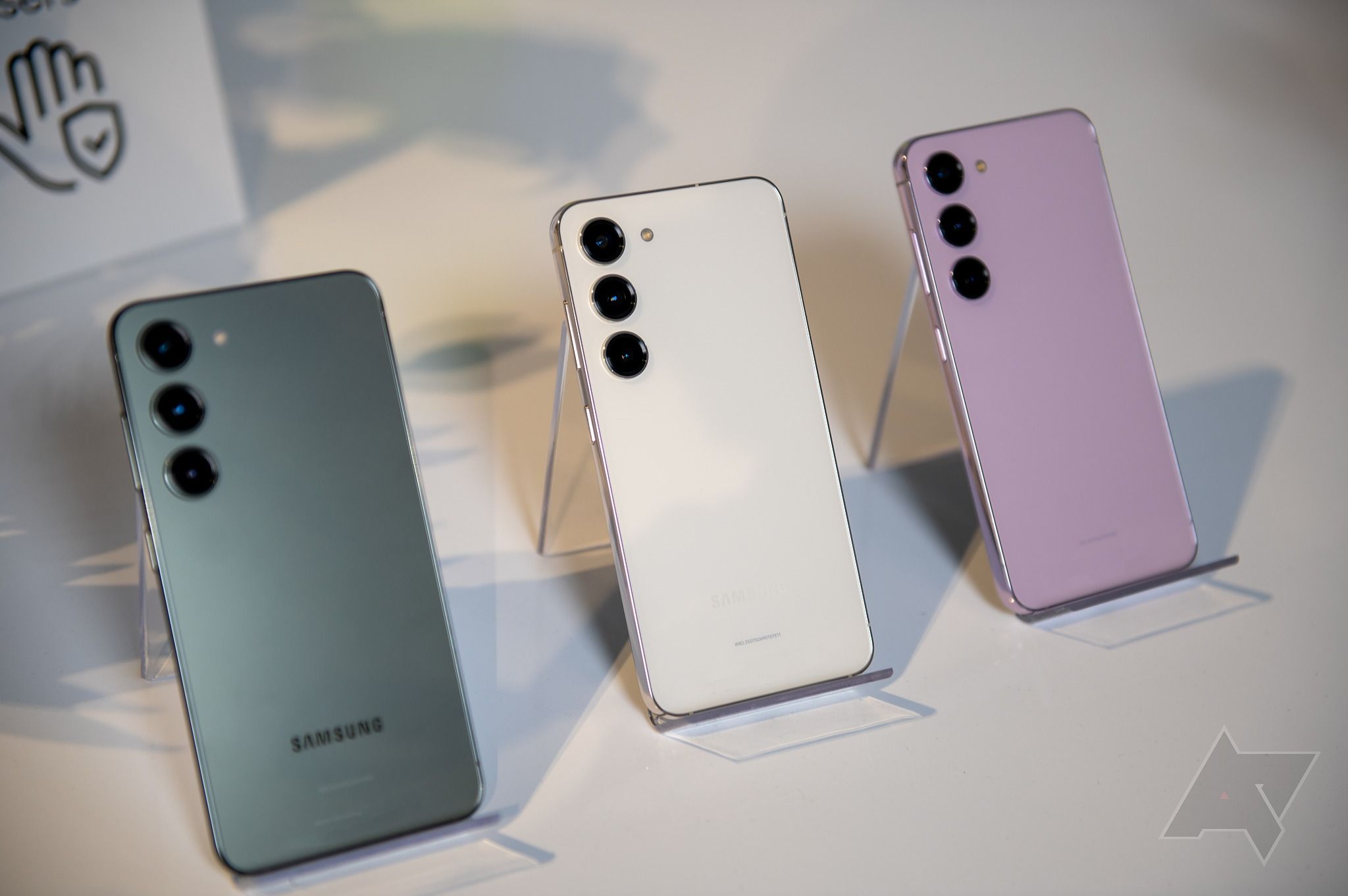
You can pair the Samsung One UI launcher with Magisk root access to bypass manufacturer limits and deeply modify your phone without breaking core system functions. While stock One UI delivers fluid animations and polished everyday utility, its closed ecosystem frustrates users who want total control. Magisk solves this by operating systemlessly, keeping your boot partition intact so secure features keep working.
Most modification guides focus exclusively on third-party launchers like Nova or Lawnchair, ignoring how to supercharge the stock Samsung interface. This guide details how to combine One UI and Magisk safely, optimize system performance, and avoid the common bricking traps that plague inexperienced modders.
Why Combine One UI with Magisk?
Samsung's default interface is fast and feature-rich, but it locks down customization. You can't natively remove system-level tracking, alter deep animation scales beyond developer options, or inject custom system-wide overlays without risking safety net trips.
Magisk changes this dynamic by modifying the operating system on the fly during the boot process. It places files in a virtual overlay rather than altering the read-only system partition. Because of this systemless design, you keep critical features that traditional root methods destroy:
- Samsung Pay and Secure Folder: These features rely on hardware-backed security checks. Magisk hides root modifications from these services via Zygisk and DenyList configurations.
- Over-the-Air Updates: While major updates require manual re-flashing, minor security patches can often be handled more smoothly than on older root frameworks.
- Stock Stability: Your home screen layout, widgets, and gestures retain their native hardware acceleration and smoothness.
Step-by-Step Setup and Prerequisites
Before touching any code or flashing boot images, you need to prepare your Samsung device properly. Unlocking the bootloader erases all local data, so back up your photos, messages, and app settings to cloud storage or a local PC.
1. Preparing the Device and Unlocking the Bootloader
Go to your phone settings, open About Phone, tap Software Information, and tap Build Number seven times to enable Developer Options. Return to the main settings menu, enter Developer Options, and toggle on OEM Unlocking and USB Debugging.
Power down the device, hold the volume buttons while plugging it into a PC via USB, and enter Download Mode. Use Odin to unlock the bootloader if your regional model allows it (North American Snapdragon variants generally have locked bootloaders, while international Exynos and unlocked US variants allow this process).
2. Patching the Boot Image with Magisk
Download the official firmware package matching your exact build number from a trusted archive like SamMobile or Frija. Extract the firmware zip to find the AP tar file, then extract that file to locate the boot.img or init_boot.img file.
- Transfer this boot file to your phone's internal storage.
- Install the latest Magisk APK on your device.
- Open Magisk, tap Install, select Select and Patch a File, and choose your transferred boot image.
- Flash the generated
magisk_patched.tarfile back to your phone using Odin in the AP slot.
Advanced Modifications for One UI
Once Magisk is active, you can install modules through the app interface to customize how your One UI launcher and system behave.
Removing Bloatware Safely
Samsung devices ship with dozens of pre-installed background services that drain battery and consume RAM. With root access, you can use terminal emulators or debloater modules to completely freeze or remove stubborn packages like Bixby agents, AR services, and unused diagnostic tools. Always keep core framework packages intact to prevent bootloops.
System-Wide Theming and Font Injecting
One UI lets you change fonts through the Galaxy Store, but choices are limited and often paid. Magisk modules can inject custom TrueType font files directly into the system partition overlay, giving you infinite typography choices across every app notification and menu.
Navigation and Gesture Tweaks
While Good Lock provides official customization for multitasking and navigation bars, Magisk modules push boundaries further. You can remap hardware keys to launch specific apps on double-press, customize the sensitivity of back gestures across individual apps, or alter grid layouts in the recent apps view beyond Samsung's maximum limits.
Common Pitfalls and Troubleshooting
Modifying Samsung's firmware carries inherent risks. Watch out for these frequent mistakes:
- Ignoring Build Number Mismatch: Flashing a patched boot image from a different security patch level will cause a bootloop. Always verify your exact software version.
- Overloading Modules: Installing too many conflicting UI mods at once causes System UI crashes. Add modules one by one, rebooting after each to isolate unstable code.
- Forgetting DenyList Configuration: If banking apps crash immediately after rooting, ensure Zygisk is enabled in Magisk settings and configure the DenyList for targeted package names.
For official updates and developer tools, consult the XDA Developers Samsung Forums and review safety documentation directly on the Official Magisk GitHub Repository.
Frequently Asked Questions
Will rooting with Magisk trip Samsung Knox permanently?
Yes. Unlocking the bootloader trips the hardware-based Knox fuse. This permanently disables Samsung Health, Secure Folder, and Samsung Pay on official stock firmware, though Magisk workarounds can restore functionality for many banking and payment apps.
Can I use third-party launchers like Nova with Magisk?
Absolutely. While this guide focuses on optimizing the stock One UI launcher, Magisk modules work independently of your choice of home screen replacement, allowing deeper system tweaks regardless of your default launcher.
What happens when I take an OTA system update?
System updates will fail or cause bootloops if applied directly over a rooted device. You must restore the stock boot image, apply the OTA update, patch the new boot image via Magisk, and flash it back using Odin.
Do I need a custom recovery like TWRP to use Magisk on Samsung?
No. Modern Samsung devices utilize modern partition structures where TWRP is not strictly required. You can patch the boot image directly through the Magisk app and flash it via Odin download mode.



