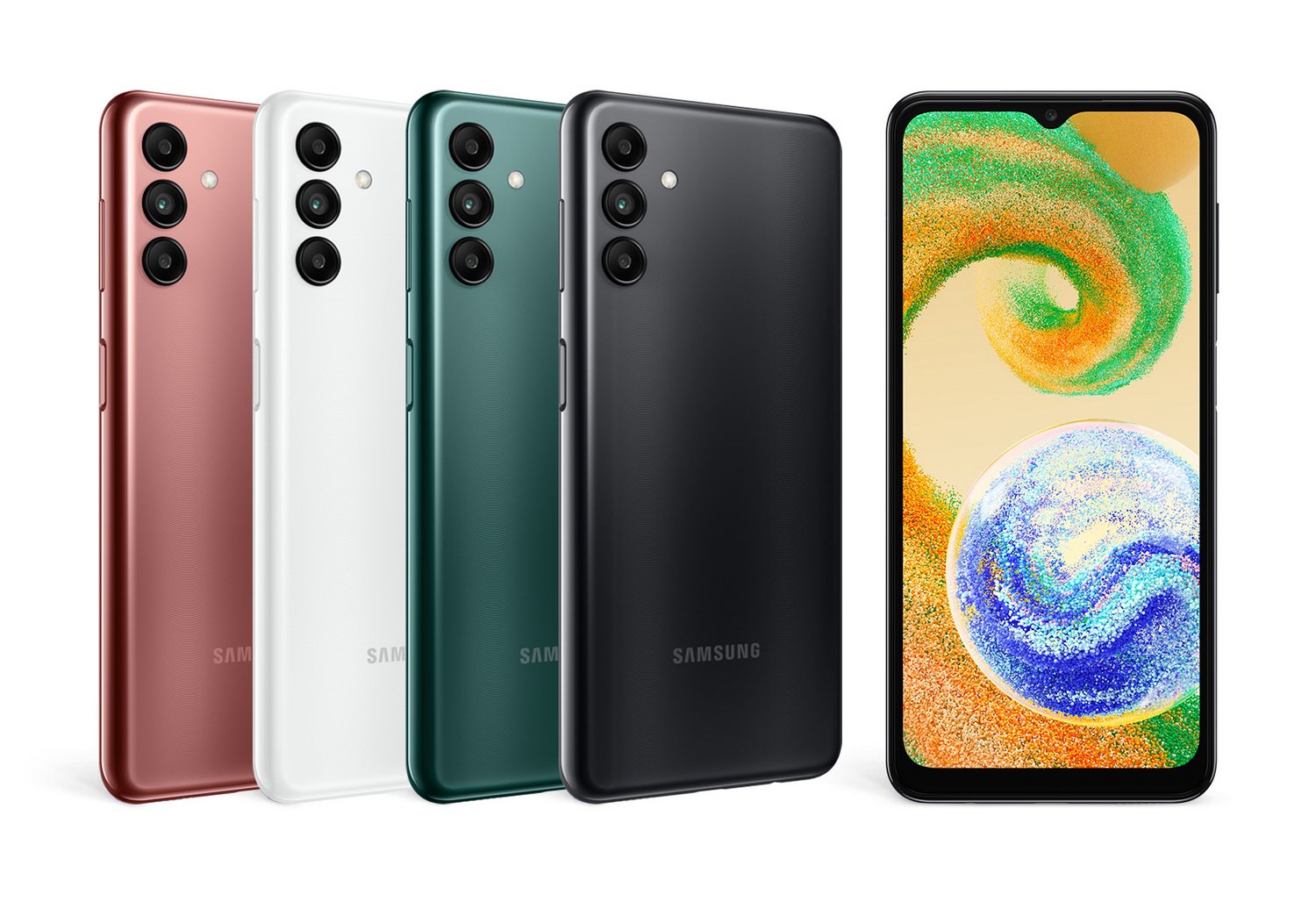
Your phone sits right beside you all day long. It's an office, a distraction box, and a health tracker all rolled into one glass rectangle. If you carry a Galaxy device, you don't need a dozen third-party utilities to manage your time. Samsung's built-in software suite handles heavy lifting right out of the box, shifting how you handle focus, screen fatigue, and daily tasks.
Let's look at how native Samsung One UI apps reshape your daily routine. We'll skip the marketing fluff and look at what actually works, where the defaults fall short, and how to configure them for real results.
The Shift in Native Mobile Productivity
Years ago, getting things done on Android meant downloading separate task lists, calendar widgets, and file managers. Today, the core value proposition of One UI lies in deep hardware-software integration. Built-in tools run with minimal battery drain because they're optimized for Samsung's processors and memory management.
Take Samsung Notes and Modes and Routines. They don't just sit on your home screen; they talk to your lock screen, your Galaxy Watch, and your Windows PC through Samsung Link to Windows. When you open a PDF on your phone, sign it with an S Pen, and find it waiting on your desktop laptop minutes later, the friction of switching devices disappears.
Why Default Apps Beat Third-Party Downloads
Third-party productivity apps often come packed with ads, subscription paywalls, and aggressive notification pings. Native Samsung tools stay quiet until you need them. They hook directly into system permissions, letting you automate workflows based on your location, your Wi-Fi network, or the time of day without running a heavy background service that kills your battery.
Mastering Modes and Routines for Deep Work
Modes and Routines is the single most powerful productivity engine inside One UI. If you aren't using it, you're doing manual labor where automation should take over.
Instead of constantly toggling Do Not Disturb or adjusting screen brightness, you can build conditional logic triggers. When you arrive at your office or desk, your phone can automatically mute notifications, switch your watch face to a minimalist work layout, and open your primary task management app.
Setting Up Your First Productivity Routine
- Open your phone's Settings and tap Modes and Routines.
- Select the Routines tab at the bottom and tap the plus icon in the top right corner.
- Under the "If" section, tap Add what will trigger this routine and choose a condition like Time period or Wi-Fi connection.
- Under the "Then" section, tap Add what this routine will do and select actions like Do not disturb, Restrict app usage, or Dark mode.
- Save your routine and give it a clear name.
By automating these transitions, you remove the micro-decisions that drain your mental energy throughout the day. You don't have to remember to silence your device when an important meeting starts. The system handles it.
Digital Wellbeing Beyond Basic Screen Time
Most people look at the Digital Wellbeing panel once, feel mildly depressed by their daily screen hours, and never open it again. That's a mistake. The dashboard provides granular data, but the real power comes from setting boundaries that actually stick.
One UI splits digital health into actionable layers: screen time goals, app timers, and bedtime schedules.
Practical Configuration Steps
- Establish App Timers: If social media eats your afternoon, go to Settings, tap Digital Wellbeing, and select App timers. Cap your highest-drain apps at thirty minutes per day. When the timer hits zero, the app locks until midnight.
- Automate Sleep Mode: Configure Sleep mode to turn your display grayscale an hour before bed. Stripping away vibrant colors reduces the psychological pull of endless scrolling, making it much easier to put the phone down.
- Monitor Audio Safety: If you work with earbuds in, turn on the Volume monitor inside the Digital Wellbeing menu to track listening levels and protect your hearing over long work sessions.
Plugging the Gaps: What Samsung's Suite Misses
No built-in software suite is completely bulletproof. While Samsung's ecosystem handles tracking and automation well, it has notable blind spots.
For one, native app timers on One UI can be bypassed with a couple of taps if you lack discipline, as the system doesn't enforce a hard master PIN like some dedicated parental control software. If you find yourself constantly overriding your own limits, you'll need to pair Samsung's tools with strict personal rules or external accountability.
Furthermore, native task tracking across Samsung Reminders and Samsung Notes can feel fragmented if you manage complex team projects. While great for solo grocery lists and quick meeting notes, they don't replace dedicated project management tools like Trello or Notion for collaborative work. Use Samsung apps for personal capture, and lean on cross-platform software only when team collaboration demands it.
Frequently Asked Questions
Can I sync Samsung Notes and Reminders with non-Samsung Windows PCs?
Yes. You can sync Samsung Notes directly with the Windows OneNote feed by logging into your Samsung account within the app settings. Reminders also sync seamlessly with Microsoft To Do through your Microsoft account integration.
Do Modes and Routines drain phone battery?
No. Because Modes and Routines is baked directly into the One UI system architecture, it uses native system triggers rather than running an active background monitoring app, keeping battery impact near zero.
How do I hide distracting apps during work hours without deleting them?
You can use the Focus mode or create a custom work Routine that hides specific app icons from your app drawer and home screen during set hours, preventing mindless tapping.
Are Samsung's Digital Wellbeing features free?
Yes. Every feature mentioned, including app timers, screen time dashboards, and sleep schedules, is completely free and built directly into One UI without hidden subscription tiers.


