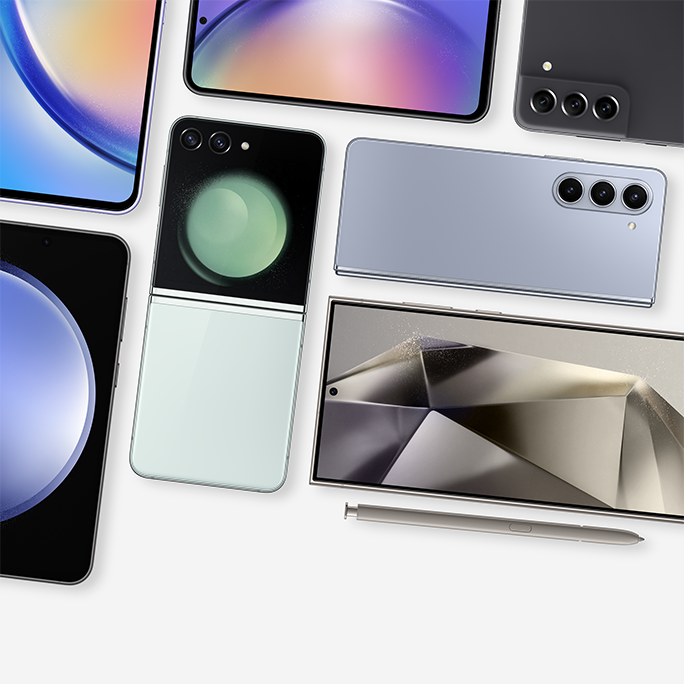
Samsung's software ecosystem moves fast, and the rollout of One UI 8 built on top of Android 16 brings significant changes to Galaxy devices. Instead of minor tweaks, this version focuses on practical multitasking, reworked sharing tools, and tighter device protection. If you're wondering how these changes affect your daily phone use, you'll find the main updates center on how apps share space, how quickly you can move files, and how your data stays locked down.
The interface modifications change how you interact with your screen every hour of the day. From a revamped split-screen engine to deeper system-level Galaxy AI additions, this software package alters standard workflows. Let's break down what actually changed, how to use the new settings, and what you need to know before updating your phone.
Multitasking and Screen Layouts
Multitasking on mobile screens often feels cramped, but One UI 8 introduces a flexible layout structure designed to solve that problem. The new split-screen mode abandons the rigid 50/50 split of previous versions.
The 90/10 Split View
When you run two apps simultaneously, you can now push one application against the side or top edge of the display.
- Primary App: Takes up roughly 90 percent of the screen estate for comfortable reading or typing.
- Secondary App: Shrinks to a 10 percent strip that stays partially visible at the edge.
- Quick Switch: Tap the smaller app window to instantly swap places without opening the recent apps menu.
This layout works well when you're watching a video or filling out a form while keeping an eye on a chat window. You don't have to fiddle with resize handles or close windows to see what's happening underneath.
Enhanced Samsung DeX
For users who connect their devices to external monitors or tablets, DeX receives a structural cleanup. The interface now matches desktop operating systems more closely, featuring improved window snapping, better multi-window scaling, and smoother mouse cursor behavior. If you pair a Bluetooth keyboard and mouse, you'll notice fewer stutter frames when dragging windows across the desktop.
Privacy and Data Protection
Privacy controls on mobile devices require transparency, and Samsung integrates Android's updated security baseline into One UI 8.
Upgraded Secure Folder
The built-in Secure Folder gets a structural boost by integrating with Android's Private Space architecture.
- Independent Biometrics: You can set a separate fingerprint or PIN just for your hidden apps, distinct from your main lock screen.
- Automatic Lockdown: When you lock the container, it instantly forces background apps inside it to close and cuts off their notifications.
- Total Concealment: You can completely hide the Secure Folder icon from your app drawer so it's invisible to anyone else holding your unlocked phone.
Knox Matrix Integration
Background security checks run continuously through Knox Matrix, scanning connected devices on your Samsung account for unauthorized login attempts or malicious app behavior. If the system detects an anomaly on your tablet or phone, it flags the risk immediately in the security dashboard.
Streamlined Sharing and Quick Settings
Moving files between devices or managing daily tools shouldn't take five steps. One UI 8 redesigns Quick Share and the notification shade to cut down on tapping.
Redesigned Quick Share Interface
Quick Share no longer forces you to open a separate application just to change your visibility settings.
- Quick Settings Toggle: Access send and receive controls directly from the drop-down notification panel.
- Dedicated Tabs: Separate tabs for sending and receiving make it obvious whether your device is currently discoverable by nearby contacts.
- Preview Windows: You can preview images and documents before accepting transfers from unknown devices.
Now Bar Enhancements
The Now Bar brings live updates right to your lock screen or edge panel. Because Android 16 expands native live activity support, third-party apps like ride-sharing or food delivery services can feed real-time status updates directly into your view without requiring you to unlock the phone. Music playback controls are also built straight into the Always On Display Now Bar, letting you pause or skip tracks with a single tap.
Common Mistakes to Avoid After Updating
When a major software update hits your device, default habits can sometimes lead to frustration. Keep these points in mind:
- Ignoring App Permissions: After the update, check your privacy dashboard. Some apps may request renewed "while-in-use" location permissions. Review these manually rather than clicking accept on everything.
- Forgetting Backup Settings: Before installing large system upgrades, verify that your cloud backup is active. While update corruption is rare, safeguarding your photos and documents takes only a minute.
- Overlooking Custom Gestures: The camera app now supports custom swipe-up and swipe-down gestures for quick controls instead of just lens switching. If your camera controls feel unfamiliar, check the camera settings menu to remap those gestures to your preference.
Frequently Asked Questions
Which devices are eligible for One UI 8?
Samsung typically rolls out major software updates to recent flagship devices, including the Galaxy S series, recent Z Fold and Z Flip models, and high-end Galaxy Tab devices. Exact timelines vary by region and carrier.
Does the 90/10 split-screen work on all apps?
Most standard applications support the flexible split-screen layout. However, certain games or fixed-orientation apps may still enforce standard view limits.
Can I still use the old Quick Share interface?
The interface updates replace the legacy layout entirely, but the core functionality remains the same. You'll find all your usual device-to-device transfer options housed under the streamlined Quick Settings panel.
How do I customize the new lock screen clock?
Long-press your lock screen to enter editing mode. One UI 8 introduces dynamic clock fonts that automatically wrap around or shift behind the primary subjects in your wallpaper photos so they remain legible.


