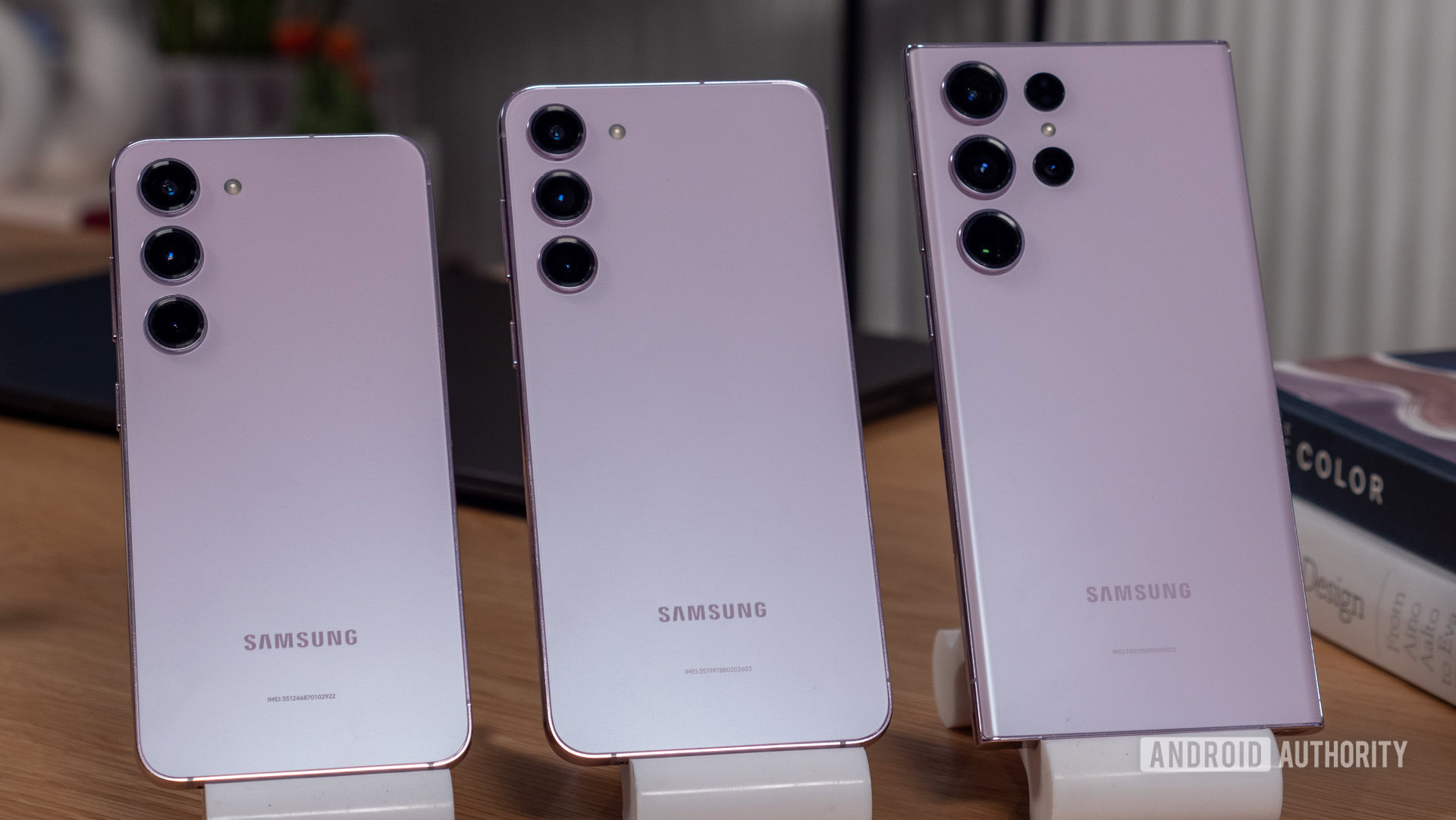
Samsung’s One UI 7 update represents one of the largest visual and structural overhauls in the history of the Galaxy ecosystem. Built on top of Android 15, the software splits the notification panel and quick settings into distinct areas, introduces fluid lock screen widgets via the Now Bar, and deepens on-device AI functionality. If you want to know what changed, whether your phone supports it, and how to pull the update safely, here is the complete breakdown.
The update began rolling out globally to flagship devices like the Galaxy S24 series and recent foldables before expanding to mid-range and older hardware. Samsung redesigned core application icons, smoothed out home screen transition physics, and added granular privacy controls for processing artificial intelligence tasks locally on the device.
What’s New in One UI 7
The software introduces a complete design refresh aimed at reducing visual clutter while maximizing quick controls.
- The Now Bar: Located on the lock screen and status areas, this pill-shaped interactive element surfaces live updates like active media playback, ongoing workout timers, and voice recordings without requiring you to unlock the phone.
- Separated Quick Settings: Swiping down from the top right now opens the Quick Settings panel, while swiping down from the top left reveals traditional notifications. You can customize the layout inside your display settings.
- Redesigned App Icons: Samsung swapped out flat, traditional icons for a more dimensional, depth-heavy aesthetic across default system apps like Gallery, Camera, and Phone.
- Advanced Galaxy AI Tools: Writing Assist, cross-app actions powered by Google Gemini, and generative sticker creation are integrated directly into the Samsung keyboard. You can also toggle a strict on-device privacy switch to prevent data from leaving your hardware.
Eligible Galaxy Devices
Samsung expanded its software support windows, allowing a wide array of smartphones and tablets to run the Android 15-based interface.
- Galaxy S Series: Galaxy S24, S24+, S24 Ultra, S24 FE, S23 series, S22 series, and S21 series.
- Galaxy Z Fold & Flip: Galaxy Z Fold 6 down to Fold 3, and Galaxy Z Flip 6 down to Flip 3.
- Galaxy Tab Series: Galaxy Tab S10 series, Tab S9 series, Tab S8 series, and select FE models.
- Galaxy A Series: Recent mid-range contenders including the Galaxy A55, A54, A35, and A25.
If your device falls into one of these families, the update arrives automatically over the air. Older or carrier-locked models may experience a staggered release timeline depending on your region and mobile service provider.
How to Download and Install One UI 7 Safely
Updating your system software requires a stable Wi-Fi network and at least 50% battery charge to prevent interruptions during installation.
- Open your phone's Settings app by swiping down the notification shade and tapping the gear icon.
- Scroll to the bottom and select Software update.
- Tap on Download and install.
- If the update is available for your region and carrier, tap Install now or schedule the installation overnight.
If your device says it's up to date but you know your model is supported, the rollout might still be hitting your specific region. Avoid downloading unofficial firmware packages or third-party sideloading tools from unverified forums, as these can compromise device security or trigger boot loops. You can check official announcements directly on the Samsung Global Newsroom to track regional rollout phases.
Common Mistakes to Avoid During the Update
Major operating system upgrades push hardware components and storage partitions hard. Watch out for these pitfalls:
- Skipping backups: Always back up precious photos and app data to Google Drive or Samsung Cloud before initiating a major version jump. While rare, corrupted system caches can require a factory reset.
- Using low-power third-party chargers: Keep your phone plugged into a certified wall adapter during installation. Running out of power while flashing core system partitions bricks the software interface.
- Ignoring storage warnings: One UI 7 requires several gigabytes of free space to unpack installation files. Clear out cached files or old video clips if your storage sits near maximum capacity.
Frequently Asked Questions
Can I revert to One UI 6 if I don't like the new interface?
No. Once you install the official stable release of One UI 7, Samsung locks the bootloader partitions to prevent downgrading back to older Android versions for security reasons.
Will Galaxy AI features cost money after updating?
Samsung provides core Galaxy AI features for free on supported devices, though certain advanced cloud-based capabilities may transition to paid subscription models in the future. On-device processing functions remain free.
Why hasn't my phone received the notification yet?
Rollouts happen in gradual waves to manage server loads and catch bugs early. Unlocked devices typically receive updates faster than carrier-branded variants, which require separate network testing phases.
Does One UI 7 improve battery life?
The system introduces smarter background app management and granular resource allocation via Android 15. Most users notice stable or improved battery endurance after the system finishes optimizing background routines over a 48-hour period. You can read more about Android platform changes directly through the Android Developers portal.


