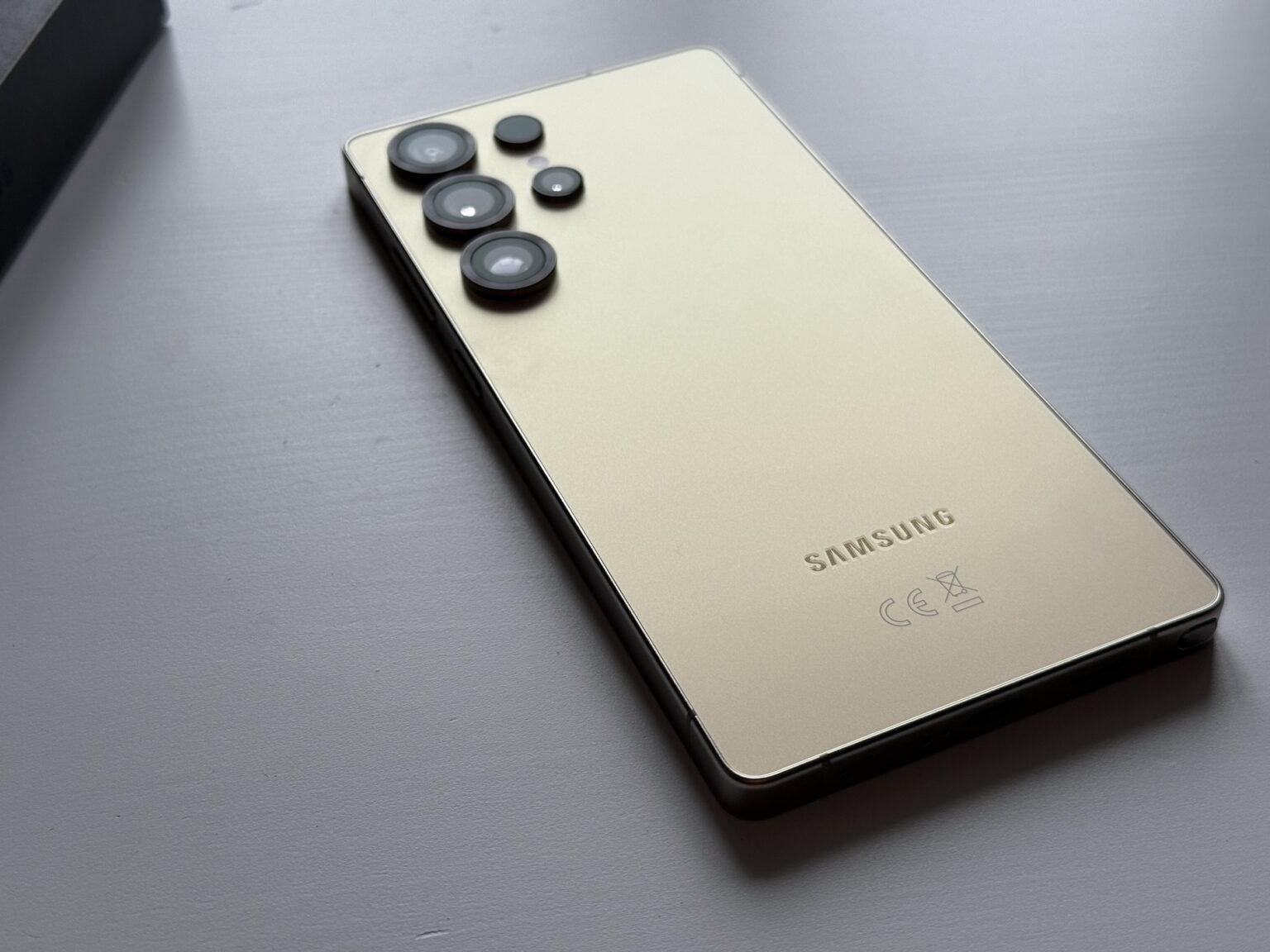
When the notification pops up saying that your Samsung Keyboard keeps stopping, it halts everything. You can't reply to texts, type passwords, or search the web. This frustrating error usually stems from corrupted temporary cache files, background app conflicts, or bugs following a system update. Fortunately, you can fix this crash loop without losing your mind or taking your phone to a repair shop.
The quickest way to get your typing back on track is to clear the corrupted cache files hiding inside your device settings or force-restart the application process. If you're dealing with an unresponsive screen or a keyboard that continuously crashes every time you tap a text box, the comprehensive guide below walks you through every exact fix, why the crash happens, and what other Galaxy users are experiencing.
Why Your Samsung Keyboard Keeps Stopping
Understanding what triggers the crash helps you prevent it from happening again. Phones run dozens of background processes simultaneously, and the default input method relies heavily on system memory and predictive text databases.
Corrupted cache data is the primary culprit. Over months of usage, the Samsung Keyboard saves a massive dictionary of user words, autocorrect patterns, and temporary UI layouts. When these files get scrambled or corrupted during an unexpected shutdown, the app crashes the moment it tries to read them.
Another frequent cause involves system updates. When Android or One UI updates in the background, legacy keyboard settings sometimes clash with new security protocols or display frameworks. Third-party apps—especially alternative sticker packs, clipboard managers, or third-party launchers—can also interfere with the input method framework, causing sudden closures.
How to Fix the Samsung Keyboard Crash Loop
You don't need advanced technical skills to resolve this error. Work through these structured troubleshooting steps in order, starting with the fastest fixes.
Force Stop and Clear the Keyboard Cache
When an app freezes or loops error messages, forcing it to close clears its active memory state. If that doesn't work, flushing its corrupted cache files will clean the slate.
- Open your phone's Settings app and tap on Apps.
- Tap the filter/sort icon next to your app list and toggle on Show system apps, then tap OK.
- Scroll down and select Samsung Keyboard.
- Tap Force Stop at the bottom of the screen.
- Tap Storage, then tap Clear Cache.
- If the error persists, return to this screen and tap Clear Data (note that clearing data will reset custom dictionary words and personalized settings).
Switch Temporarily to a Backup Input Method
If the native application remains unstable, switching to an alternative input method lets you keep using your phone while you troubleshoot. You can download Gboard from the Google Play Store or use Google's voice typing tools.
- Go to Settings and select General management.
- Tap on Keyboard list and default.
- Select Default keyboard and choose an alternative option like Gboard.
Boot Into Safe Mode to Check for Rogue Apps
Sometimes a newly installed third-party application interferes with system input panels. Running your phone in Safe Mode temporarily disables all downloaded apps so you can isolate the issue.
- Press and hold your phone's physical Power button until the power menu appears on screen.
- Tap and hold the Power off icon until the Safe mode prompt pops up.
- Tap Safe mode. Your phone will restart, and you'll see a watermark at the bottom of the display.
- Try typing in a notes app. If the keyboard works fine in Safe mode, a recently downloaded app is causing the crash. Uninstall your latest apps one by one until the issue stops.
Check for System and App Updates
Bugs in outdated software frequently trigger unexpected app closures. Samsung regularly pushes patches specifically designed to fix UI instability and keyboard crashes.
- Open Settings and tap Software update.
- Tap Download and install to check for pending firmware updates.
- Open the Galaxy Store to check if a standalone update is waiting for the Samsung Keyboard app itself.
What Galaxy Users Are Saying
Across online forums like Reddit and the Samsung Community Support Forums, users note that this glitch often flares up immediately after major One UI system upgrades. Many owners report that the error happens most frequently when typing inside high-speed messaging apps or web search bars where predictive text works overtime.
A common sentiment among community members is frustration that clearing the app data wipes out custom text shortcuts. To avoid losing custom words in the future, users recommend keeping Samsung Cloud backups enabled so your personal dictionary syncs automatically across devices.
Frequently Asked Questions
Will clearing Samsung Keyboard data delete my photos or texts?
No. Clearing the storage or cache of the keyboard app only deletes temporary files, user dictionaries, and custom themes tied directly to the keyboard. Your photos, text message history, contacts, and downloaded files remain entirely safe.
Why does the keyboard keep crashing only when I use specific apps?
If the error occurs inside just one app—like a specific social media client or banking app—that individual app likely has a permission conflict or a rendering bug with Android's text input fields. Try updating or reinstalling that specific app.
Is it safe to use a third-party keyboard permanently?
Yes. Millions of Android users permanently switch to alternative options like Gboard or Microsoft SwiftKey for advanced gesture typing, richer themes, and multi-language support without any performance drawbacks.
What should I do if none of these fixes work?
If you've cleared the cache, updated your software, and tested Safe Mode with no success, a deeper system glitch may be at play. Back up your important files using Smart Switch and perform a factory data reset through your settings menu as a final resort.