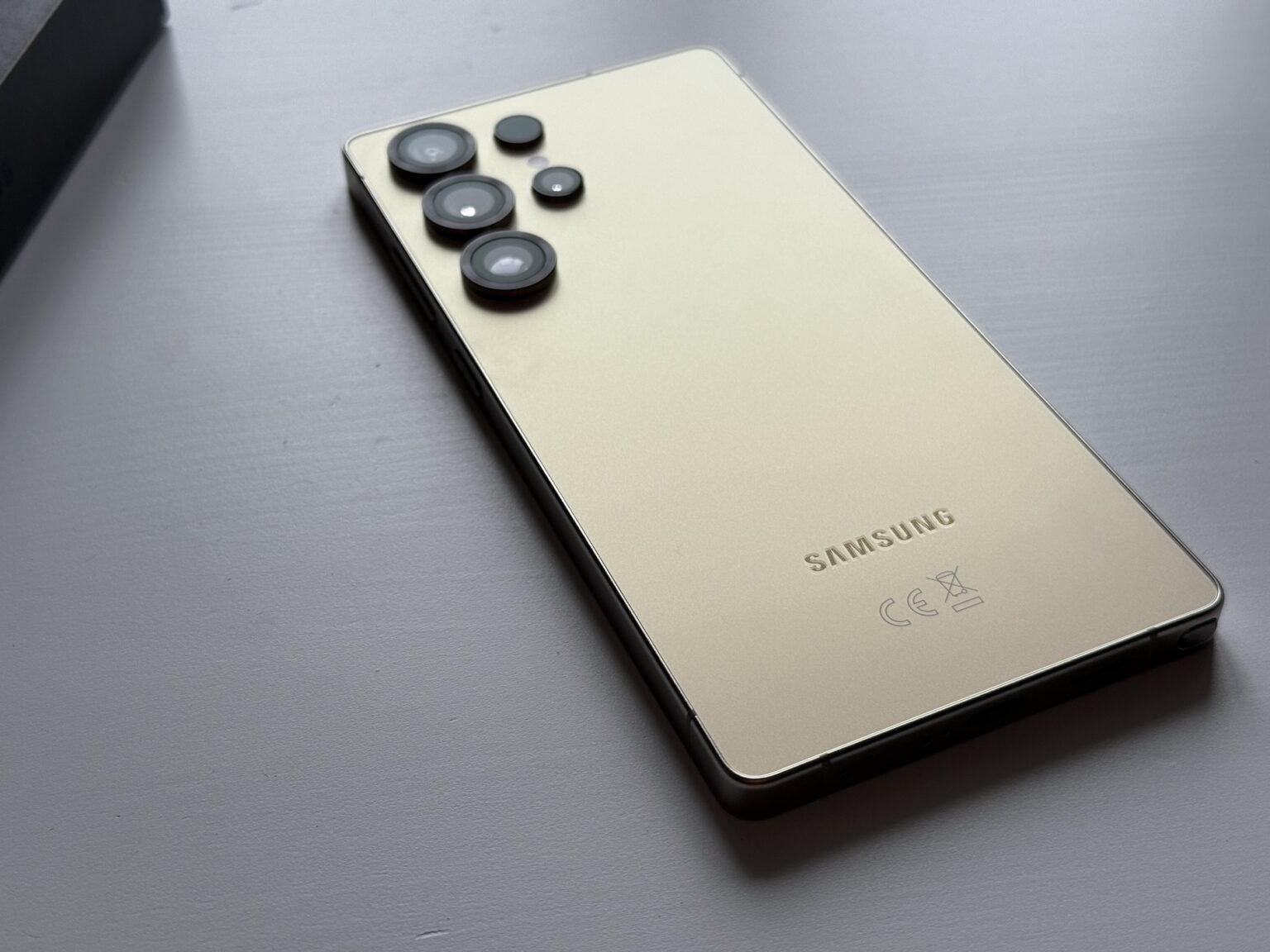
When the Samsung keyboard stops working, your phone suddenly turns into an unresponsive glass brick. You can't reply to texts, search the web, or enter your lock screen passcode. This glitch usually happens due to a temporary software crash, corrupted cache data, or an unwanted conflict with a third-party app.
Fixing it doesn't require a factory reset or a trip to a repair shop. Let's walk through the exact steps to get your typing back on track right now.
Clear the Samsung Keyboard Cache
Corrupted cache files are the number one culprit behind sudden freezing and crashing errors on Samsung devices. Clearing out these temporary files forces the keyboard to rebuild a clean state without wiping your personal dictionary or custom settings.
- Open your phone Settings.
- Scroll down and tap Apps.
- Tap the filter icon next to Your apps, or scroll through the list to find Samsung Keyboard.
- Tap on Storage.
- Tap Clear Cache at the bottom right.
- Tap Clear Data if clearing the cache alone doesn't fix the freezing loop.
Restart your phone after clearing data to let the system reinitialize the keyboard service cleanly. To understand the bigger picture, we recommend the excellent report by The New York Times.
Check for System and App Updates
Bugs in outdated software versions frequently trigger the dreaded keyboard crash loop. Samsung regularly pushes out patches specifically designed to fix UI and keyboard stability issues.
To check for operating system updates:
- Open Settings.
- Scroll to Software update.
- Tap Download and install and apply any pending updates.
Next, check the Galaxy Store or Google Play Store to ensure your core system apps and input methods aren't lagging behind on bug fixes.
Boot Into Safe Mode to Spot Rogue Apps
If a newly installed application is conflicting with your system input handler, the keyboard will keep crashing whenever that app runs in the background. Safe mode temporarily disables all downloaded third-party apps so you can isolate the problem.
- Press and hold the Side button and Volume Down button simultaneously until the power menu appears.
- Tap and hold the Power off icon on your screen until the Safe mode prompt pops up.
- Tap Safe mode to confirm. Your phone will reboot with "Safe mode" displayed in the corner.
- Open an app like Messages and test your keyboard.
If the keyboard works normally in safe mode, a recently downloaded app is causing the crash. Uninstall your most recent apps one by one until the issue stops occurring.
Switch to an Alternative Keyboard Temporarily
If you need to send an urgent message while troubleshooting, don't stay stuck. Install a temporary replacement input method from the official app store, such as Google Play.
- Download Gboard or another reputable keyboard app.
- Go to Settings, search for Default keyboard, and switch your active input method to the new app.
- This bypasses the corrupted Samsung Keyboard package entirely while you troubleshoot at your own pace.
Reset All Device Settings
When specific app tweaks or system configurations get tangled, resetting your general preferences restores default behaviors without deleting your photos, contacts, or messages.
- Open Settings.
- Tap General management.
- Select Reset.
- Tap Reset all settings and confirm your choice.
This action reverts customized Wi-Fi networks, Bluetooth pairings, and app permissions back to factory defaults, clearing out hidden conflicts that break system UI elements.
Frequently Asked Questions
Why does my Samsung keyboard keep stopping randomly?
It usually happens when temporary cache files become corrupted or when an active app conflicts with the system UI. A quick cache wipe or system reboot solves the issue in most cases.
Will clearing Samsung keyboard data delete my saved words?
Clearing the cache leaves your personal dictionary alone. Clearing all app data will reset custom word predictions and user preferences back to default settings, but it won't touch your personal files or photos.
How do I switch back to the Samsung keyboard after using an alternative?
Navigate to your phone Settings, tap General management, select Keyboard list and default, and choose Samsung Keyboard as your primary input method.
Can a low battery or storage space cause the keyboard to crash?
Yes. When your phone storage is completely full, system apps like the keyboard struggle to write temporary cache files, leading to frequent freezing and force-close errors. Keep at least 1GB of free space available.



