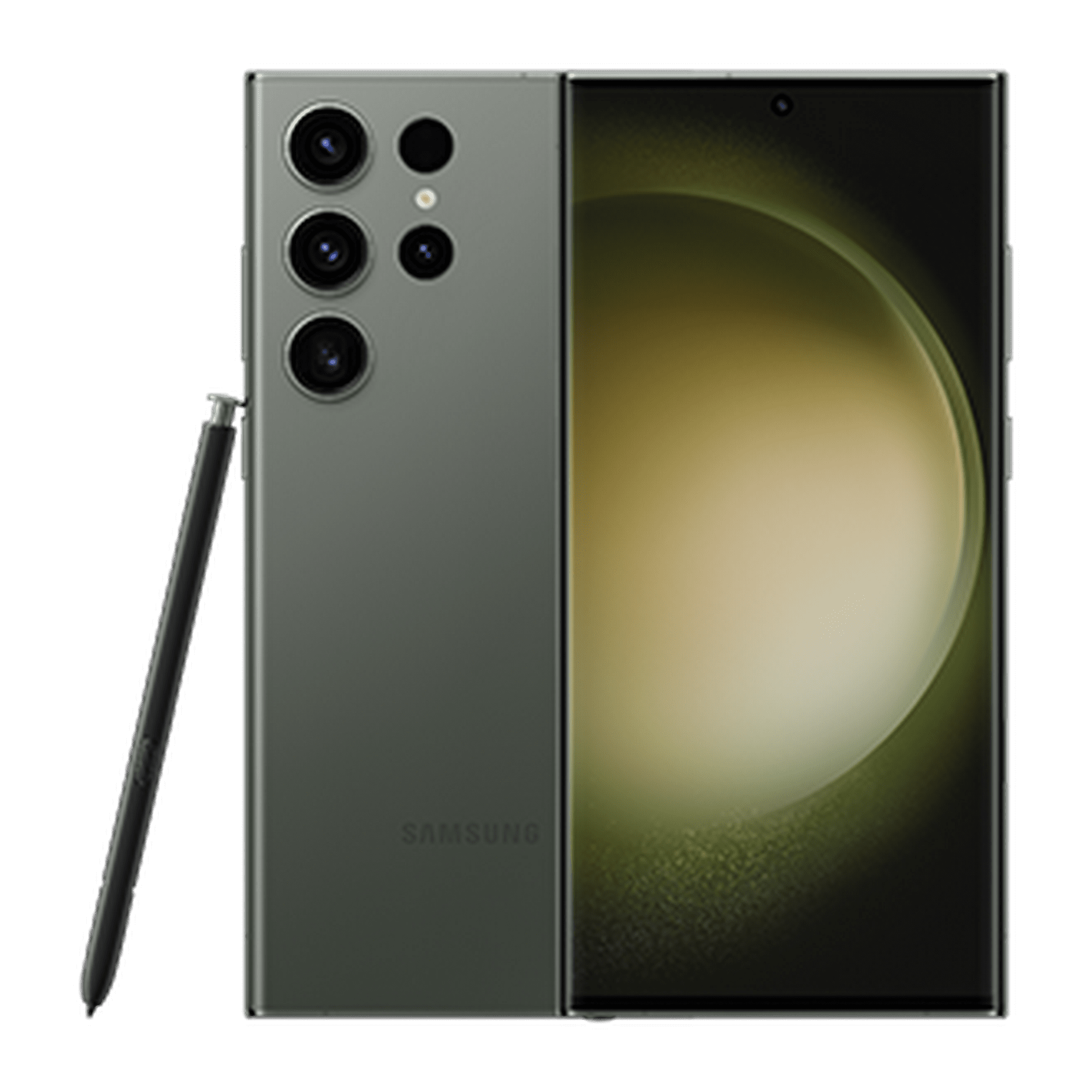
Most Android users stick with the default browser pre-installed on their device, missing out on options built specifically for mobile optimization. Samsung Internet stands out as a powerful alternative that runs on non-Samsung phones just as well as it does on Galaxy flagships. It combines robust tracking protections, smart assistant tools, and customizable layouts that can dramatically change how you navigate the web.
If you've only used the app for basic searches, you're scratching the surface. This guide covers how to configure the browser's hidden settings, secure your data, and speed up your daily web habits.
Core Privacy and Security Controls
Mobile browsing exposes your data to countless background trackers and intrusive scripts. Samsung Internet addresses this by integrating privacy tools directly into the main menu rather than hiding them behind multiple sub-menus.
Managing Smart Anti-Tracking and Ad Blockers
Websites routinely drop third-party cookies to follow your activity across different pages. You can counter this by enabling built-in protections:
- Tap the menu icon in the bottom-right corner of the browser.
- Select Settings and head to Privacy and security.
- Turn on Smart anti-tracking to block storage access for cross-site trackers.
- Tap Content blockers to download third-party filtering apps from the Galaxy Store or Google Play.
Once active, these filters strip away heavy advertising scripts before pages fully render. This cuts down data usage and significantly speeds up load times on heavy news and media sites.
Locking Down Secret Mode
Secret Mode functions as the browser's private browsing environment, keeping history, cookies, and form data off your device. Unlike standard private tabs, Samsung lets you lock Secret Mode behind biometric verification.
When you open a Secret Mode window, the app requires your fingerprint or face scan before displaying your private tabs. This prevents anyone else who picks up your unlocked phone from viewing your sensitive browsing history.
Maximizing Productivity with Built-In Tools
Beyond security, the browser includes functional shortcuts that eliminate repetitive taps and streamline how you consume long-form content.
Using Video Assistant for Better Media Playback
Online video players often feature clumsy overlay controls or restrictive full-screen triggers. Samsung Internet includes a persistent Video Assistant that overlays floating controls onto embedded clips.
- Pop-up Player: Float a video in a resizable window while scrolling through other web pages.
- Gesture Controls: Swipe up or down on the left side of a video to adjust brightness, or on the right side to change the audio volume.
- Cast to TV: Send media directly to a compatible smart display with a single tap.
Customizing the Quick Access Menu
When you open a new tab, Quick Access displays your most frequently visited sites. You can pin important web pages to this grid, organize them into folders, or clear out unwanted tiles that populate automatically. Rearranging the bottom toolbar also lets you place the Home button, tab switcher, and menu icon exactly where your thumb rests most naturally.
Integrating AI and Cross-Device Syncing
Recent updates bring artificial intelligence tools directly into mobile navigation, helping you digest long articles without endless scrolling.
Summarizing and Translating Webpages
If you land on a dense research paper or a lengthy news piece, tap the Galaxy AI icon in the toolbar. You can instantly generate a concise bulleted summary of the core points or translate foreign-language pages into your preferred language. The browser can also read highlights aloud, turning articles into an audio stream while you multitask.
Syncing Between Mobile and Desktop
You aren't locked into a single screen. By downloading the companion Samsung Internet extension on a Windows PC and logging into your Samsung Account, your bookmarks, open tabs, and saved passwords synchronize across devices. You can start reading a guide on your phone during a commute and pick up right where you left off on your desktop computer.
Troubleshooting Common Performance Issues
Over time, accumulated cache files and bloated site data can cause the browser to stutter or lag. If pages start loading slowly or the app freezes, a quick cleanup restores peak performance.
- Clear Browsing Data: Head to Settings, select Delete browsing data, and check the boxes for cached images, files, and cookies.
- Update the App: Keep the application updated through the Google Play Store to ensure compatibility with newer Android security patches and web standards.
- Manage Extensions: Too many active content blockers or third-party add-ons can strain system resources. Disable extensions you no longer use to speed up rendering times.
Frequently Asked Questions
Can I use Samsung Internet on a non-Samsung phone?
Yes. The app is available on the Google Play Store for nearly all modern Android devices running version 5.0 or higher, bringing most core features—including tracking protection and extensions—to non-Galaxy hardware.
How do I clear my cache without losing saved passwords?
Go to Settings, tap Delete browsing data, and ensure you only select Cached images and files while leaving Passwords and Autofill data unchecked.
Why won't video assistant work on certain websites?
Video assistant relies on standard HTML5 video players embedded in web pages. If a site uses a proprietary media player or heavily customized streaming architecture, the floating controls may not appear.
Does Secret Mode sync with my Samsung Account?
No. Data generated inside Secret Mode remains strictly local to your device and gets wiped immediately when you close all Secret Mode tabs. It never uploads to cloud storage or syncs across devices.



