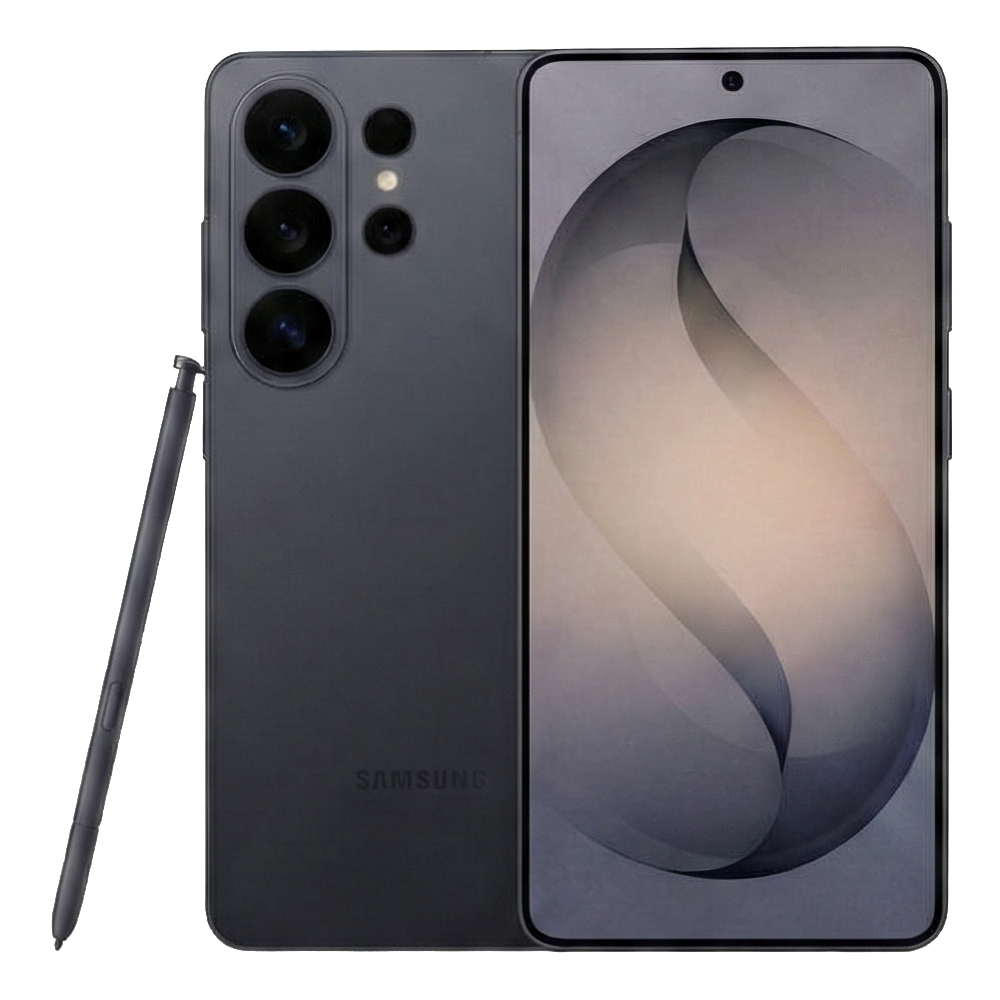
Fixing your Samsung Galaxy A16 doesn't always require a costly trip to a repair shop. Whether your phone won't charge, the touchscreen stopped responding, or random glitches are ruining your day, this guide helps you diagnose and fix common hardware and software faults quickly.
We'll skip the generic advice and dive straight into hands-on troubleshooting steps, accurate component checks, and clear repair decisions. Let's get your phone working right.
Diagnostic Steps for Common Software Glitches
Most sudden freezing, app crashes, and battery drain issues stem from software conflicts rather than broken parts. Before you grab a screwdriver or visit a shop, rule out software bugs.
Booting Into Safe Mode
If your phone runs hot, drains power rapidly, or reboots on its own, a rogue third-party app is usually to blame. Safe mode temporarily blocks all downloaded apps so you can test baseline performance.
- Press and hold the Side button and Volume Down button together until the power menu appears.
- Tap and hold the Power off icon on your screen until the Safe mode prompt pops up.
- Tap Safe mode to confirm.
If your phone runs normally in this mode, uninstall your most recently downloaded apps one by one until the problem stops.
Clearing the System Cache Partition
Corrupted temporary files often cause lag and strange display behavior after a major software update. Wiping the cache partition cleans out these old files without touching your personal photos, texts, or contacts.
- Turn off your Galaxy A16 completely.
- Connect the phone to a computer using a USB-C cable (Samsung devices require a USB connection to enter recovery mode).
- Press and hold the Side button and Volume Up button simultaneously until the Samsung logo appears.
- Release the buttons once the Android Recovery menu shows up on the screen.
- Use the Volume Down button to highlight Wipe cache partition, then press the Side button to select it.
- Choose Yes to confirm, then select Reboot system now.
Resolving Power and Charging Failures
When a phone won't take a charge, users usually assume the battery is dead. More often, the culprit is physical debris or a failing power adapter.
Clearing USB-C Port Debris
Lint, dust, and pocket debris pack tightly into the charging port over time, preventing the USB-C cable from making solid contact with the internal pins.
- Take a wooden toothpick or a non-conductive plastic pick—never use metal needles or pins, which can short out the circuit board.
- Gently scrape along the inside bottom and sides of the port to loosen packed lint.
- Blow compressed air in short bursts to clear the loosened particles.
If your cable still feels loose or won't click into place firmly, the internal port springs have lost their tension, and the daughterboard connector will need replacement.
Battery Health and Replacement Signs
Lithium-ion batteries degrade gradually across hundreds of charge cycles. If your device shuts down unexpectedly when the battery indicator reads twenty percent, or if the back glass panels start bowing outward, your battery has reached the end of its lifespan.
Swollen batteries pose a serious fire hazard. If you notice physical expansion, turn the device off immediately and avoid plugging it into a charger. Professional replacement is the only safe path for swollen power cells.
Display Damage and Touchscreen Failures
Dropping your phone can break the outer glass while leaving the underlying display functional, or it can destroy the internal panel entirely. Knowing the difference saves you money.
Glass Crack Versus Panel Failure
- Surface Glass Only: If the touchscreen responds normally to every swipe and tap, but you see spiderweb cracks across the surface, only the outer glass layer is broken.
- Internal OLED/LCD Failure: If the screen shows black ink blots, vertical pink or green lines, or remains completely black while the phone still rings and vibrates, the internal display panel is dead.
Replacing a modern phone display requires heating the industrial adhesive holding the frame together, carefully transferring small flex cables, and sealing the new unit with waterproof gaskets. If you don't have specialized heat pads and precision suction tools, leave this repair to certified technicians who back their work with a parts warranty.
When to Seek Professional Support
Some repairs go beyond standard DIY fixes. Water damage, for instance, requires immediate ultrasonic cleaning to remove mineral deposits before internal components rust completely. If your phone takes an unexpected swim, don't put it in raw rice—open the SIM tray if possible, keep the device powered off, and bring it to a repair specialist.
When choosing a repair service, check if they use genuine components and ask about their post-repair warranty policies. Local independent shops often offer faster turnaround times for standard screen and battery swaps compared to mail-in manufacturer depots.
Frequently Asked Questions
Why is my Samsung Galaxy A16 charging so slowly?
Slow charging usually happens because of a weak power adapter, a damaged cable, or lint packed inside the USB-C port. Make sure you're using a compatible fast-charging wall brick and a certified cable rated for high power delivery.
Will a factory reset delete my personal files?
Yes, a factory data reset wipes all apps, photos, text messages, and accounts stored in internal memory. Always back up your data to cloud storage or a computer before running a master reset.
Can I replace the Galaxy A16 battery myself?
While parts are available online, modern smartphones use strong adhesives and tightly packed internal layouts. Without proper heating tools and experience, you risk cracking the rear glass or severing delicate ribbon cables.
How do I force restart a frozen Galaxy A16?
If your screen freezes completely and won't respond to touch, press and hold the Side button and Volume Down button at the same time for about ten to fifteen seconds until the screen goes black and the Samsung logo appears.



