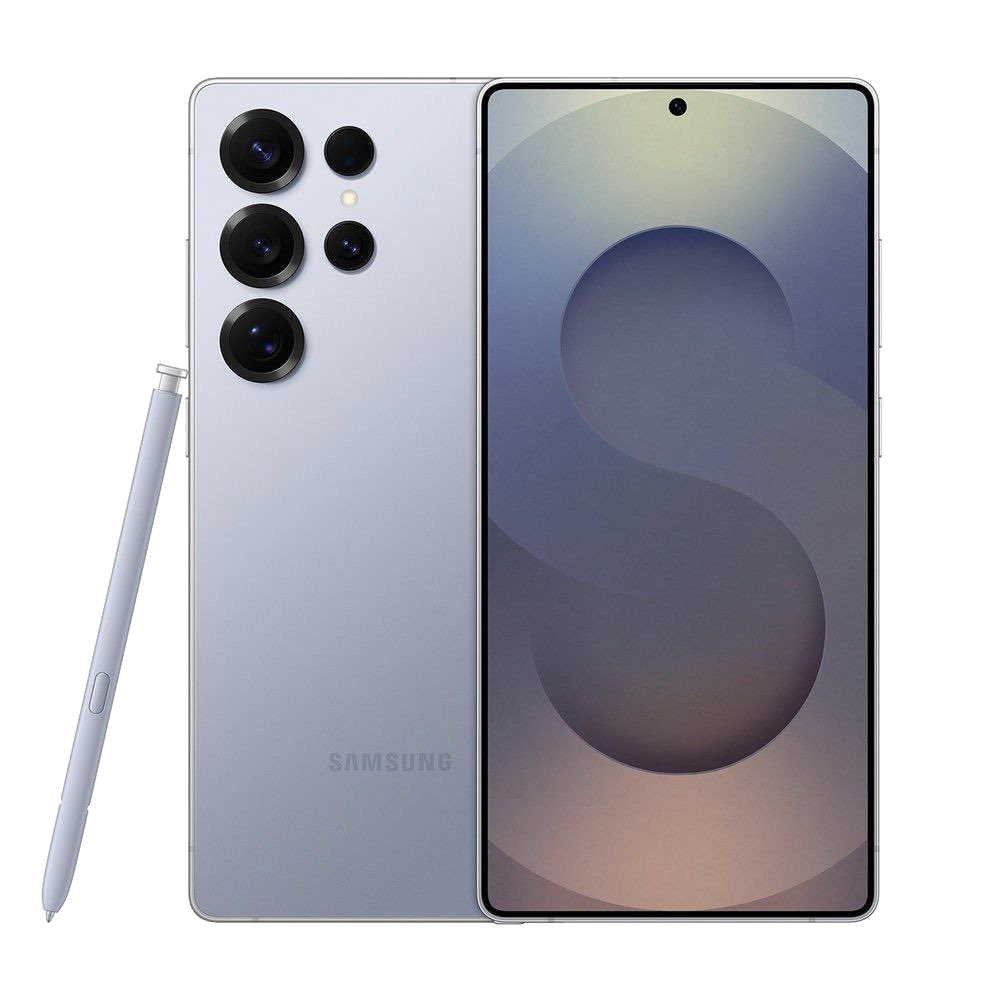
When your phone greets you with a relentless "Samsung Account has stopped" notification loop, basic device usage grinding to a halt is frustrating. This recurring background crash doesn't just annoy you with pop-ups; it blocks cloud backups, locks you out of the Galaxy Store, and breaks integrations like Find My Mobile.
The underlying trigger is usually an authentication breakdown between One UI, cached profile tokens, and third-party sync apps like Microsoft OneDrive. Let's look at why this crash loop happens and how to fix it for good without wiping your device.
Understanding the Samsung Account Crash Loop
The Samsung Account framework acts as the core identity layer for your entire Galaxy device. It manages security credentials, app licensing, and device verification. When the background package fails to validate a token or encounters corrupted app data, Android forces the service to close to protect overall system stability.
Recent software updates often expose underlying compatibility flaws, triggering sudden authorization failures. If you've recently updated your phone or restored data from a backup, mismatched version states between system components frequently cause the process to crash repeatedly.
Fix 1: Adjust OneDrive and Account Permissions
One of the most common yet overlooked causes of this specific crash loop involves permission conflicts between the Samsung Account framework and Microsoft OneDrive integration. If either service lacks necessary background permissions, the authentication handshake fails continuously.
- Open your phone Settings and tap Apps.
- Locate and select Samsung Account.
- Tap Permissions and ensure all requested permissions (such as storage, contacts, and notifications) are set to Allow.
- Go back to the app list, find Microsoft OneDrive, and check its permissions as well.
- Restart your phone to re-establish the connection.
Users frequently report that granting blanket permissions to both apps immediately stops the endless notification loop.
Fix 2: Clear Corrupted Cache and App Data
If permissions are already set correctly, corrupted temporary files within the local account cache are likely driving the authentication failure. Clearing these files forces the system to pull a clean configuration.
- Navigate to Settings > Apps and select Samsung Account.
- Tap Storage and select Clear Cache.
- Tap Clear Data (this won't delete your photos or personal files, but it will require you to log back into your account).
- Restart your phone immediately.
Fix 3: Update System Apps via Both Stores
Mismatched framework components happen when an operating system update upgrades part of the ecosystem while leaving companion services outdated. You need to check both update portals on your Galaxy device.
- Open the Google Play Store, tap your profile icon, select Manage apps and device, and tap Update All.
- Open the Galaxy Store, tap the menu icon in the bottom right, select Updates, and tap Update All.
Ensuring that core Samsung background services and companion plugins share the exact same version release eliminates internal syntax conflicts.
Fix 4: Remove and Re-add Your Samsung Account
If the local profile token is permanently damaged, refreshing your session by completely unlinking and re-linking the profile restores normal operation.
- Go to Settings and tap your profile name at the top (Samsung Account).
- Scroll to the bottom and select Sign out.
- Confirm your password to remove the account from the device.
- Perform a standard device reboot.
- Return to Settings, sign back into your Samsung Account, and let it sync fresh data.
For further guidance on credential management, review the official Samsung Account Support Portal.
Common Mistakes to Avoid
When troubleshooting authentication crises, users often waste time trying unhelpful workarounds or making system stability worse. Keep these pitfalls in mind:
- Don't factory reset immediately: A complete device wipe is rarely necessary for an app-level authorization error. Try permission tweaks and cache clears first.
- Don't ignore companion apps: Disabling OneDrive temporarily stops the pop-up for some, but it doesn't solve the core token conflict. Always fix the underlying permission states instead.
- Don't skip system time checks: If your device time drifts out of sync with network time, security certificates fail, causing immediate authentication crashes. Ensure "Automatic date and time" remains turned on.
Frequently Asked Questions
Will clearing Samsung Account data delete my photos or contacts?
No. Your photos, contacts, and notes are securely stored in cloud servers or separate local storage partitions. Clearing account data only resets temporary login tokens and app preferences on the device.
Why does this error happen right after a software update?
Major One UI upgrades often modify system-level APIs and background security protocols. If old cache files conflict with new verification routines, the service crashes upon startup.
What should I do if the error persists after trying all fixes?
If the crash loop continues, you can submit an error log directly to developers through the Samsung Members App by navigating to Support, selecting Feedback, and sending an application error report with system logs attached.



