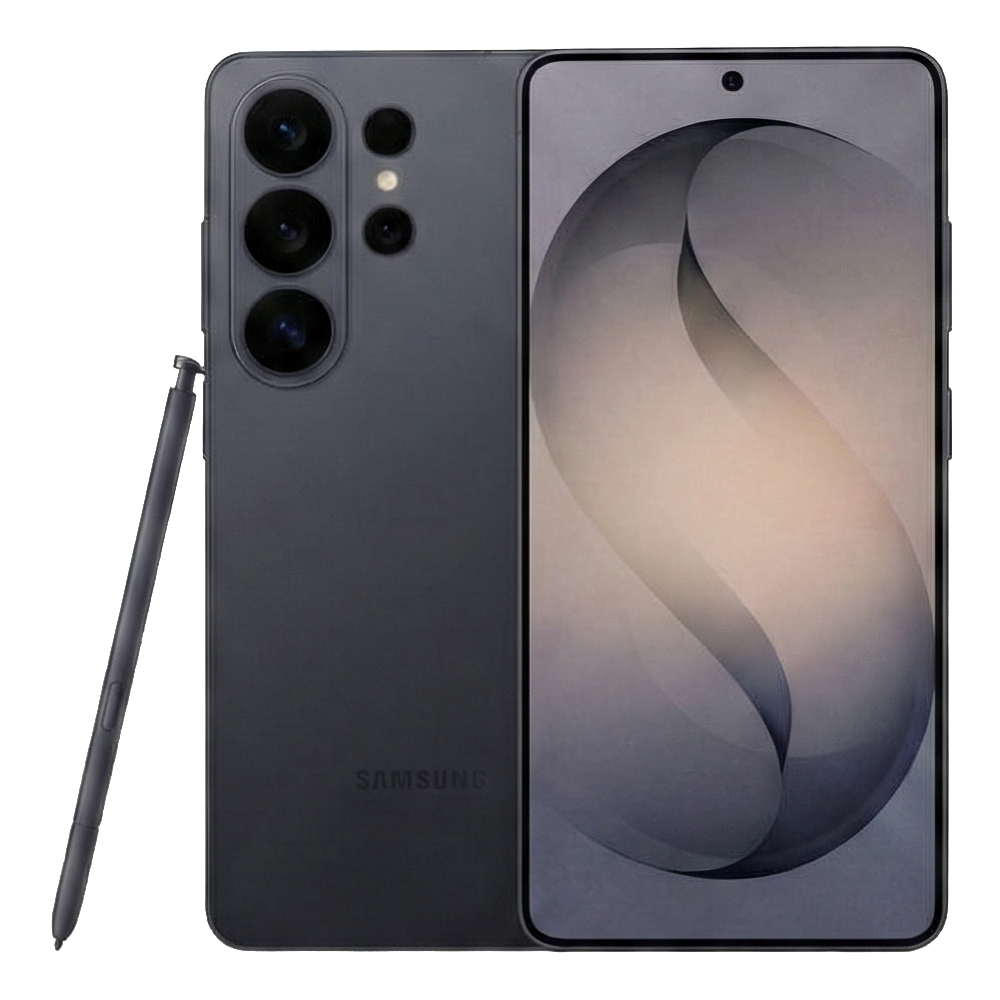
Managing your communication apps shouldn't feel like a second job. If your phone buzzes every two minutes with chat group updates, you're missing the messages that actually matter. On a budget device like the Samsung Galaxy A12 running One UI, organizing your alert preferences keeps your battery healthy and your focus intact.
This guide walks you through setting up precise alert controls, troubleshooting silent alerts, and reclaiming your attention without missing important family updates or work chats.
Understanding One UI Notification Layers on Galaxy A12
The Galaxy A12 runs Samsung's One UI skin over Android. This means you have two separate layers of control over how WhatsApp alerts behave: Android system settings and in-app WhatsApp preferences. If notifications aren't showing up correctly, or if they override your Do Not Disturb mode, you need to check both places.
Samsung groups application alerts into categories called notification channels. Instead of treating WhatsApp as a single toggle switch, your A12 lets you separate group chats from direct messages, media previews, and call alerts. Taking ten minutes to configure these categories stops random chatter from waking you up at night.
Step-by-Step Notification Customization
Setting up your device requires navigating through both system menus and the chat application itself. Follow these exact steps to lock down your alert preferences.
Configuring System-Level Notification Channels
- Open the Settings app on your Galaxy A12.
- Tap Notifications and select App notifications.
- Scroll down and tap WhatsApp to open its detailed settings page.
- Tap Notification categories to view individual alert types.
- Toggle off categories you find disruptive, such as Group notifications or Other notifications, while keeping Message notifications set to high priority.
Customizing Individual Chat Tones
You don't want a loud sound every time a low-priority group chat receives a message. Setting custom tones helps you identify senders instantly.
- Open WhatsApp and tap on the specific chat or group you want to modify.
- Tap the contact name or group header at the top of the screen.
- Select Custom notifications and check the box to use custom settings.
- Choose a distinct notification tone, ringtone, or vibration pattern.
For group chats you rarely read, tap Mute notifications from this same menu and select Always to silence them permanently without leaving the group.
Fixing Delayed or Missing WhatsApp Alerts
Budget devices like the Samsung A12 use aggressive battery management features to extend daily screen-on time. Unfortunately, these features often kill background processes, leading to delayed WhatsApp messages or missing notification badges.
Disabling Adaptive Battery Restrictions for WhatsApp
- Open your phone's Settings app.
- Go to Apps and select WhatsApp.
- Tap Battery under the app info screen.
- Switch the setting from Optimized or Restricted to Unrestricted.
This change ensures the messaging service runs continuously in the background, allowing incoming messages to reach your device instantly. You can check official Android battery guidelines on the Android Help Center for more details on background process management.
Checking Background Data Usage
If your messages only appear when you manually open the application, background data might be restricted.
- Navigate to Settings > Apps > WhatsApp.
- Tap Mobile data or Data usage.
- Ensure that Allow background data usage and Allow data while Data saver is on are both enabled.
Managing Distractions with Focus Modes
When you need to concentrate, standard silent modes might block emergency calls. Samsung's built-in routines and Focus modes provide a cleaner solution by letting specific contacts through while silencing everyone else.
- Open Settings and tap Modes and Routines.
- Select a mode like Work or Sleep, or tap the plus icon to create a custom routine.
- Choose which contacts are allowed to interrupt you and which apps are permitted to send alerts.
- Save the routine and set it to activate automatically based on your schedule or location.
For more information on managing device security and software updates for your device model, consult the official Samsung Support portal.
Frequently Asked Questions
Why am I not seeing notification badges on my WhatsApp icon?
If your A12 home screen doesn't show the small red dot or number count for unread messages, go to Settings > Notifications > Advanced settings and make sure App icon badges is turned on. Then check the WhatsApp system settings to ensure badges are enabled for that specific app.
How do I stop WhatsApp media from saving to my phone gallery?
Incoming photos and videos can clutter your device storage quickly. Open WhatsApp, tap the three-dot menu in the top right, go to Settings > Chats, and toggle off Media visibility. You can also adjust this setting for individual chats by opening the contact info page and tapping Media visibility.
What should I do if notifications still pop up after I muted a chat?
If a muted group chat continues to alert you, check if members are directly tagging you using the @ symbol. Direct mentions bypass standard mute rules by default. To stop these, you must either leave the group or turn off banner previews inside the chat's notification settings.
Does changing notification priorities drain my Samsung A12 battery?
No, adjusting notification channels and priorities happens locally on your device operating system and does not increase power consumption. In fact, reducing unnecessary wake-ups from constant chat alerts helps preserve your daily battery life.


