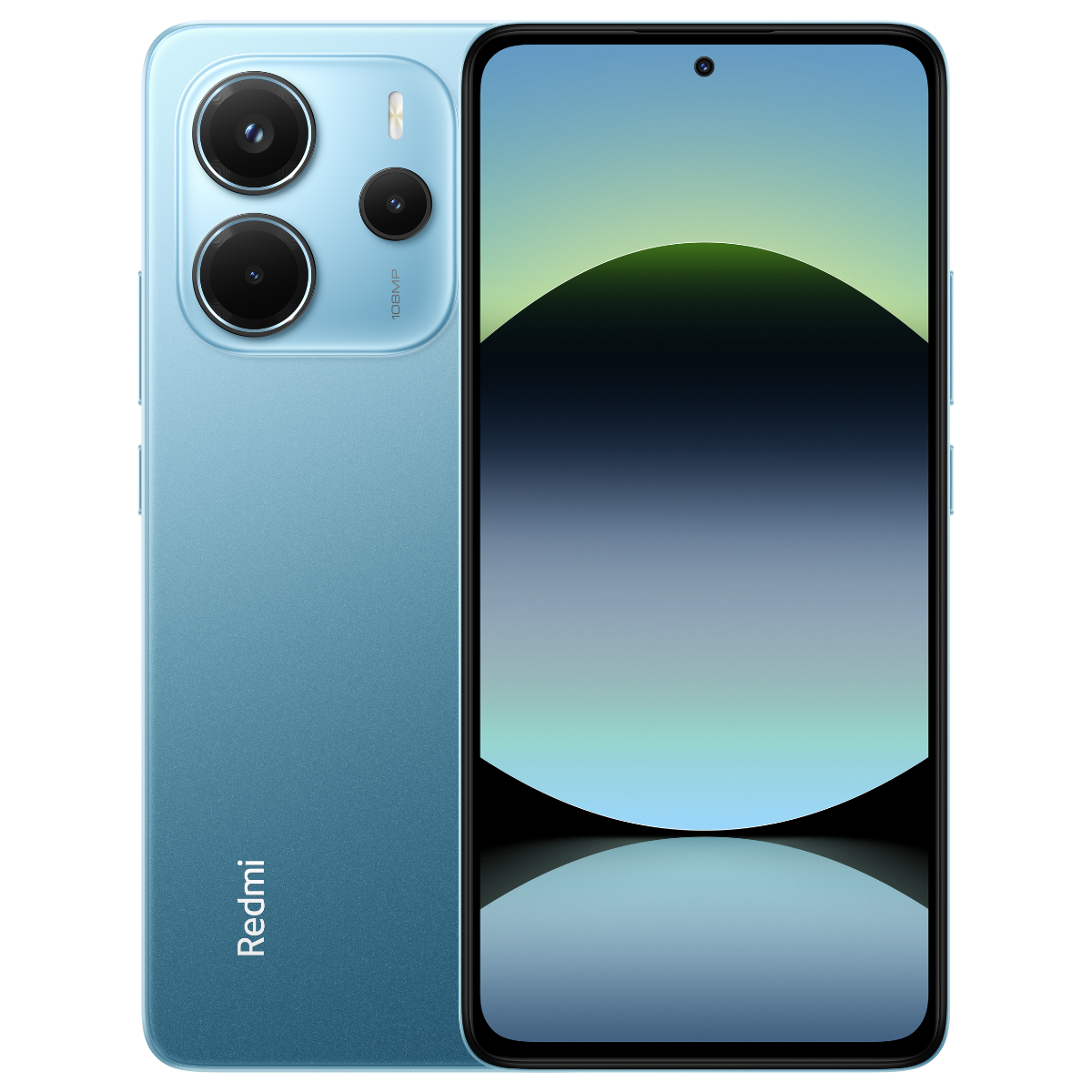
When your Redmi phone refuses to open the Google Play Store, it usually points to a software glitch, corrupted temporary data, or a sync conflict with your Google account. You don't need a factory reset or technical expertise to fix it. Most users get the app running again in under five minutes by clearing corrupted cache files, correcting system time settings, or resetting background service permissions.
Xiaomi's custom operating system layers—MIUI and HyperOS—manage battery and background processes very aggressively. Sometimes these system optimizers accidentally block Google Play Services from running in the background, causing the storefront to crash instantly or hang on a white screen. Let's look at the exact steps to clear the blocks and get your apps downloading again.
Clear Google Play Store Cache and Data
Corrupted cached data is the most common reason the Google Play Store freezes or shuts down immediately upon launching. Clearing out these old temporary files forces the application to build a fresh, clean state.
- Open your phone Settings and tap on Apps.
- Select Manage apps and search for Google Play Store.
- Tap on Storage at the bottom of the screen.
- Tap Clear cache first, then tap Clear data.
- Go back to the app list, search for Google Play Services, and repeat the exact same process: clear both its cache and storage data.
Restart your Redmi phone once you finish this process. When the device boots back up, open the Play Store. It will take a few seconds longer than usual to load as it rebuilds its internal database.
Fix Incorrect Date and Time Settings
Your Redmi device relies heavily on precise date and time synchronization to communicate securely with Google's servers. If your clock is off by even a few minutes, SSL security handshakes fail, causing the Play Store to block access or refuse to open entirely.
- Open Settings and scroll down to Additional settings.
- Tap on Date & time.
- Ensure that the toggle for Set automatically or Use network-provided time is turned on.
- If it's already enabled, toggle it off, wait ten seconds, and turn it back on to force a fresh network sync.
Avoid setting your device time manually unless you're troubleshooting a very specific network requirement. Network synchronization ensures your authentication tokens remain valid.
Adjust Battery Saver Settings for Play Services
HyperOS and MIUI feature strict power-saving algorithms that frequently suspend background services to extend battery life. If the system puts Google Play Services to sleep, the Play Store loses its core foundation and stops working.
- Navigate to Settings and select Apps.
- Tap Manage apps and tap the three vertical dots in the top right corner to select Show all apps.
- Search for Google Play Services and open its app info page.
- Tap Battery saver and change the setting to No restrictions.
- Look for an Autostart toggle on the same page and make sure it's turned On.
This tells your Redmi phone that Google's core framework is essential and must remain active in the background at all times.
Remove and Re-add Your Google Account
If your Play Store opens to a blank screen or says connection error, your Google account authentication token may have expired or corrupted locally. Removing and re-linking your account forces a clean handshake with Google servers.
- Go to Settings and tap on Accounts & sync (or Google depending on your specific HyperOS version).
- Tap on the Google account that you use for the Play Store.
- Tap the More or Remove account option at the bottom. Confirm the removal.
- Restart your Redmi phone.
- Return to Settings, tap Accounts & sync, select Add account, choose Google, and sign back in with your credentials.
Reset App Preferences
When multiple system components or downloaded packages conflict with one another, resetting app preferences restores default permissions and re-enables disabled system apps without deleting your personal files or photos.
- Open Settings and tap Apps.
- Select Manage apps.
- Tap the three dots menu icon in the top right corner.
- Tap Reset app preferences and confirm your choice.
This action re-enables any disabled system apps and resets default notification and data permissions across your entire device.
Frequently Asked Questions
Why does the Play Store keep crashing on my Redmi phone after an update?
System updates can cause temporary conflicts between the OS interface and cached Google packages. Clearing the cache for both the Play Store and Google Play Services usually resolves this immediately. You can check official guidance via Google Play Help for deeper sync troubleshooting.
Will clearing Play Store data delete my downloaded apps?
No. Clearing data or cache from the Google Play Store app only resets the storefront's local temporary files, search history, and preferences. It will never uninstall or delete apps that are already active on your Redmi phone.
What should I do if my storage is full?
If your Redmi device has less than one gigabyte of free internal storage, the Play Store will often refuse to open or download updates. Go to Settings and check Storage to clear out junk files, unused applications, or large media folders.
Can a custom ROM or region change break the Play Store?
Yes. If you purchased an imported Redmi device running a regional ROM or modified system software, Google Play Services may not be baked into the system partition correctly. Ensure your device runs official software channels or refer to Xiaomi Community for regional firmware support.



