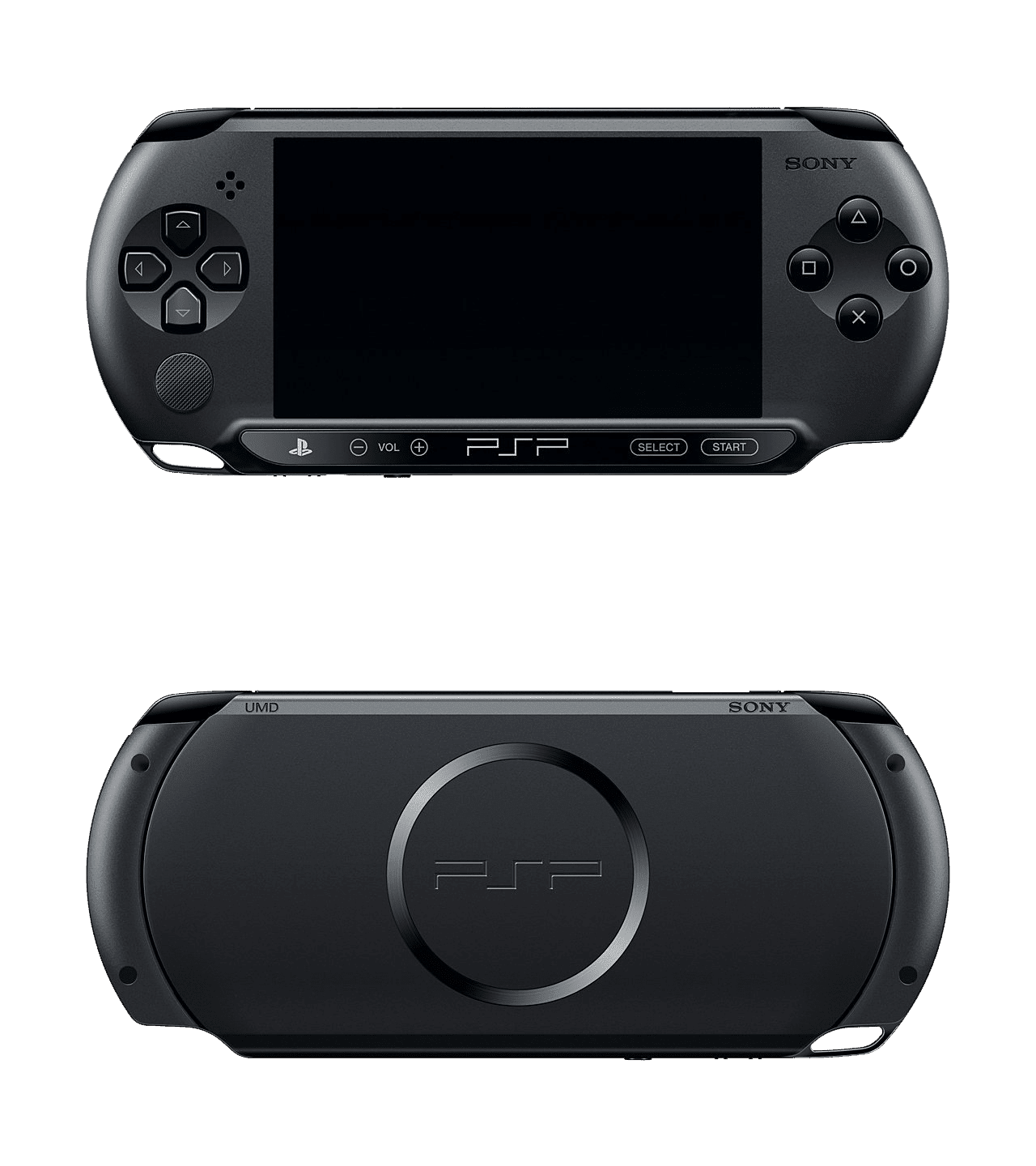
Playing classic PlayStation Portable titles on modern hardware doesn't require hunting down a functional 2004-era console. Modern software translation layers recreate the original Sony hardware environment directly on your smartphone, tablet, or computer, offering sharper resolutions and better frame rates than the original machine ever managed.
The primary tool for this task is PPSSPP, an open-source application that handles almost the entire PSP library without hassle. Whether you want to replay God of War: Chains of Olympus on an Android phone or experience Persona 3 Portable on a high-end desktop monitor, getting started requires understanding how system files interact, how to configure graphics backends, and what your device can actually handle.
Choosing the Right PSP Emulator
While a few alternative projects exist in the retro gaming ecosystem, almost every serious user relies on PPSSPP. It runs on Windows, macOS, Linux, Android, and iOS, providing a unified experience across platforms.
The software operates on an open-source model, meaning both the desktop and mobile versions include full feature sets without hidden paywalls. You don't need to pay for a "pro" version to unlock high-definition rendering or save states.
If you prefer an all-in-one frontend, the RetroArch ecosystem also includes a PPSSPP core. However, running the standalone application is usually simpler for beginners because it avoids the complex menu trees and configuration layers inherent to RetroArch.
Setting Up PPSSPP for Optimal Performance
Getting games to run smoothly on your device requires more than just installing the app. You need to map out your file directory and understand how the emulator reads game backups, typically stored as .iso or .cso files.
- Organize your directory: Create a dedicated folder on your device named
PSPand subfolders forISOandGAMEto keep your game files structured. - Select your graphics backend: PPSSPP allows you to switch between graphics APIs like Vulkan, OpenGL, and Direct3D (on Windows). Vulkan usually provides the most stable performance and lowest CPU overhead on modern Android devices and Windows rigs.
- Configure internal resolution: Match your device's native screen resolution if possible. Setting the internal resolution to 2x or 3x makes pixelated textures look crisp on modern high-density screens without crushing weaker GPUs.
- Adjust hardware scaling: If a demanding 3D title stutters during heavy combat or fast-paced rendering sequences, drop the rendering resolution back down to native 1x before messing with complex frame-skipping options.
You can check the official documentation on the PPSSPP Website for specific compatibility notes and troubleshooting guides.
Hardware Requirements and Limitations
Not all devices handle emulation equally. Processing power dictates whether a game runs at a silky-smooth 60 frames per second or turns into an unplayable slideshow.
On mobile devices, budget chipsets often struggle with heavy 3D titles like Grand Theft Auto: Liberty City Stories or Monster Hunter. You generally want a processor equivalent to a Unisoc T610 or better to run the library at full speed with graphical enhancements. Weaker chips can handle simpler 2D puzzle games or visual novels just fine, but action-heavy 3D architecture requires real hardware muscle.
On the desktop side, virtually any modern PC or laptop built in the last decade handles PSP emulation effortlessly, even when pushed to 4K internal resolutions with anisotropic filtering enabled.
Common Emulation Mistakes to Avoid
- Ramping up texture scaling too early: Turning on aggressive texture filtering or xBRZ texture scalers can exhaust your device's VRAM, causing sudden crashes during loading screens.
- Ignoring audio latency settings: If sound pops or lags behind video, switch the audio backend from WASAPI to XAudio2 (on Windows) or adjust the buffer size in the audio settings menu.
- Downloading unverified system files: Stick to official software distributions from trusted repositories to keep your operating system safe from unwanted bundled adware.
For a broader look at how historical preservation interacts with modern hardware, you can read more via the Internet Archive.
Frequently Asked Questions
Do I need a physical PSP to use an emulator?
No. The emulator software acts as a software replacement for the console hardware. However, running games legally typically involves creating personal digital backups (ROMs) from physical Universal Media Discs (UMDs) you already own.
Why are some cutscenes lagging while gameplay is smooth?
PSP games frequently streamed video cutscenes off the physical UMD at variable bitrates. In an emulator, enabling asynchronous texture loading or switching the rendering backend to Vulkan often resolves video stuttering.
Can I use a modern controller with mobile emulators?
Yes. PPSSPP natively supports Bluetooth controllers like the Xbox wireless gamepad, PlayStation DualShock/DualSense controllers, and various mobile-specific telescopic gamepads like the Backbone One.
What is the difference between an ISO and a CSO file?
An .iso file is an exact, uncompressed sector-by-sector copy of a game disc. A .cso (Compressed ISO) file is compressed to save storage space on your device, which has a negligible impact on loading times while freeing up valuable gigabytes on mobile phones.



