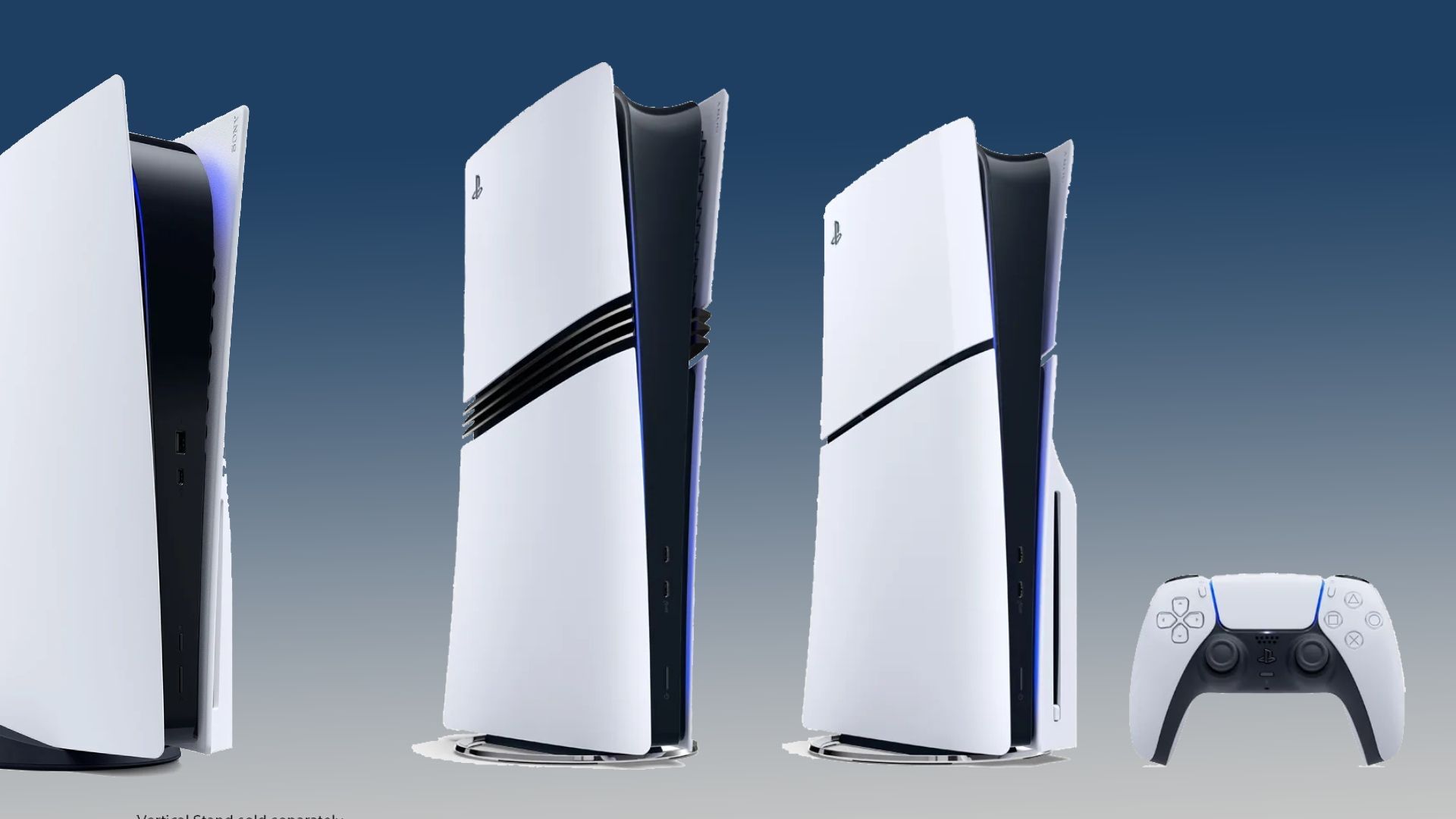
Encountering a sudden storage glitch or an unresponsive drive on your PlayStation 5 can grind your gaming session to a halt. When your console fails to read an external hard drive, throws cryptic numeric alerts like CE-100006-7 or CE-109737-7, or flags file system corruption, it's usually because the internal operating system and the connected peripheral have lost synchronization. Fixing these file system errors requires targeted diagnostic steps rather than random reboots.
Identify the Root Cause of Your PS5 USB Storage Error
Before formatting partitions or replacing hardware, pinpointing why the error occurs saves valuable time. The PlayStation 5 relies on strict hardware and software protocols for external storage. If a drive disconnects improperly during data writing or a background update, the internal directory index breaks down.
Common triggers include:
- Improper Disconnection: Unplugging a USB drive while the console is in Rest Mode or actively writing data corrupts the file allocation table.
- Incompatible Formats: The PS5 requires exFAT or FAT32 for extended storage drives. NTFS drives or unrecognized partition styles will cause immediate read failures.
- Power Delivery Inconsistencies: Using unpowered USB hubs or worn-out front-panel ports can starve external mechanical hard drives of necessary amperage.
- Outdated Console Firmware: Running legacy system software can trigger communication breakdowns with newer high-capacity solid-state USB drives.
Step-by-Step Fixes for USB File System Corruption
When your console throws storage errors, work through this sequence to clear corrupted sectors and re-establish a stable connection.
1. Perform a Hard Power Cycle and Port Swap
Power down your console completely by holding the power button until it turns off. Unplug the power cord and the external USB drive for at least sixty seconds. This clears residual static charge in the USB controller.
- Plug the drive into a different port. If you were using the front USB-A port, switch to one of the high-speed USB ports on the back of the console.
- Turn on the console without any USB hubs in between to ensure direct data lanes.
2. Check and Repair the Drive on a Computer
If the PS5 still flags the drive as unrecognized, connect the external storage device to a Windows PC or Mac to check for structural file corruption.
- Open File Explorer or Finder to see if the drive mounts.
- On Windows, right-click the drive, select Properties, navigate to the Tools tab, and click Check under error checking to repair corrupted sectors.
- Verify the file system format. If it has accidentally converted to RAW or NTFS, you will need to back up any readable files and reformat it to exFAT.
3. Rebuild the PS5 Database via Safe Mode
Corrupted internal indexes can trick the console into thinking your external USB storage is damaged. Rebuilding the database cleans up the internal layout without deleting your saved games or profiles.
- Turn off your PS5 completely.
- Press and hold the power button until you hear a second beep to enter Safe Mode.
- Connect your DualSense controller via a USB-C data cable and press the PS button.
- Select Option 5: Rebuild Database and let the process run to completion.
Best Practices to Prevent Future Storage Failures
Maintaining storage health on a modern console comes down to routine habits. Always use the system menu to safely remove hardware by navigating to Settings, selecting Storage, choosing USB Extended Storage, and selecting Safely Remove USB Extended Storage Device before pulling the physical plug.
For additional troubleshooting guidance on system alerts, check the PlayStation Support Error Codes directory. If you are looking to expand your hardware footprint safely, consult the PlayStation Official SSD Requirements for compatible internal specifications.
Frequently Asked Questions
Can I use an NTFS-formatted external hard drive on my PS5?
No. The PS5 does not natively support writing games to NTFS or APFS formatted external drives for extended storage. It requires exFAT or FAT32.
Will reformatting my external USB drive delete my game library?
Yes. Formatting an external drive erases all data stored on it. You can redownload your digital games from your PlayStation Library afterward, but you should back up important game captures or settings beforehand if possible.
Why does my external drive disconnect during Rest Mode?
This typically happens due to power-saving settings on the console. Go to Settings, select System, choose Power Saving, and adjust the settings for Features Available in Rest Mode to supply continuous power to USB ports.
What does error code CE-100006-7 mean?
This specific error code indicates that the external storage drive cannot be recognized by the console, usually pointing to an unstable physical connection, a faulty cable, or a corrupted file partition.



