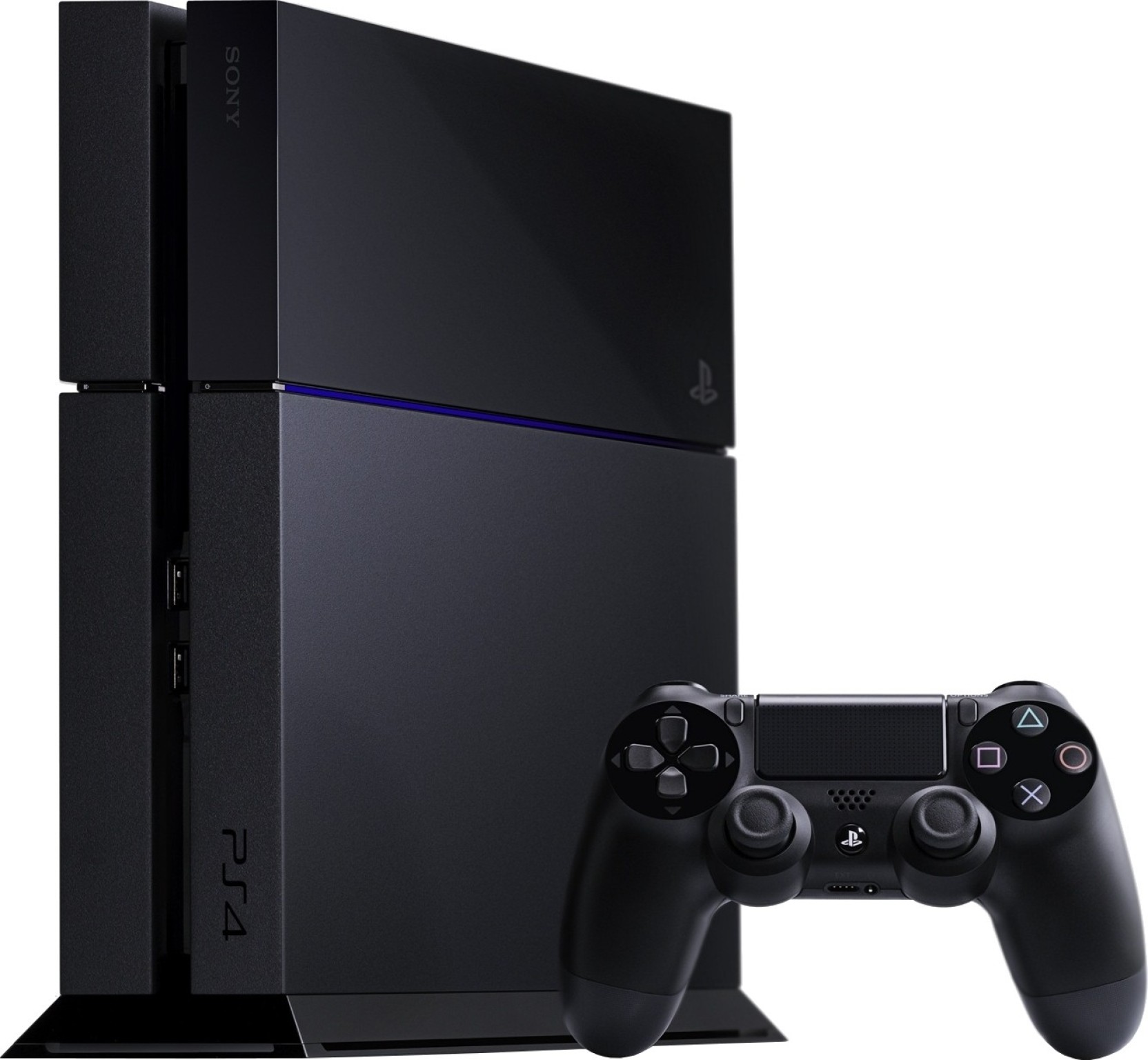
When your PS4 controller refuses to sync or display a blue light, your gaming session comes to a screeching halt. Whether you're staring at a flashing white light or a completely unresponsive gamepad, the fix usually comes down to a data cable issue, a Bluetooth sync error, or a quick hardware reset.
Most connection failures happen because the DualShock 4 has lost its pairing handshake with the console, or the micro-USB cable you're using only transfers power instead of data. You don't need to buy a replacement controller just yet. Working through a few targeted troubleshooting steps will get your hardware talking to your PlayStation again.
The Data Cable Trap: Why Charging Cables Fail
The single most common reason a PS4 controller won't connect via USB is the cable itself. Many micro-USB cables found around the house are charge-only cables; they lack the internal data wires required to pass handshake signals between the controller and the console.
If you plug your controller into the PS4 and it only shows an amber pulsing light—or no light at all—the console is feeding it electricity, but they aren't communicating.
- Swap the cord: Find a known data-transfer cable, such as an original cable that came with an older external hard drive, digital camera, or another electronics kit.
- Test the port: Plug the cable into a different USB port on the front of your PlayStation 4. If one port has collected dust or suffered physical wear, the other port might establish the connection instantly.
- Wired mode check: Go to your console settings and ensure your controller is allowed to communicate via USB. Navigate to Settings, select Devices, click Controllers, and set the Communication Method to Use USB Cable.
Performing a Hard Reset on the Controller
When software glitches corrupt the internal pairing memory of the DualShock 4, a standard power cycle won't fix it. You need to clear the controller's onboard cache using its physical hardware reset switch.
- Turn off your PlayStation 4 completely. Do not leave it in rest mode. Unplugging the power cord for two minutes can also help drain any lingering static charge.
- Flip the controller over and locate the tiny pinhole near the L2 shoulder button.
- Take an unfolded paperclip or a SIM ejector tool and push it into the hole. You should feel a tiny click pressing the internal micro-switch.
- Hold the button down for roughly six to eight seconds, then release it.
- Plug the controller directly into the console using a verified data-capable micro-USB cable.
- Press the PS button on the front of the controller. The light bar should flash white briefly before turning solid blue, indicating a successful handshake.
Clearing Bluetooth Interference and Stuck Pairings
If your controller pairs when plugged in but drops the connection the second you pull the cable out, you're dealing with a Bluetooth sync conflict. The console may have registered too many active peripherals, or another device like a PC or smartphone has hijacked the controller's Bluetooth profile.
To clean up old Bluetooth profiles, you'll need a secondary working controller or a USB keyboard plugged into the console.
- Navigate to the PS4 dashboard and go to Settings.
- Select Devices, then click Bluetooth Devices.
- Look for your inactive controller on the list. If you see multiple entries or a device without a green active dot, highlight it.
- Press the Options button on your working controller and select Forget Device.
- Shut down the console completely, plug the problematic controller in with a USB cable, and boot the system back up to establish a clean pairing profile.
If you frequently use your DualShock 4 with a PC or mobile device via Bluetooth, remember that the controller can only pair to one primary host at a time. You may need to manually re-initiate the pairing sequence every time you switch between your PC and your console.
Fixing Connection Issues Through Safe Mode
If the dashboard is completely frozen or your controller won't register even on the initial startup screen requiring you to press the PS button, you may need to drop the console into Safe Mode. Safe Mode loads a stripped-down version of the system software that bypasses normal Bluetooth drivers, forcing the console to recognize wired USB inputs.
- Turn your PS4 completely off by holding the power button until it beeps twice.
- Press and hold the power button again, releasing it only after you hear a second beep—usually about seven seconds after the initial press.
- Connect your controller to the console using a trusted data micro-USB cable.
- Press the PS button.
- Select option five, Rebuild Database, which scans the hard drive and clears corrupted system sectors that often interfere with controller input recognition. This process does not delete your saved games or profile data.
Frequently Asked Questions
Why does my PS4 controller flash white and then turn off?
A flashing white light means the controller is actively searching for a console to pair with but cannot find a matching Bluetooth signal. This usually happens when the battery is critically low, the internal sync profile is corrupted, or you are using a charge-only cable that fails to transmit the pairing handshake.
Can I use any micro-USB cable to sync my PS4 controller?
No. While almost any micro-USB cable can pass electrical current to charge the battery, many cheap third-party cables omit the internal data wires entirely. You must use a cable designed for data transfer to successfully pair a DualShock 4 to a PlayStation 4 console.
How do I know if my PS4 controller battery is completely dead?
If the controller refuses to show any light indicator even after being plugged into a powered USB port for over thirty minutes, the lithium-ion battery may have degraded beyond recovery or the internal charging circuit has failed. Leaving a controller uncharged for months at a time often causes permanent battery cell failure.
What should I do if my controller works with a wire but disconnects wirelessly?
This points directly to a failing Bluetooth module inside the console or severe local wireless interference. Keep your console away from heavy routers, metal shelving, or other active Bluetooth transmitters, and clear out old device pairings from your system settings.



