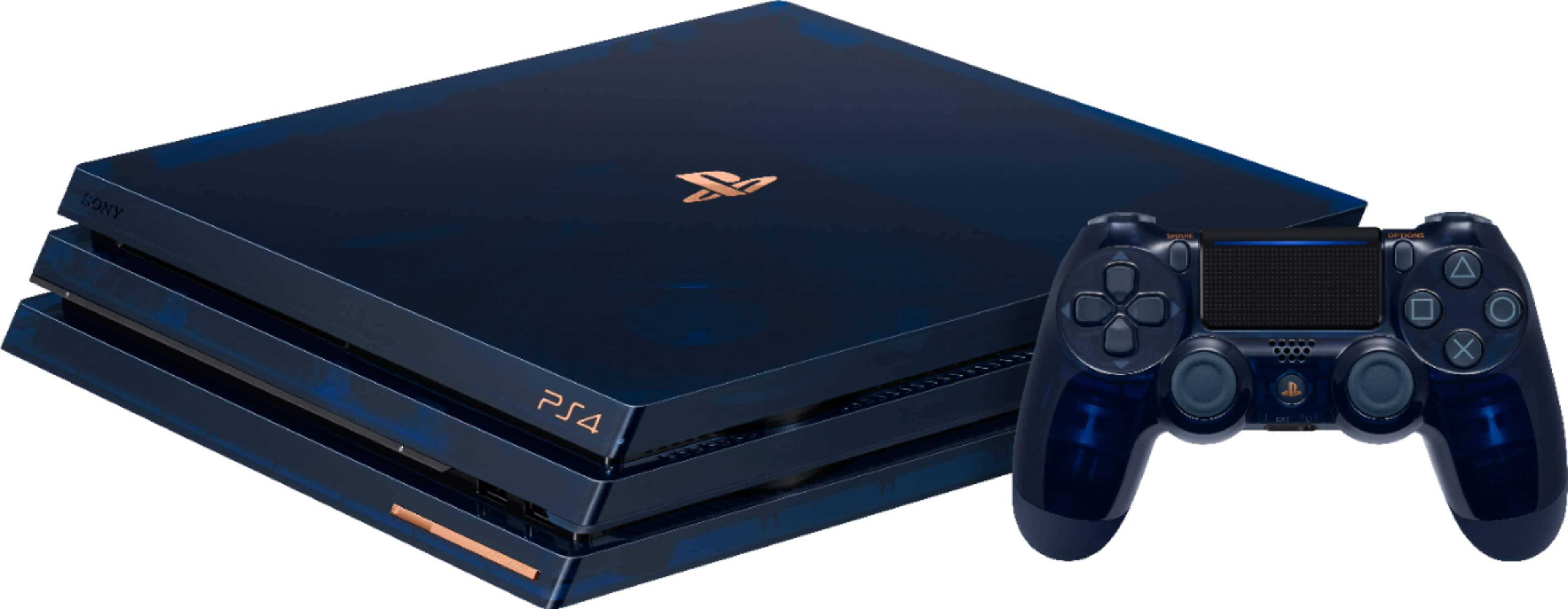
When your DualShock 4 refuses to sync, your gaming session comes to a screeching halt. A blinking white or orange light usually means the gamepad is searching for a host it can't find.
Fixing this issue typically comes down to identifying whether the bottleneck is a charge-only USB cord, a corrupted hardware handshake, or Bluetooth interference. Let's walk through the exact steps to get your hardware communicating again.
Verify Your USB Cable Type
The most common reason a PS4 controller won't connect to a console is the cable itself. Many replacement micro-USB cables are charge-only cords that carry electrical current but lack the internal data wires required to pair the device.
Unplug your current cable and swap it for an official Sony cable or a known data-transfer cable. Connect the cable directly to one of the front USB ports on your PlayStation 4, avoiding passive USB hubs. Press the PlayStation button on the center of the gamepad. If the light bar shifts from blinking white to solid blue or a player-assigned color, data communication is restored and the controller is paired.
Perform a Hard Reset on the Controller
Internal cache corruption can lock a controller out of its paired console profile. Performing a hardware reset clears these temporary settings and forces the gamepad back to factory defaults.
- Turn off your PlayStation 4 completely and unplug it from the wall outlet to prevent stray signals.
- Locate the tiny reset hole on the back of the DualShock 4, positioned near the L2 shoulder button.
- Insert a straightened paperclip, SIM ejector tool, or toothpick into the recess.
- Press and hold the internal button for roughly 5 seconds, then release.
- Plug your controller back into the console using a verified data USB cable and power the system on.
- Press the PlayStation button to complete the handshake.
Clear Bluetooth Interference and Device Limits
If your controller pairs via USB but drops the connection the moment you unplug the wire, Bluetooth interference or memory saturation is usually to blame.
The console can struggle to maintain clean wireless signals if it's crowded by external hard drives, Wi-Fi routers, or other active Bluetooth peripherals. Move competing electronics away from the front of your console.
Next, check your saved device profiles. Navigate to your console dashboard, select Settings, choose Devices, and click Bluetooth Devices. If the list is cluttered with old or unresponsive hardware, delete unused pairings that might be confusing the internal transceiver.
Fix Battery and Power Delivery Failures
A battery that has dropped below a critical voltage threshold won't hold enough power to sustain a Bluetooth broadcast, even if it appears to charge.
If your controller flashes orange briefly and then dies, leave it connected to a powered-on console or a wall charger for at least two hours. Avoid plugging the controller into a computer USB port for charging, as lower amperage outputs often fail to revive deeply depleted lithium-ion cells.
If the battery pack has swollen or fails to hold a charge after an overnight session, the internal battery has degraded and needs replacement. You can read more about official hardware specifications on the PlayStation Support hardware portal.
Frequently Asked Questions
Why does my PS4 controller flash white and turn off?
A blinking white light indicates that the controller is desperately searching for its paired console. If it turns off shortly after, it either has a critically low battery or has lost its pairing memory due to a corrupted cache or a non-data USB cable.
Can I connect a DualShock 4 without a USB cable?
You cannot pair a brand new or hard-reset controller wirelessly right out of the box. The initial handshake protocol requires a physical USB data connection to establish trust between the console and the gamepad.
Why won't my controller reset using the pinhole button?
If pressing the pinhole button yields no results, the tactile switch inside the casing may be misaligned or broken, or you might be using a tool that is too thick to depress the internal trigger. Ensure you use a fine point like a bent paperclip and hold it down firmly for the full five seconds.
How do I know if my micro-USB cable supports data transfer?
Visual inspection is rarely enough because exterior jackets look identical. The safest method is to test the cable by connecting an external storage drive or smartphone to a computer; if the host machine recognizes the device and allows file transfers, the cable handles data properly.



