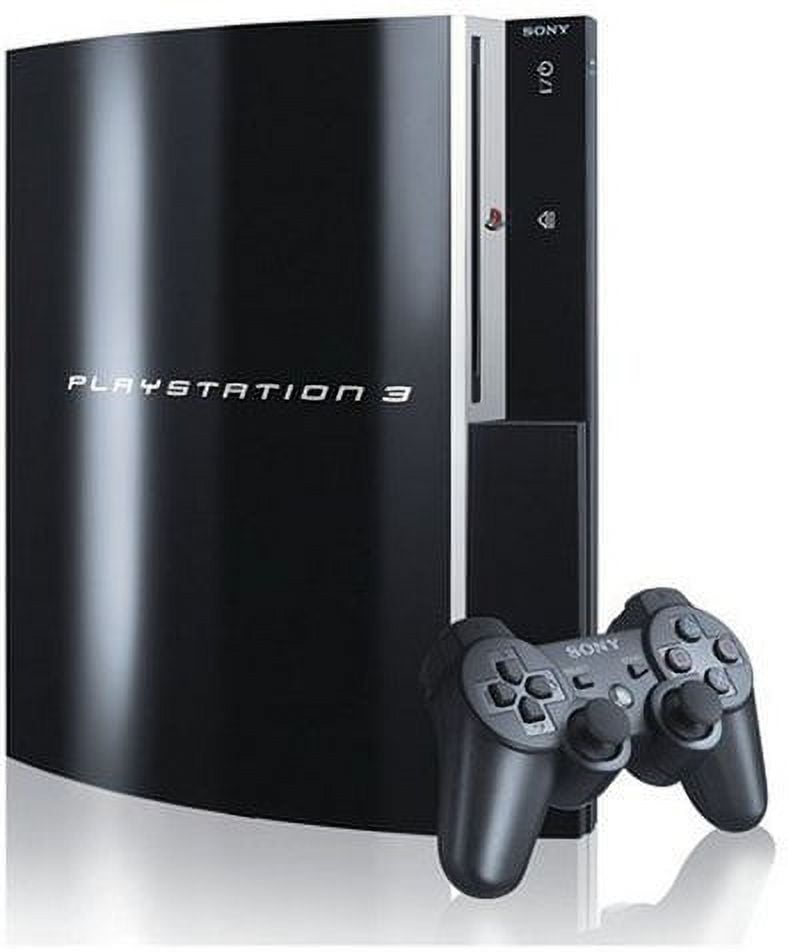
Running PlayStation 3 games in folder format with PS3 HEN gives you a reliable way to manage backups on external or internal storage without dealing with fragile optical discs. Unlike ISO files that act as single disk images, folder format (often called GAMEZ or GAMES format) keeps the uncompressed directory tree exposed, making it easier to edit game files, apply translation patches, or swap out textures.
Setting this up requires proper directory structures, specific file naming conventions, and compatible backup managers like webMAN MOD or multiMAN. If you drop a directory into the wrong path or misspell a region code, the console's payload loader won't recognize the title. Here is how to organize, transfer, and launch your folder-format backups cleanly.
Preparing Storage Devices for PS3 HEN
Before you move any game directories over, your USB drive or internal hard drive needs the correct partition layout and file system format. The PS3 cannot read NTFS drives natively for game launching without helper applications, and exFAT support requires specific HEN plugins.
Choosing the Right File System
- FAT32: Universally recognized by the PS3 and homebrew managers, but it has a strict 4GB file size limit. If a game folder contains a single file larger than 4GB (common in modern titles), you'll need to split it using tools like PS3 Splitter.
- NTFS: Ideal for large libraries because it handles files well over 4GB without splitting. To use an NTFS drive, you must launch IRISMAN or webMAN MOD's NTFS scanner so the system can mount the directories.
- exFAT: Supported natively on newer HEN versions, offering a strong middle ground for drives over 32GB without the 4GB file restriction of FAT32.
Setting Up the Root Directory
Your storage device must have a specific root folder structure depending on whether you use internal or external storage. Create a folder named either GAMES or GAMEZ directly in the root directory of your USB drive.
USB_Drive/GAMES/(Standard path for webMAN MOD and multiMAN)dev_hdd0/GAMES/(Internal hard drive path)
Never place game folders directly in the root of the drive or inside arbitrary subfolders, or your homebrew loaders won't scan them properly.
Structuring Game Folders Correctly
Every game folder you place inside GAMES or GAMEZ must mirror the exact directory tree of a retail PS3 disc. If you extracted an ISO or dumped a disc, you'll see a root folder containing specific system files.
The Standard Directory Hierarchy
Each game directory name should ideally include its region ID followed by the title name in brackets for clarity. Inside that main folder, the layout must look like this:
Game_Title_ID (BLUS30123)/PS3_GAME/PARAM.SFO(System file containing title ID and version)ICON0.PNG(Game icon displayed in XMB)USRDIR/(Contains core game assets, e.g.,EBOOT.BIN,.edatfiles)LICDIR/(License files, present in some titles)
PS3_UPDATE/(Optional; usually safe to delete to save space)
If the PS3_GAME folder is missing or buried inside an extra subfolder, your homebrew manager will return an error or fail to list the game.
Transferring and Splitting Large Files
When your storage drive is formatted to FAT32, any file exceeding 4 gigabytes will fail to copy. This frequently happens with games containing large container files like PS3_DISC.SFB or massive archive files inside USRDIR.
How to Split Files for FAT32
- Download a lightweight utility like PS3 Splitter or use built-in features in backup managers.
- Select the oversized file (e.g., a 7GB
.pkgor large asset file). - The tool will break the file into chunks ending in
.66600,.66601, etc. - Copy the split files to your FAT32 drive. Homebrew loaders like multiMAN will automatically stitch these files back together when launching or copying to the internal hard drive.
To avoid this hassle entirely, format your external drive to NTFS and use IRISMAN to read the folder-format games directly.
Launching Games via Homebrew Managers
Once your files are transferred and your storage drive is plugged into the right USB port (typically the right-most port on older slim models, or any port on superslims running HEN), you need a manager to mount the game.
Using webMAN MOD
webMAN MOD integrates directly into the PS3's XMB (XrossMediaBar).
- Enable HEN upon booting your console.
- Scroll to webMAN GAMES on your XMB menu.
- Select PS3 Games.
- Find your title in the list and press X. The screen will flash, and webMAN will mount the folder as a virtual disc.
- Navigate to the Disc Icon on the main XMB games column and launch the game just like a physical retail disc.
Using multiMAN
If webMAN doesn't pick up your folder structure immediately:
- Open multiMAN from your homebrew apps list.
- Switch to the Retro or XMM0 column to view your titles.
- Highlight the game title and press Square or X to load it.
- The application will take you back to the XMB automatically, where you can select the mounted game disc icon.
Common Mistakes and Troubleshooting
Even with careful setup, folder-format games can fail to boot due to minor oversights.
- Black Screen on Launch: This usually means the game requires a specific firmware version patch or a missing
PARAM.SFOfix. Open your manager, highlight the game, press Triangle, and select Rebuild or check if you need to set the game to run with BD Mirror enabled. - Game Not Showing in List: Check your folder path. If the game is nested like
GAMES/Action/God of War/PS3_GAME, the loader won't find it. It must beGAMES/God of War/PS3_GAME. - Missing License Error: If a game requires a
.rapfile (common for digital PSN titles converted to folder format or games with patches), place the.rapfile in a folder namedexdataon the root of a USB drive and activate it using PS3 Tools or CANTABA.
Frequently Asked Questions
Can I run folder-format games directly from an external USB hard drive?
Yes. Both webMAN MOD and IRISMAN allow you to launch folder-format games from external USB drives formatted to NTFS, exFAT, or FAT32. However, games with heavy streaming requirements may experience stuttering over USB 2.0 speeds, making internal hard drive transfers preferable for those specific titles.
What is the difference between ISO format and folder format?
ISO format is a single, compressed disk image file that mimics an exact physical disc, while folder format consists of an uncompressed directory tree (PS3_GAME, USRDIR, etc.). Folder format makes it easier to modify individual game files or apply fan translations, whereas ISO format is easier to manage and takes up slightly less clutter on a drive.
Do I need to activate HEN every time I turn on the console?
Yes. HEN is a software exploit that relies on a temporary exploit payload executed upon boot. Every time you power on your PS3 cold, you must click the "Enable HEN" icon in the browser or network column before launching homebrew managers or mounted games.
Can I delete the PS3_UPDATE folder inside my game directory?
Yes. The PS3_UPDATE folder contains official firmware update files bundled with the disc release. It is entirely safe to delete this folder to free up storage space, and doing so will not affect the game's ability to run under HEN.



