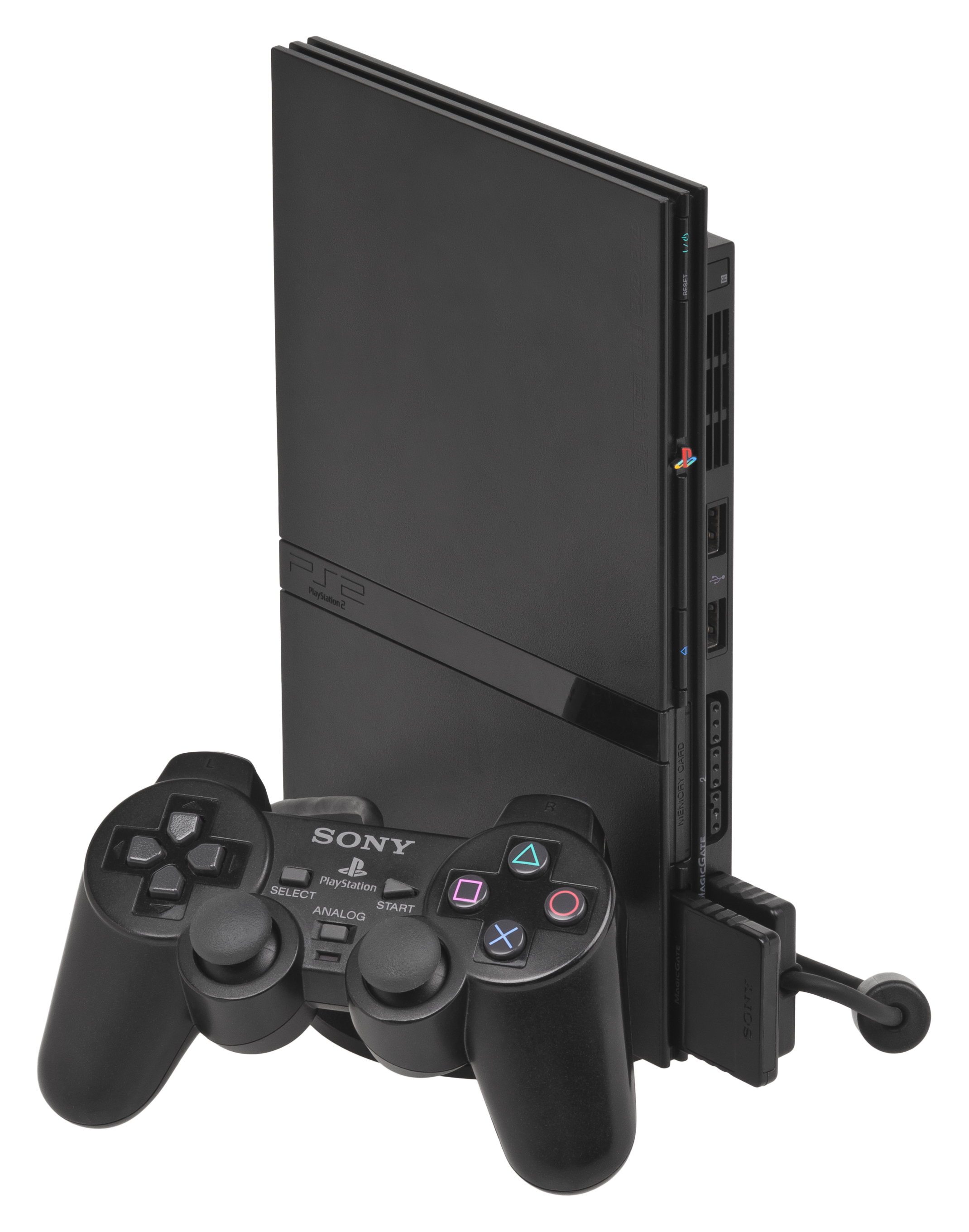
Playing PlayStation 2 games on your Windows or Linux desktop doesn't require complex hardware modifications or aging consoles. With mature software like PCSX2, you can boot up classic titles at high resolutions with stable frame rates. If you want to experience vintage libraries with modern visual fidelity, you just need a capable processor and the right system files.
The core challenge of running a PS2 emulator on PC is translating the console's distinct Emotion Engine and Graphics Synthesizer architecture into instructions your CPU and GPU understand. Modern hardware handles this translation through dynamic recompilation, meaning you'll get the best results with a CPU featuring strong single-core performance.
System Requirements and Hardware Prep
Before you download any software, check your PC specifications. While a high-end gaming rig isn't mandatory, emulating sixth-generation consoles demands more horsepower than NES or SNES software.
Your CPU matters most. Look for a processor with a high single-thread rating, such as an Intel Core i3/i5 of recent generations or an AMD Ryzen equivalent. While multi-core processors help, the main execution thread relies heavily on single-core speed.
- Processor: Quad-core CPU with strong single-core benchmarks.
- Memory: 8GB of RAM is the baseline; 16GB lets you run background apps comfortably.
- Graphics: Any dedicated GPU supporting Vulkan or DirectX 11 will handle internal resolution scaling.
- Storage: A solid-state drive (SSD) is vital to eliminate long loading screens common in disc-based games.
Obtaining and Configuring Your BIOS
An emulator won't boot without a genuine PS2 BIOS file. This firmware handles the initial system boot and hardware calls. Because the BIOS is copyrighted material owned by Sony, you shouldn't download random files off public forums.
Instead, dump the BIOS directly from your own physical PlayStation 2 console using homebrew tools like Free McBoot. Once you have your dump files, place them in the designated BIOS directory of your emulator installation.
- Launch your emulator for the first time and locate the settings menu for system components.
- Point the file directory to the folder containing your dumped BIOS files.
- Select your preferred region version (such as USA or Europe) to match the game discs you plan to run.
- Verify that the system recognizes the firmware before attempting to boot any software.
Optimizing Graphics and Performance
Default settings prioritize compatibility, which often leaves games looking blurry on modern 1440p or 4K monitors. Tweaking your video settings unlocks sharp textures and proper widescreen rendering.
Start by changing your graphics backend from default settings to Vulkan. Vulkan usually provides better frame pacing and less stuttering across various graphics cards. Next, adjust your internal resolution slider. Setting this to 2x or 3x native resolution creates a clean image without requiring heavy performance sacrifices.
- Internal Resolution: Scale up to 1080p or 4K depending on your GPU strength.
- Texture Filtering: Enable bilinear filtering to smooth out jagged surfaces on 3D models.
- Aspect Ratio: Choose widescreen patches carefully to prevent UI distortion in games designed for 4:3 CRT displays.
- Frame Limiter: Keep synchronization active to avoid erratic gameplay speeds.
Common Emulation Mistakes to Avoid
New users often run into predictable pitfalls when setting up their environment. Skipping these errors saves time and prevents frustrating crash loops.
Don't ignore controller input mapping. Using keyboard controls for games designed around dual-analog sticks makes playing nearly impossible. Connect a wired or Bluetooth gamepad, such as an Xbox or PlayStation controller, and map your inputs correctly through LilyPad or the emulator's native input mapper.
Another common misstep involves running demanding graphical enhancements on modest hardware. If you notice audio stuttering or slow-motion gameplay, lower your internal resolution and disable heavy post-processing shaders.
Frequently Asked Questions
Do I need a powerful graphics card to run PS2 games?
No. The CPU performs the heaviest workload during emulation. Most integrated graphics or budget dedicated GPUs handle 2x internal resolution without trouble.
Can I use physical game discs in my PC drive?
Yes. Most modern PC disc drives can read PS2 media, though creating digital ISO backups runs faster and reduces wear on your hardware.
Is emulation legal?
Using emulator software and running games you legally own via self-dumped backups is generally accepted under personal backup laws, but downloading copyrighted ROM files from the web is illegal.
Why is the audio crackling during gameplay?
Audio stutters usually indicate that your CPU is dropping frames and failing to maintain full speed. Lower your graphics settings or close background applications to free up processing power.



