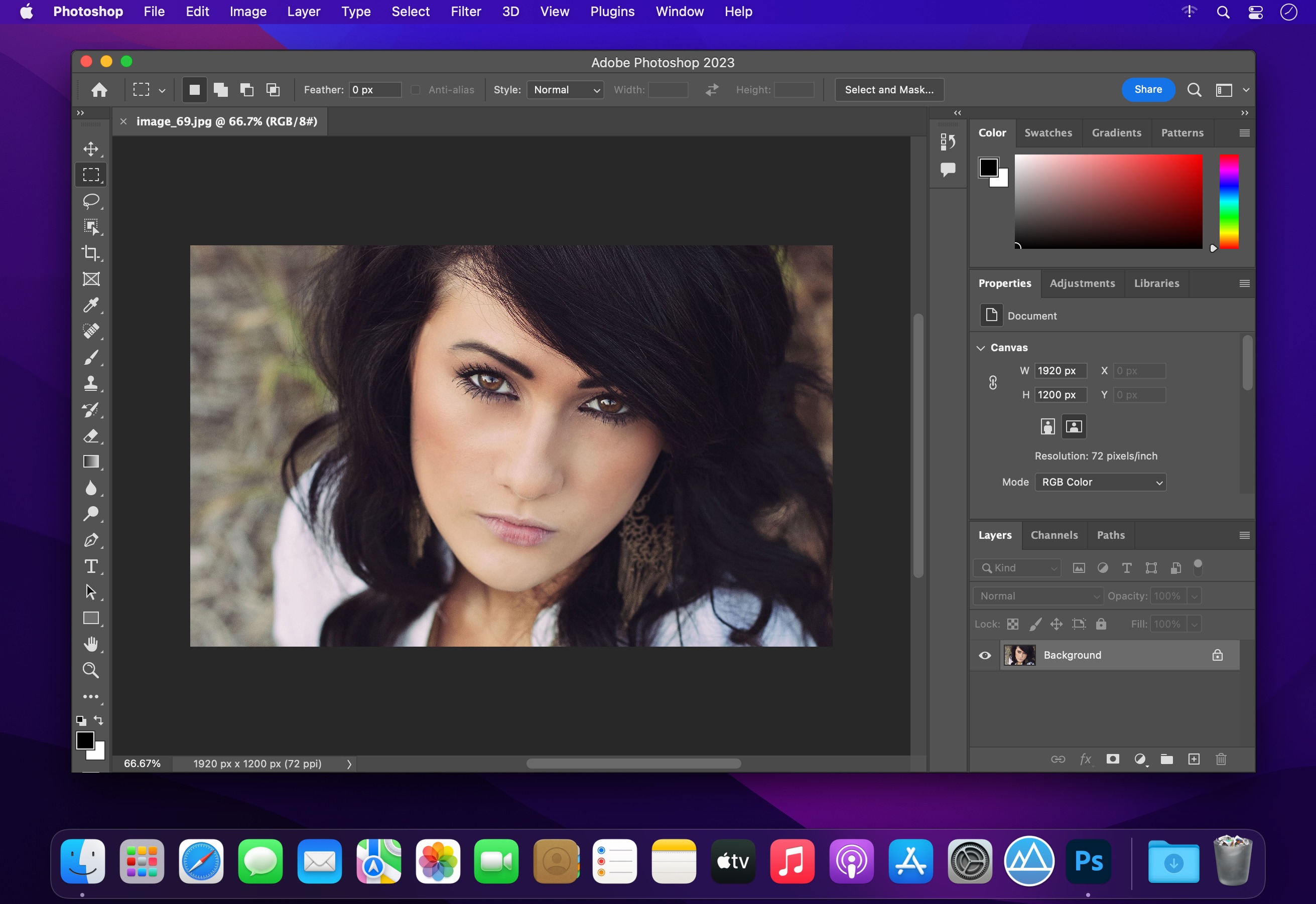
When your left-hand tools suddenly vanish, editing stops dead. You don't need to reinstall the entire application to get back to work. Most missing toolbars stem from accidental keystrokes, corrupted layout files, or multi-monitor display glitches.
The fastest fix is often a simple keyboard toggle or workspace reset. If those fail, deeper configuration issues with your preferences or graphics driver usually cause the glitch. Here is how to track down the problem and restore your workspace permanently.
Quick Fixes for an Invisible Toolbar
Before digging into system files or changing settings, run through these immediate checks. You can usually recover your tools in under ten seconds.
Press the Tab Key
The most common reason for a missing toolbar is an accidental press of the Tab key. Photoshop uses this shortcut to hide or show all visible panels, toolbars, and the top options bar to give you an unobstructed view of your canvas.
- Click once inside your active canvas area.
- Press the Tab key on your keyboard.
- Check if your toolbar and floating panels pop back into place.
If pressing Tab doesn't work, you might have hidden just the tools while keeping panels visible using Shift + Tab. Try pressing Shift + Tab to cycle those elements back on.
Check the Window Menu
Even when the visual toolbar disappears, the top application menu remains active. You can force the application to draw the tools back onto the screen manually.
- Look at the top menu bar and click Window.
- Scan down the dropdown list for Tools.
- Click Tools to toggle it on. If it has a checkmark next to it, click it off and back on to force a refresh.
Reset Your Current Workspace
Custom workspaces can glitch, causing panels and toolbars to collapse or slide off the visible monitor boundaries. Resetting your workspace forces Adobe Photoshop to redraw the default interface layout.
- Go to Window in the top menu.
- Select Workspace.
- Click Reset Essentials (or whatever workspace name you currently have active).
This reorganizes your default panels instantly. However, it won't fix corrupted configuration files stored deeper in your operating system.
Advanced Troubleshooting and System Resets
If simple interface toggles fail, your configuration files or display drivers are likely causing the error.
Reset Preferences on Startup
Corrupted preference files frequently freeze interface rendering. Clearing these files forces Photoshop to build a clean configuration upon launch.
To reset preferences on Windows, close the application completely. Launch it again while holding down Ctrl + Alt + Shift. When a confirmation prompt appears asking if you want to delete the Adobe Photoshop Settings file, click Yes.
To do this on a Mac, close Photoshop and launch it while holding Cmd + Opt + Shift. Click Delete Settings when the dialog box pops up. This returns your interface settings to factory defaults without touching your custom brushes, actions, or saved documents.
Toggle Graphics Processor Acceleration
Modern versions of Photoshop rely heavily on your computer's GPU to render interface elements smoothly. Driver conflicts can cause specific UI components like the toolbar to turn invisible or fail to draw.
- Navigate to Edit > Preferences > Performance on Windows, or Photoshop > Preferences > Performance on Mac.
- Locate the Graphics Processor settings.
- Uncheck Use Graphics Processor (or check Disable Graphics Processor depending on your exact version).
- Restart Photoshop completely.
If your toolbar reappears after disabling the GPU, your graphics card driver is out of date or incompatible. Head directly to the NVIDIA Drivers or AMD support portal to install the latest certified software for your hardware.
Repair via Creative Cloud
If core application files are damaged, a standard software repair is safer than a full uninstall.
- Open your desktop Adobe Creative Cloud application.
- Click on the Apps tab and find Photoshop in your installed list.
- Click the three dots icon next to the app name.
- Select Repair and let the utility scan and replace any missing or broken application binaries.
Frequently Asked Questions
Why does my toolbar disappear every time I open Photoshop?
This usually happens when your default workspace profile is corrupted or saved incorrectly. Once you get your tools visible using the Window > Tools menu, go to Window > Workspace > New Workspace, name it, and save it. Then set that new workspace as your default startup layout.
Can a dual-monitor setup trap my toolbar off-screen?
Yes. If you disconnect an external monitor or change your display scaling, Photoshop might remember the toolbar's last coordinate position and render it outside your current viewing area. Resetting the workspace or maximizing the window across your main display usually pulls it back into view.
Will resetting preferences delete my custom brushes or actions?
No. Resetting preferences only clears interface layouts, tool settings, and startup configurations. Your custom brushes, patterns, actions, and saved presets remain intact in their respective folders, though you may need to reload them through the Preset Manager if they don't appear immediately.



