Switching your mobile display to a solid dark background isn't just about looking sleek. It radically alters how your device performs in your hand and how your eyes process information throughout the day.
When you set a dark background, you aren't just picking an understated design. You're changing contrast ratios, lowering screen power draw on OLED panels, and reducing the visual clutter of modern app icons. Let's look at how to choose, set up, and optimize a dark display background for your specific device.
Why Choose a Dark Background
A minimalist dark background transforms how your screen presents information. By stripping away bright, saturated colors, you create a neutral canvas. This puts your app icons and widgets front and center.
- Visual Hierarchy: Bright app icons stand out much sharper against absolute dark tones than busy, multi-colored photography.
- Reduced Eye Fatigue: In dim rooms, glaring white backgrounds cause sudden pupil constriction. Darker tones ease the transition.
- Minimalist Aesthetics: Clean, solid tones remove visual noise, giving your home screen a calm, deliberate feel.
According to research on human-computer interaction published by Nielsen Norman Group, reducing visual clutter on primary user interfaces significantly improves task completion speed and lowers user distraction.
OLED Efficiency and True Black
Not all display panels handle dark backgrounds the same way. The choice between standard LCD and modern OLED and AMOLED screens changes whether you get genuine hardware benefits or just a visual preference.
On an OLED panel, every individual pixel generates its own light. When a pixel displays pure black (#000000), it turns completely off.
- Power Savings: Turning off pixels draws zero current. Over a full day of checking notifications, this adds up to noticeable battery conservation.
- Infinite Contrast: Because off-pixels emit no light, the contrast ratio between dark areas and bright interface text reaches its theoretical maximum.
- LCD Limitations: If your phone uses an IPS LCD screen, the backlight stays lit across the entire panel. A black image still consumes the exact same battery power as a bright white image because the backlight cannot selectively turn off.
Selecting the Right Shade
True pitch black isn't always the best choice for every screen type. Depending on your environment and display hardware, you might want to adjust your choice.
Pitch Black vs. Dark Gray
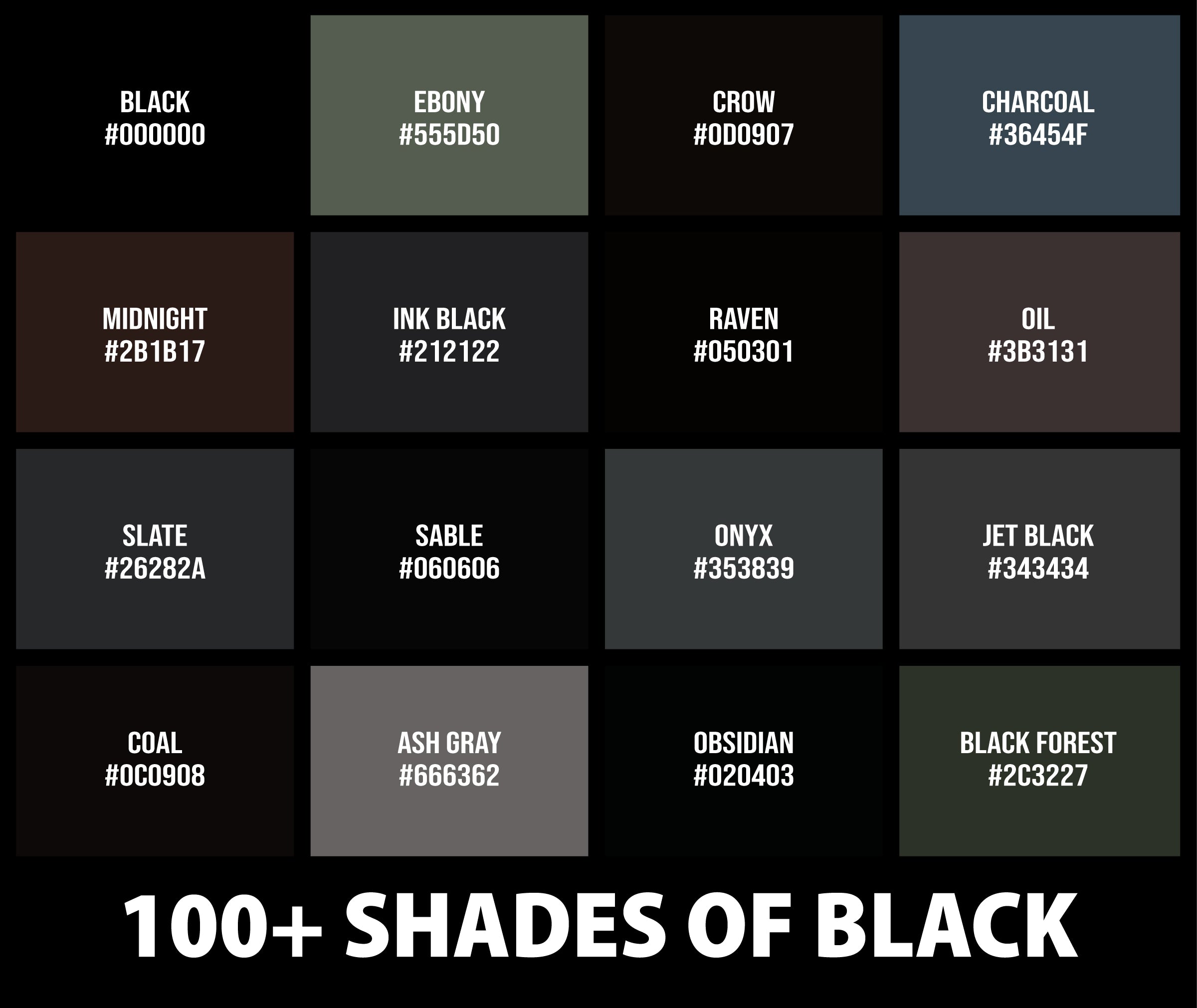
Pure black (#000000) maximizes OLED energy savings. However, it can cause smearing or ghosting when scrolling quickly on certain mobile displays, especially at low brightness levels. Dark charcoal or deep navy (#111111) avoids ghosting while keeping most of the aesthetic and battery benefits.
Textures and Minimal Gradients
Flat, solid black can feel sterile. Subtle textures—like a fine carbon fiber weave, a soft noise grain, or a gentle vertical gradient from dark gray to pure black—add tactile depth without cluttering your home screen icons.
Step-by-Step Setup Guide
Setting up your display properly involves more than just saving an image. Follow these steps to optimize your setup across iOS or Android.
- Source High-Resolution Images: Download uncompressed PNG files or native resolution wallpapers that match your screen's exact pixel dimensions (for example, 1170x2532 for standard modern smartphone resolutions). Compressed JPEGs introduce ugly artifacts and gray compression blocks in dark areas.
- Disable Home Screen Parallax Effects: Turn off depth effects, perspective zoom, or motion backgrounds. Movement on a pure black background exposes panel unevenness and increases processor wakefulness.
- Pair with System Dark Mode: Enable your operating system's native dark mode so your notification shades, settings menus, and widget backgrounds match your new background.
- Organize Your Grid: Place your most-used widgets and application icons in the middle or bottom rows where thumb reach is natural, letting the top portion of the dark background breathe.
Common Mistakes to Avoid
- Using Low-Resolution JPEGs: Grainy, low-quality downloads stretch pixel blocks across your display, ruining the clean look. Always pull files from reliable, high-res design archives like Unsplash.
- Ignoring Auto-Brightness: Setting your display to maximum brightness while using a dark background defeats part of the efficiency gain and tires your eyes.
- Forgetting Lock Screen Contrast: Ensure your clock and notification text maintain high legibility against the specific shade of black you choose.
Frequently Asked Questions
Does black wallpaper actually save battery on iPhones?
Yes, if your iPhone model uses an OLED screen (iPhone X and newer, excluding standard iPhone SE models). Those pixels turn completely off, saving power during home screen viewing.
How do I prevent black smearing when scrolling?
If you notice dark trails or ghosting behind text when scrolling in low light, switch from pure #000000 black to a slightly lighter dark gray (#121212) to keep pixels partially energized.
Is dark mode better for sleep?
Using dark tones late at night reduces overall blue light emission compared to blazing white interfaces, making it easier to wind down before bed, though it doesn't replace avoiding screens entirely.



