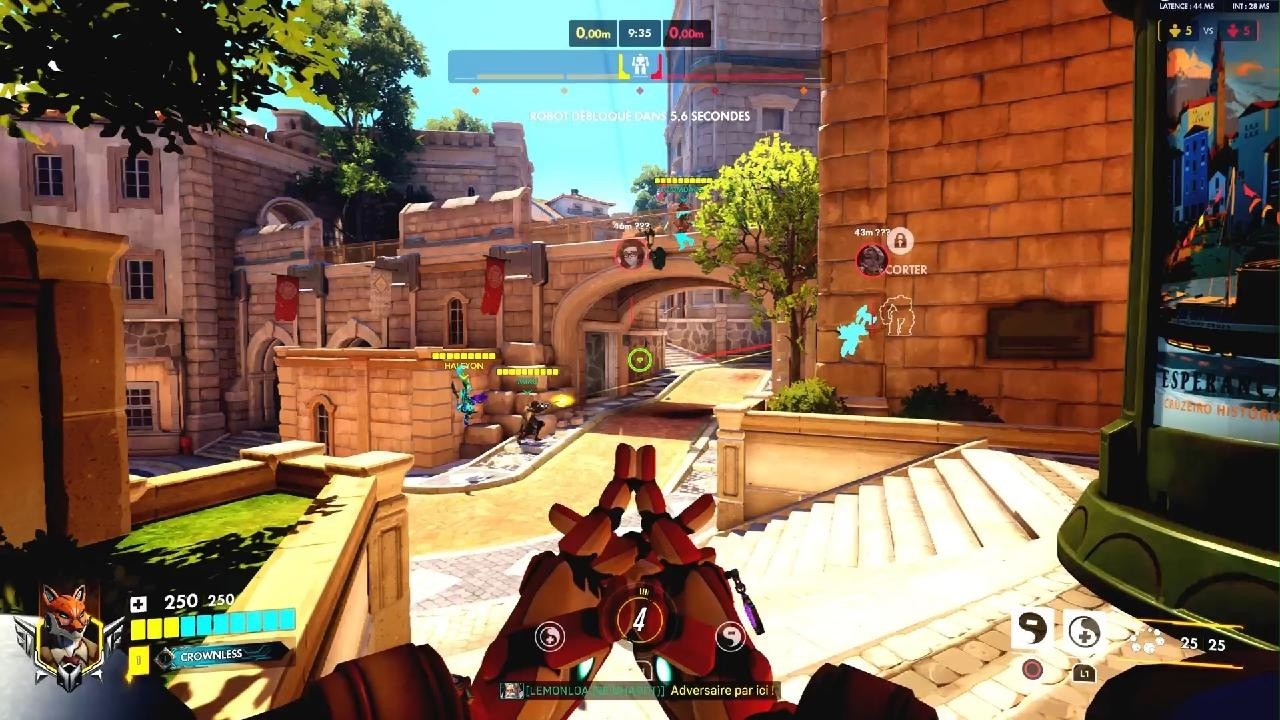
Changing your matchmaking region for Overwatch 2 on Steam isn't as simple as clicking a menu option inside the game. Unlike the Blizzard Battle.net launcher, which features a handy globe icon next to the play button, the Steam version locks down server routing based on your physical location and your Steam client settings. If you want to play with friends across the globe or reduce queue times during off-peak hours, you have to understand how Steam handles network traffic and how Blizzard handles server allocation.
Many players confuse changing their Steam store or download region with changing their actual in-game Overwatch 2 server match. This guide clears up the confusion, explains what works, exposes common misconceptions, and outlines the practical steps required to manage your network routing for the game.
Understanding Overwatch 2 Server Architecture on Steam
Overwatch 2 uses a global network infrastructure managed by Blizzard Entertainment, but matchmaking is strictly automated. When you queue for a match, the game automatically assigns you to the nearest data center to minimize latency and packet loss.
When the game launched on Steam, many players looked for a native region selector similar to the one found in the standalone client. That selector only changes your login authentication region on Battle.net rather than forcing a specific game server. On Steam, you don't even have that launcher-level toggle. Your connection goes straight through Steam's ecosystem, meaning your physical distance to server nodes dictates your ping.
Can You Change Your Overwatch 2 Region Directly on Steam?
The short answer is no. Steam does not offer an in-game or client-side switch for individual game servers.
Your Steam download region—found by navigating to your Steam settings, selecting the downloads tab, and choosing a location—only affects where you download game updates and patches. It has zero impact on where multiplayer matches are hosted or which data center accepts your gameplay packets. Changing your download region to Tokyo or London will only change your update source; your Overwatch 2 matchmaker will still read your actual IP address and route you accordingly.
Similarly, changing your primary Steam account store region requires a valid local payment method and proof of residency. Doing this purely to alter matchmaking latency is ineffective and violates the Steam Subscriber Agreement, risking account penalties.
Effective Methods to Play on Different Servers
If you need to change your server environment to play with overseas friends, you have to alter your network path before launching the game.
Using a Virtual Private Network
The most reliable way to shift your matchmaking pool on the Steam version is by utilizing a reputable Virtual Private Network.
- Close Overwatch 2 and exit Steam completely through your system tray.
- Open your VPN application and connect to a server located in your target region, such as South Korea, Western Europe, or US West.
- Verify your new IP address using an online lookup tool to ensure your connection is stable and properly routed.
- Launch Steam and open Overwatch 2. The game will read your active VPN endpoint as your physical location, placing you into the corresponding matchmaking queue.
Keep in mind that introducing a network relay will inherently add milliseconds to your ping. If you connect to a server on an entirely different continent, expect higher latency that can affect reaction times in fast-paced matches.
Firewall and Router Level Routing
Advanced users sometimes block specific Blizzard data center IP ranges via Windows Firewall or router configurations to force the game client to look for alternative nodes. However, Blizzard frequently updates server addresses, making static IP blocking unreliable. This method often results in connection errors, failed authentication, or long queue timeouts rather than a clean server swap. Sticking to a reliable routing utility or VPN is far more consistent.
Common Mistakes to Avoid
Players frequently waste time trying methods that do not work or risk their accounts in the process. Keep these pitfalls in mind:
- Altering Steam Store Country: Do not tamper with your store country just to fix game ping. This locks you into local currency pricing and triggers a strict 90-day cooldown period.
- Trusting Free VPNs: Free network relays often suffer from severe packet loss, bandwidth caps, and blacklisted IP addresses that trigger security flags on your account.
- Confusing Download Regions: Changing your Steam download region dropdown does not change your multiplayer server. Do not rely on this setting to fix high ping in matches.
For official support regarding connection troubleshooting and system requirements, consult the Blizzard Support Portal.
Frequently Asked Questions
Does changing my Steam download region affect my Overwatch 2 ping?
No. Your download region only determines where game files and updates are downloaded from. Multiplayer matchmaking relies on your live IP address and physical network path.
Will playing on a different region get me banned?
Using a standard network routing tool to play with friends abroad is generally tolerated, but abusing region settings to manipulate competitive ladders or exploit regional pricing on the Steam store violates terms of service.
Why is my ping so high after changing regions?
Data must travel physical distances through fiber-optic cables. If you connect to a server thousands of miles away, the laws of physics dictate that your round-trip time will increase.
Can I select my server region inside the Overwatch 2 settings menu?
No. Blizzard does not include a manual server selector inside the game client, meaning external network adjustments are required if you want to force a change.



