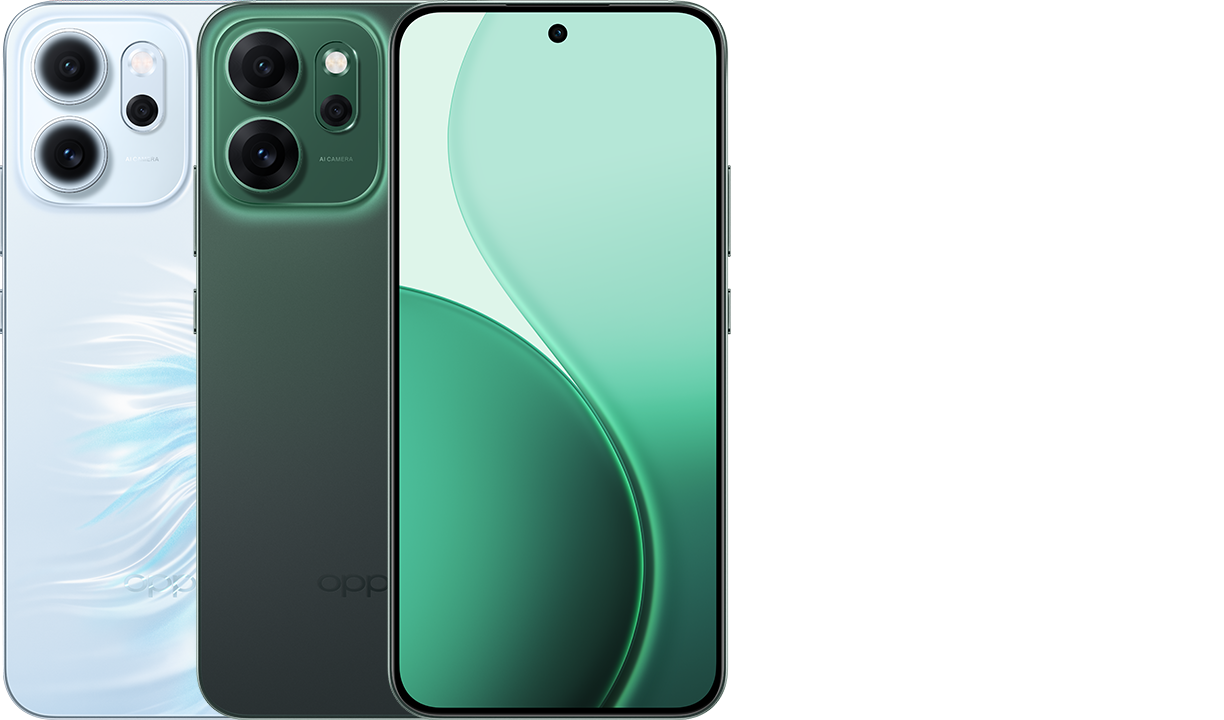
Accessing hidden system settings on your smartphone shouldn't require a scavenger hunt. On Oppo devices running ColorOS based on Android 14, the advanced tools menu remains tucked away by design. This protective measure stops casual users from altering low-level configurations that affect battery life, animations, or security. Yet, unlocking this panel gives you precise control over performance scaling, hardware debugging, and privacy overrides.
Unlocking the hidden system configuration menu takes less than a minute once you know the exact path. Open your Settings app, scroll down to About device, and tap Version. From there, locate the Build number entry and tap it seven times in rapid succession. ColorOS will display a toast notification counting down your taps, followed by a security prompt requiring your lock screen PIN or password. Once confirmed, the system announces that you are officially a developer.
Finding your newly unlocked panel trips up many users because ColorOS doesn't place it on the main settings root. Head back to the main Settings menu, select Additional settings, and you will see Developer options waiting at the bottom. If you ever want to hide these settings again, toggling the master switch at the top of the menu to off will instantly seal the panel back up.
Optimizing Animation Speed for a Snappier Phone
One of the most immediate practical benefits of accessing this menu involves modifying system animation scales. Modern software relies heavily on smooth transitions, fades, and zooming effects. While these visual flourishes look polished, they introduce artificial latency—forcing your eyes to wait fractions of a second for windows to open or close.
Scroll down the configuration list until you find the drawing category, which contains three distinct scaling settings:
- Window animation scale controls how fast application windows transition onto your screen.
- Transition animation scale governs movement when switching between distinct open apps or system panes.
- Animator duration scale adjusts the internal speed of UI element loops and button feedback.
By default, these sit at 1x. Changing all three values to 0.5x cuts transition lengths in half, making your Oppo device feel radically faster without sacrificing visual clarity. Alternatively, setting them to off removes transitions entirely, maximizing raw navigation speed. For a deeper look at how system architecture handles performance tweaks, check out the Android Open Source Project.
Taming Background Processes and Memory Management
Android manages background applications automatically, but aggressive power-saving algorithms in ColorOS often terminate background tasks prematurely, causing missed notifications or delayed message delivery. The advanced configuration menu provides granular visibility into these processes.
Selecting Memory use reveals average RAM consumption across three, six, twelve, or twenty-four-hour intervals. Sorting apps by their maximum usage exposes rogue software leaking memory in the background. If a specific utility consumes excessive resources while idle, you can restrict its background execution directly or remove it.
For users who prefer strict multi-tasking parameters, the Background process limit setting allows you to cap how many apps remain active simultaneously. Setting this limit to at most two or four processes prevents resource hoarding, though standard dynamic allocation works best for daily use.
Advanced Privacy Controls and Hardware Toggles
Android 14 introduced strict permission frameworks, and the hidden system panel extends these security measures. One standout addition is the Sensors Off quick settings tile.
Enabling this feature adds a hardware-level toggle to your pull-down notification shade. Tapping the tile instantly cuts power to your device's camera, microphone, and motion sensors. This offers an immediate software-level kill switch for privacy during sensitive discussions or confidential meetings.
Another valuable privacy setting is Wi-Fi non-persistent MAC randomization. Unlike standard persistent randomization that keeps a single spoofed address per network, this setting generates a brand-new hardware identifier every time your phone reconnects to an access point. This prevents long-term tracking by public routers or retail analytics trackers.
Common Mistakes to Avoid
Modifying system-level parameters without understanding their function can destabilize your operating system. Avoid these common missteps:
- Leaving USB debugging permanently enabled on public networks exposes your device to unauthorized data extraction if connected to compromised charging kiosks.
- Altering minimum width (dpi) values beyond safe thresholds can break your display scaling completely, forcing a factory reset if you cannot navigate back to the settings menu.
- Enabling strict background process caps while running smart home automation or fitness tracking apps, which rely on uninterrupted background services to function correctly.
Frequently Asked Questions
Will enabling developer options void my Oppo warranty?
No. Unlocking this menu is an officially supported feature built into ColorOS and Android by design. It does not root your device, unlock the bootloader, or modify system partitions.
Why can't I find the build number on my Oppo device?
If your phone operates under a corporate or educational mobile device management (MDM) profile, system administrators often disable advanced configurations remotely. Switch to a personal user profile to access the menu.
How do I disable developer options when I am finished?
Navigate back to Settings, open Additional settings, select Developer options, and toggle the master switch at the top of the screen to the off position.
Does changing animation scales improve battery life?
The battery impact is negligible. The primary benefit is subjective responsiveness, reducing interface lag and making multitasking feel instantaneous.



