Fixing hardware and software issues on your Nothing Phone 1 doesn't have to require an expensive trip to a service center. Whether you're dealing with a cracked transparent back panel, battery drain, or unexpected software bugs, understanding your device's architecture helps you make informed repair and maintenance choices.
The Nothing Phone 1 features a 6.55-inch OLED display, a Snapdragon 778G+ chip, and a distinctive Glyph Interface made of over 90 LEDs. Maintaining a device with such unique physical and electrical components requires targeted troubleshooting steps to keep it working efficiently.
Assessing and Repairing Physical Damage
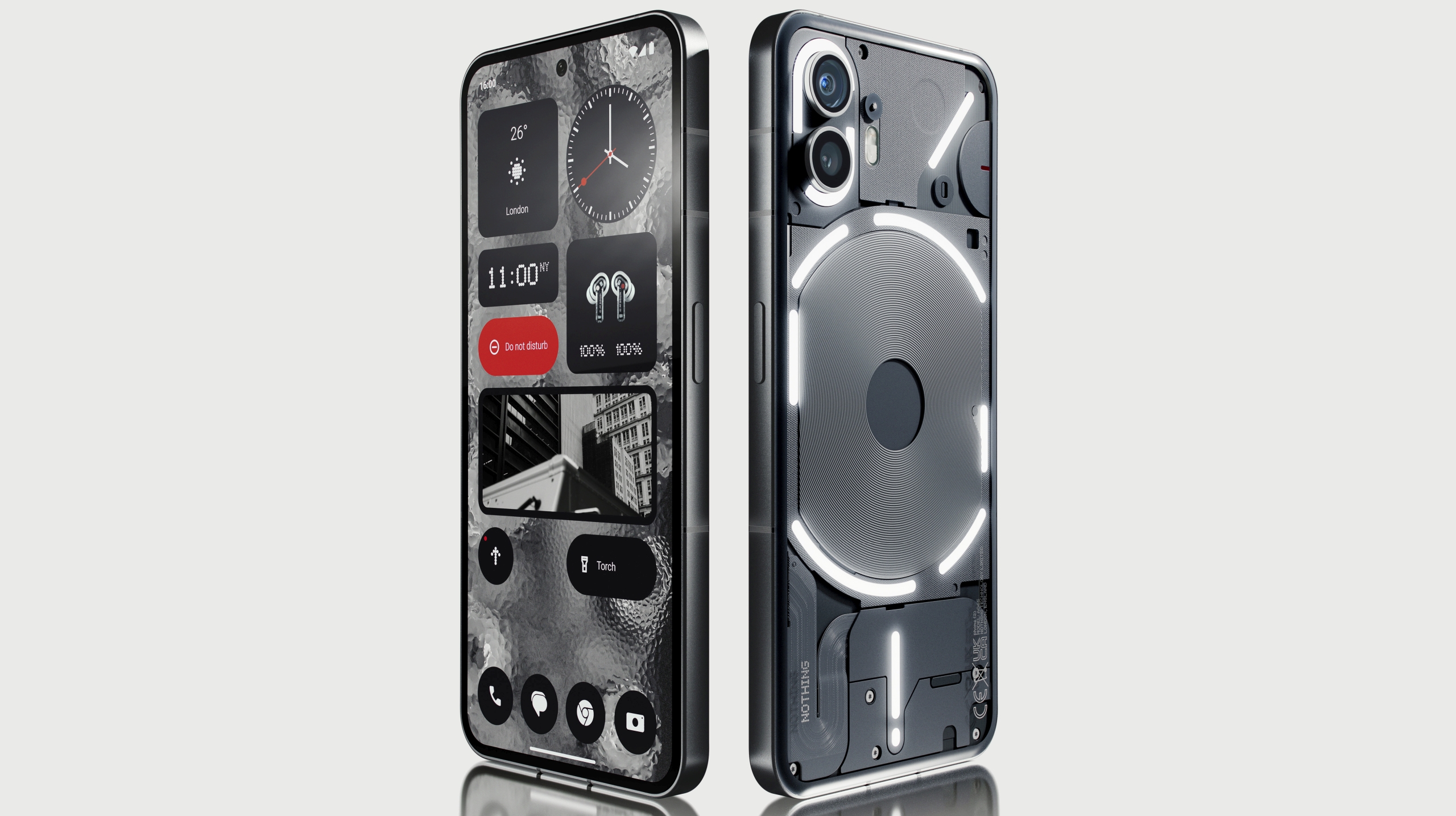
The standout feature of the Nothing Phone 1 is its transparent rear glass panel, which showcases the internal wireless charging coils and screw layouts. While visually striking, this glass back is just as vulnerable to drops and pressure cracks as traditional smartphone glass.
Handling Back Glass Cracks
If your rear panel shatters, your first priority is protecting your hands and internal components from dust and moisture. Unlike traditional phones with solid metal or matte glass backs, liquid seepage around the Glyph LED diffusers can cause permanent staining or short circuits.
- Temporary containment: Apply a clear phone repair tape over the cracked area to prevent glass shards from dislodging while you source a replacement panel.
- Professional replacement: Because the Glyph LED cables are glued directly beneath the transparent rear glass, DIY back glass removal risks severing the lighting ribbon cables. It's safer to have a technician perform the rear glass swap unless you have specialized heat-separation tools.
- Case protection: Once repaired, use a transparent bumper case that absorbs impact without hiding the back design.
Display and Touchscreen Troubleshooting
The 120Hz OLED screen offers smooth scrolling, but accidental drops can cause ghost touches, dead pixels, or a completely black display while the phone remains powered on.
- Force a restart: Press and hold the Power button and Volume Up button simultaneously for about 15 seconds until the Nothing logo appears. This fixes temporary driver freezes that mimic hardware failure.
- Screen replacement signs: If the touch digitizer stops responding in specific zones or vertical lines appear, the display panel needs replacement. Ensure your replacement screen retains the original refresh rate capabilities to prevent lag.
Optimizing Software and Resolving Glitches
Software performance issues often stem from corrupted cache files after a major operating system update. Keeping your device lean and properly configured prevents the need for drastic factory resets.
Battery Drain and Charging Fixes
Some users notice accelerated battery drain after installing recent software updates. Lithium-ion batteries degrade naturally, but software loops can also trigger excessive background processing.
- Identify rogue apps: Go to Settings, open Battery, and check which apps consume the highest percentage. Restrict background usage for apps you rarely open.
- Glyph Interface tuning: The back LED lights consume power when active. Disable unnecessary Glyph notifications for non-essential contacts to extend daily standby time.
- Charging protocols: The Nothing Phone 1 supports 33W fast charging and 15W Qi wireless charging. If the phone charges slowly, clean the USB-C port gently with a wooden toothpick to remove pocket lint that blocks fast-charging pin connections.
Fixing Connectivity and Bluetooth Drops
Intermittent Wi-Fi or Bluetooth disconnections can usually be resolved without opening the phone or replacing internal antennas.
- Reset network settings: Navigate to Settings > System > Reset options > Reset Wi-Fi, mobile & Bluetooth. This clears corrupted network caches.
- Toggle safe mode: Hold the power button, then tap and hold Power off until the "Reboot to safe mode" prompt appears. If your connectivity issues disappear in safe mode, a recently installed third-party app is causing the interference.
Essential Maintenance Tips for Longevity
Preventative care reduces the likelihood of sudden hardware failure. Small daily habits protect both the internal components and the exterior finish of your device.
- Keep the Glyph interface clean: Dust can settle between the transparent rear plate and internal components over time. Avoid submerging the phone, as its IP53 splash resistance rating protects against light rain and dust, but does not make it waterproof.
- Manage storage capacity: Keep at least 10% of your internal storage free. Running a smartphone at maximum storage capacity slows down read/write speeds on the flash memory and triggers thermal throttling.
- Manage thermal loads: Avoid gaming or running intensive camera tasks while the phone sits in direct sunlight or fast-charging, as excessive heat degrades battery health rapidly.
Frequently Asked Questions
Is the Nothing Phone 1 waterproof?
No, the Nothing Phone 1 has an IP53 rating. This means it is protected against limited dust ingress and water sprays, but it cannot be submerged in water.
Can I replace the battery myself?
While it is technically possible with a heat gun, suction cups, and precision screwdrivers, the internal layout is tightly packed around the wireless charging coil and Glyph LED ribbon cables. Professional replacement is recommended to avoid damaging the lighting system.
Why are my Glyph lights not working?
Check your settings to ensure the Glyph Interface is not turned off or scheduled via "Bedtime Schedule." If they still fail to light up after a system restart, a loose internal connector from a previous drop may be the cause.
How do I take a screenshot on the Nothing Phone 1?
Press the Power button and Volume Down button at the same time and hold them for one second until the screen flashes.



