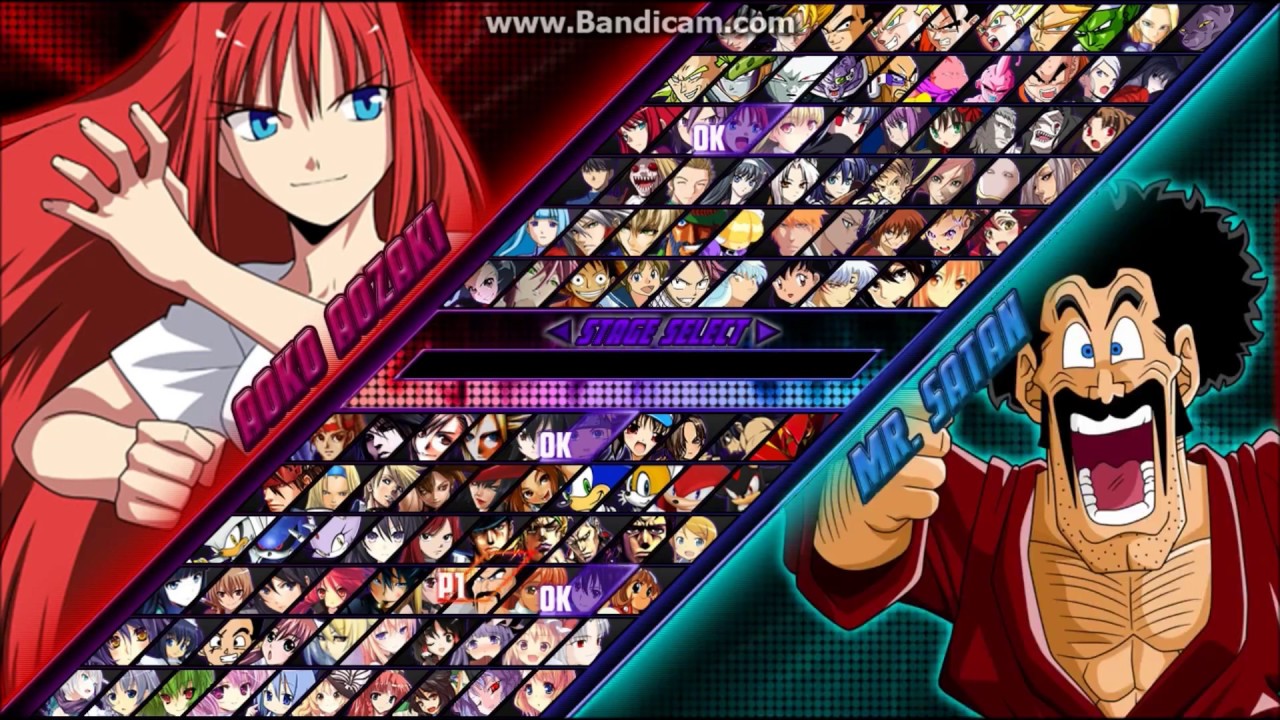
Building a custom crossover fighting game means tracking down custom fighters from a decentralized modding scene. If you're wondering how to find clean downloads and register new rosters without breaking your game executable, you're in the right place. M.U.G.E.N relies entirely on community-driven repositories and manual text-file configuration. It doesn't feature an in-game mod store or automated patchers.
Finding reliable fighter packages requires looking past broken links and outdated forums. Once you grab your files, installing them successfully comes down to matching folder names and updating a single configuration file called select.def. Let's dive right into where authentic assets live and how to get them working on your machine.
Where to Find Authentic Mugen Character Downloads
The M.U.G.E.N ecosystem spreads across independent forums, dedicated community databases, and creator-specific sites. Because official developer Elecbyte stopped active development years ago, the community manages all asset distribution.
Trusted Community Hubs and Repositories
- Mugen Free For All (MFFA): A long-standing forum featuring active creator communities, specialized project releases, and curated master collection lists. It's ideal for finding balanced tournament-ready builds.
- GameBanana: Known broadly for game mods, GameBanana hosts a clean, modern category specifically for M.U.G.E.N fighters and stages. It offers safe direct downloads without restrictive wait times.
- The Mugen Fighters Guild: The historic home base for engine documentation, foundational code templates, and serious sprite artists.
- The Mugen Archive: A massive database containing thousands of characters and screenpacks. Keep in mind that download speeds can be throttled for free accounts, and users should always run local security scans on older community files.
When browsing these repositories, pay close attention to engine compatibility tags. A fighter built for M.U.G.E.N 1.1 might crash or display missing sprite errors if you attempt to launch it on an older 1.0 or WinMugen executable.
How to Install New Fighter Folders
Once you've downloaded a character package—usually formatted as a .zip or .rar archive—you can't just drop the compressed file into your directory. You must extract the contents properly and place them where the game engine can read them.
- Extract the Archive: Use a utility like 7-Zip or WinRAR to extract the downloaded file. Ensure you extract it into its own independent folder rather than scattering files loosely.
- Verify Folder Integrity: Open the extracted folder and look for a file ending in
.def. The main folder name, the.deffilename itself, and the internal definition references must match character-for-character. If your folder is namedryu_custom, your main definition file should ideally beryu_custom.def. - Move to the Char Directory: Navigate to your main M.U.G.E.N installation directory. Open the folder named
chars. Move your fully extracted character folder directly inside thischarsfolder.
Registering Fighters in Select.def
Dropping files into the chars folder doesn't automatically add fighters to your character select screen. You have to tell the game engine where to find them by editing the core configuration file.
- Go to your M.U.G.E.N directory and open the
datafolder. - Locate the file named
select.defand open it using a plain text editor like Notepad. - Scroll down until you find the section labeled
[Characters]. - Add the exact name of your character folder on a new line right beneath that header. For example, if your folder inside
charsis namedgoku_ssj, typegoku_ssj,on its own line. - Save the file and close the text editor.
If you want to assign specific stages or arcade ladder placement rules to your new combatant, you can append parameters like , stages/stages/training.def, order=1 directly after the folder name.
Troubleshooting Common Mugen Setup Errors
Even experienced builders run into loading errors when expanding their rosters. If your game fails to launch or a character appears as a blank box, check for these common slip-ups.
- Name Mismatches: If the folder name inside
charsdoesn't match the entry inselect.defdown to the exact capitalization, the engine throws an error or skips the fighter entirely. - Missing Palettes or Sprites: A fighter will crash to desktop with a debug message if its
.sff(sprite) or.air(animation) files are missing from the folder root. Always re-download the archive if files appear corrupted. - Outdated Executables: Trying to run modern high-definition characters on legacy engine builds results in parsing errors. Ensure your base game matches the creator's target version listed on the download page.
Frequently Asked Questions
Can I install Mugen characters on mobile devices?
Ports exist for Android via unofficial wrappers, but the vast majority of characters and stages are built exclusively for Windows PC environments. Setting up custom rosters on mobile often results in unstable performance and input lag.
Why is my newly added character invisible on the select screen?
This usually happens because you forgot to add the folder name to the select.def file, or you accidentally placed the character folder inside another sub-folder within chars. The engine only reads one level deep inside the chars directory.
How do I add custom stages alongside my fighters?
Stages follow a similar workflow. Download the stage files, place the .def and .sff files into your stages folder, and register them under the [ExtraStages] block inside select.def.
Are Mugen downloads safe from malware?
Because community sites allow user uploads, malicious actors occasionally bundle unwanted scripts into modified archives. Always stick to established community forums like Mugen Free For All and run local archive scans before extraction.



