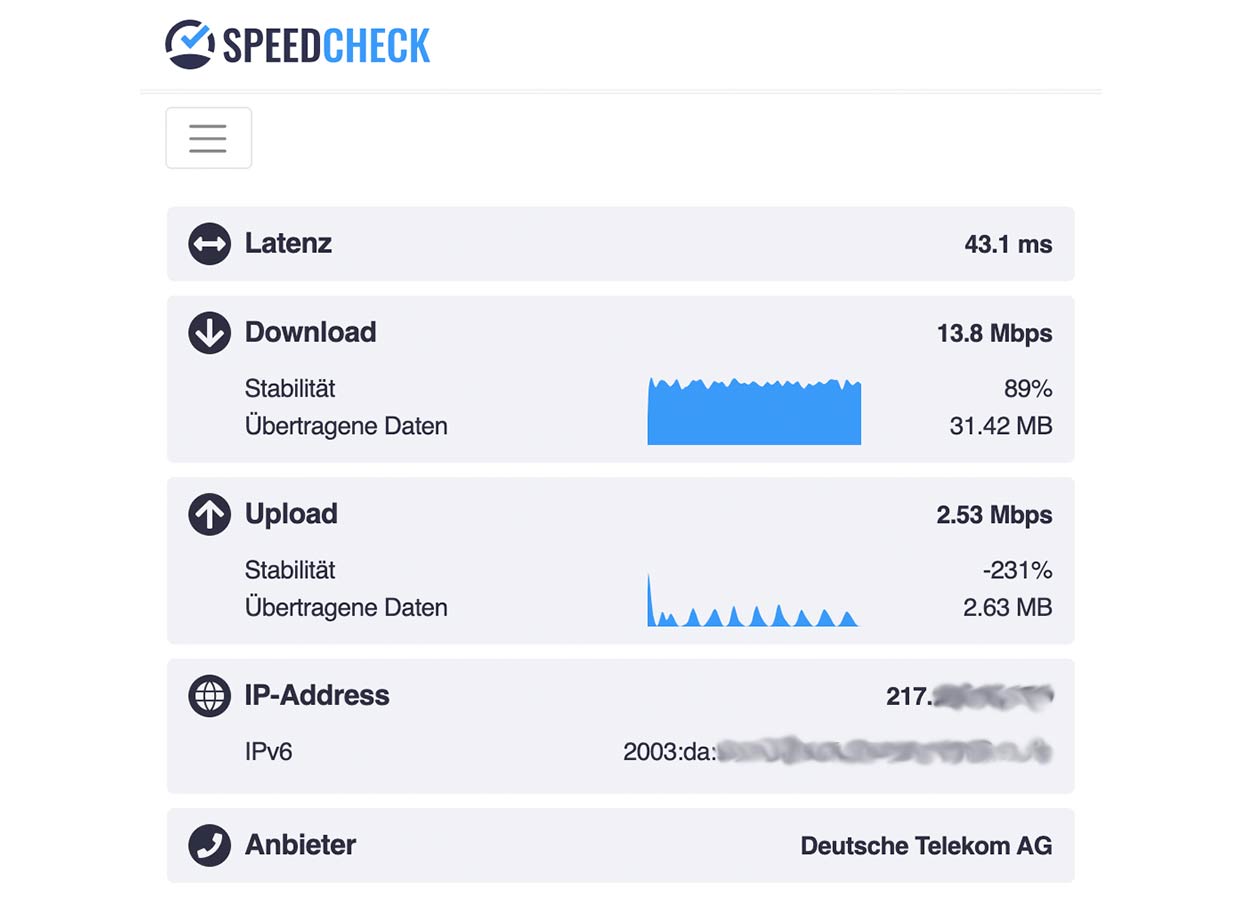
Slow web pages and lagging video calls can grind your workday or evening streaming to a halt. If you subscribe to Mediacom cable internet, running a diagnostic check is the fastest way to find out if your connection matches what you pay for.
Running a Mediacom speed test accurately requires isolating your connection, testing from the right server, and knowing how to interpret download speeds, upload speeds, and ping. If your numbers fall short, simple adjustments to your home hardware or network layout can restore peak performance.
How to Run an Accurate Mediacom Speed Test
Testing your internet speed isn't just about clicking a button on a random website. Environmental factors like wireless interference or a busy household network can skew your results and make your internet look slower than it actually is.
Prepare Your Connection
Before you open a testing tool, you need to remove variables that drag down your bandwidth.
- Disconnect heavy background downloads: Pause active file downloads, cloud backups, or game updates on all household devices.
- Use a wired Ethernet cable: Wi-Fi signals fluctuate based on distance and physical barriers. Plug a laptop directly into your Mediacom modem or gateway using a Cat6 Ethernet cable for the most accurate reading.
- Close resource-heavy apps: Shut down background applications on your test device that might consume CPU cycles or network traffic.
Choose Your Testing Tool
You can use independent diagnostic platforms or network tools to evaluate your connection. Many broadband users rely on general utilities powered by M-Lab or services like Ookla Speedtest to measure raw throughput.
When you start the test, pay attention to three core metrics:
- Download speed: Measured in megabits per second (Mbps), this determines how fast you pull data from the web for streaming video, loading web pages, and downloading files.
- Upload speed: Also measured in Mbps, this controls how fast you send data out, which matters heavily for video conferencing, cloud backups, and online gaming.
- Ping (Latency): Measured in milliseconds (ms), this represents the reaction time of your connection. Lower ping means snappier responses, which is critical for gaming and real-time communication.
Understanding Your Mediacom Speed Test Results
Once the test finishes, compare your numbers against your specific Mediacom tier. For instance, basic plans might deliver download speeds around 100 to 300 Mbps, while gigabit plans push past 900 Mbps under optimal conditions.
If your results show a minor drop (around 10% to 15% lower than your plan maximum on Wi-Fi), that's normal overhead for wireless transmissions. However, if your wired connection shows a massive drop—such as getting 50 Mbps on a 500 Mbps plan—you have an underlying bottleneck to investigate.
How to Improve Your Mediacom Internet Performance
If your diagnostic numbers reveal sluggish performance, you don't necessarily need to call customer service or upgrade your plan right away. Several targeted fixes can clear up network congestion and hardware limits.
Restart Your Modem and Router
Network hardware runs continuously, which can lead to memory leaks or minor firmware glitches over time.
- Unplug the power cord from both your Mediacom modem and your wireless router.
- Wait a full 60 seconds to let the internal capacitors drain completely.
- Plug the modem back in first and wait for the online indicator lights to stabilize.
- Plug in your router and give it two minutes to broadcast a fresh Wi-Fi signal.
Optimize Router Placement
If you only experience slow speeds on wireless devices located in other rooms, your physical layout is likely the culprit.
- Move it to a central location: Place your router in an open, central area of your home rather than tucked inside a media cabinet, a basement, or near an exterior wall.
- Elevate the hardware: Keep the router on a shelf or desktop instead of sitting directly on the floor.
- Clear interference sources: Keep your router away from thick concrete walls, large metal appliances, cordless phone bases, and microwaves that bleed into the 2.4 GHz wireless spectrum.
Upgrade Outdated Equipment
Older routers that only support legacy Wi-Fi standards struggle to handle modern smart homes packed with dozens of connected devices. If your router is more than five years old, it may cap your speeds regardless of what Mediacom sends to your house. Transitioning to modern mesh systems like Amazon eero or a Wi-Fi 6 compatible router can dramatically improve coverage and throughput.
Frequently Asked Questions
Why is my Mediacom speed test lower on Wi-Fi than on Ethernet?
Wireless signals degrade over distance, face interference from walls, and share airwaves with other electronics. An Ethernet cable provides a direct, unhindered data pathway, yielding results that match your actual subscribed tier.
Does Mediacom have data caps on its internet plans?
Many traditional cable internet plans feature monthly data allowances. If you exceed your household limit, you may face overage fees or temporary throttling. Check your account dashboard via the Mediacom Customer Portal to track your monthly data usage.
How do I check if there is an area-wide Mediacom outage?
If your speed test fails to load entirely or your router shows a blinking red indicator light, your neighborhood might be experiencing a service disruption. You can check for local outages by logging into the Mediacom mobile application or visiting Downdetector to see if other local users report issues.
How often should I run an internet speed test?
You don't need to test your connection daily. Run a test only if you notice persistent buffering while streaming, slow file downloads, or dropped video calls. Keeping a periodic log helps you spot trends if your local node experiences congestion during peak evening hours.



