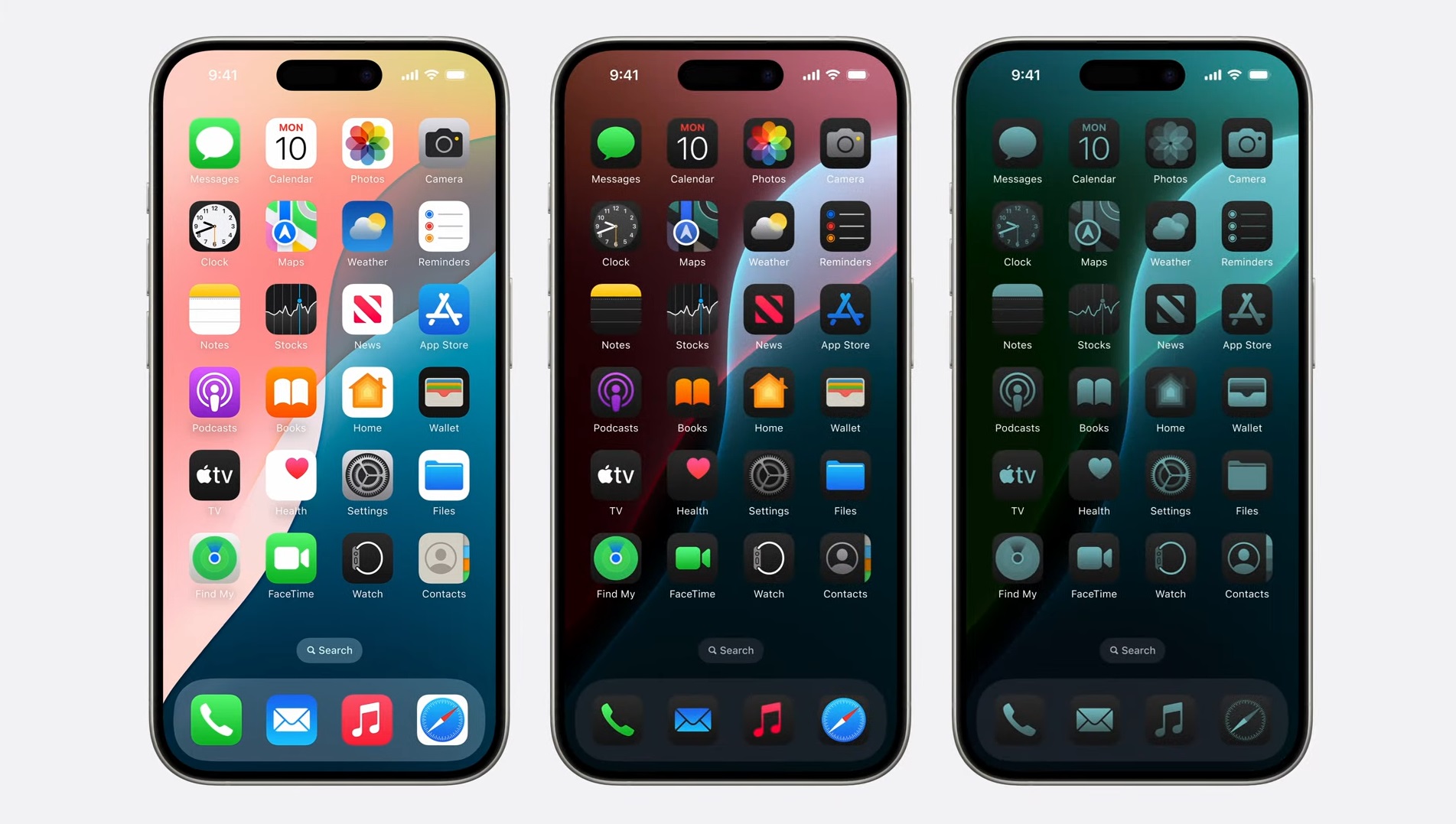
The Apple ecosystem isn't just a collection of expensive gadgets; it's an interconnected network of software and hardware designed to make your daily digital tasks invisible. While competitors force you to fiddle with third-party drivers and manual syncing, Apple ties its devices together through a single Apple ID and proprietary communication protocols. If you've ever copied a link on your iPhone and pasted it directly onto your Mac, you've experienced the core mechanism that keeps millions locked into this walled garden.
Understanding how this ecosystem operates requires looking past individual product specs and examining the underlying architecture. From local continuity features to cloud-based storage synchronizations, this guide breaks down how Apple devices interact, where the system creates friction, and how to configure your setup for maximum productivity without wasting money on redundant hardware.
What Defines the Apple Ecosystem?
At its core, the Apple ecosystem relies on vertical integration. Apple designs both the custom silicon chips (like the M-series processors and A-series mobile chips) and the operating systems (iOS, macOS, iPadOS, watchOS). This tight control allows hardware and software to communicate on a low level that generic PC and Android setups cannot easily replicate.
Three main layers form this environment:
- The Hardware Tier: The physical devices you interact with daily, including the iPhone, Mac, iPad, Apple Watch, and AirPods.
- The Operating System Tier: Software environments sharing a unified design language, featuring strict security protocols and shared frameworks.
- The Services Tier: Cloud backbones like iCloud, iMessage, FaceTime, and Apple Music that bridge the gap between physical devices.
When these three layers operate under a single user account, data flows automatically. Photos taken on a phone appear instantly on a laptop editing suite, and open browser tabs follow you from device to device.
Core Continuity Features That Make It Work
The magic of Apple's setup lies in Continuity—a suite of features that allow devices near each other to pass tasks back and forth. You don't need to email files to yourself or plug in flash drives when these native protocols are active.
Universal Clipboard and AirDrop
Universal Clipboard lets you copy text, images, or links on one Apple device and paste them onto another within seconds. If you're researching on an iPad and need to drop a link into a document on a Mac, the clipboard handles it automatically via local Bluetooth and Wi-Fi handoffs. For larger files, AirDrop uses peer-to-peer Wi-Fi to transfer high-resolution videos or heavy documents between nearby devices instantaneously, bypassing cellular data limits entirely.
Handoff and Calls on Other Devices
Handoff lets you start an email, browse a webpage, or write a note on your iPhone and instantly pick up right where you left off on your iPad or Mac. Look for the small app icon appearing on your computer's dock or tablet screen. Furthermore, Calls on Other Devices allows your Mac or iPad to ring when someone calls your iPhone, provided they're connected to the same Wi-Fi network and signed into your Apple ID. You can answer calls and reply to standard SMS or iMessage bubbles straight from a physical keyboard.
The Backbone: iCloud and Data Synchronization
Without iCloud, the ecosystem fractures into isolated pieces. iCloud acts as the central storage vault holding your digital life together, handling device backups, photo libraries, passwords, and document history.
Setting up iCloud correctly prevents storage headaches down the line. By default, Apple gives you 5GB of free storage, which fills up almost immediately if you back up multiple devices and enable iCloud Photos. Upgrading to a paid tier (such as iCloud+) is practically mandatory for multi-device owners.
Key data synced across iCloud includes:
- iCloud Keychain: Stores and auto-fills your secure passwords and credit card details across all devices with end-to-end encryption.
- Messages in iCloud: Keeps your entire chat history updated across devices so deleting a thread on your phone removes it everywhere.
- Optimized Storage: Automatically keeps lightweight previews of photos and files on your local device while storing full-resolution originals in the cloud to save space.
Security, Privacy, and Hardware Longevity
One primary reason users stay within this environment is Apple's aggressive stance on data privacy and hardware lifecycle support. Because Apple's revenue relies heavily on hardware sales and subscription services rather than targeted ad tracking, security is built into the foundation of iOS and macOS.
Biometric data handled by Face ID or Touch ID never touches Apple's servers; it remains isolated inside a hardware-level component called the Secure Enclave. Additionally, Apple supports its devices with software and security patches for years longer than most competitors, meaning an iPhone or Mac often retains high resale value and secure operating status long after purchase.
How to Build Your Setup Gradually
You don't need to buy every Apple product on day one to benefit from the ecosystem. Most users enter through a specific gateway and expand outward based on workflow needs:
- The Foundation: Start with an iPhone. It serves as the mobile hub for contacts, photos, authentication codes, and communication.
- The Productivity Boost: Add a Mac or iPad. If you type frequently or manage heavy workflows, a Mac laptop syncs seamlessly with your phone's notifications and clipboard. If you prefer digital note-taking or creative sketching, an iPad fills that gap.
- The Personal Audio and Fitness Layer: Introduce AirPods for instant switching between your phone and laptop audio, or an Apple Watch to track health metrics and handle quick wrist-based notifications.
Avoid buying devices for features you won't use. If you don't track workouts or care about notifications on your wrist, an Apple Watch offers little value to your daily routine.
Common Mistakes to Avoid
Even seasoned users make configuration errors that degrade their ecosystem experience. Watch out for these pitfalls:
- Using Multiple Apple IDs: Never set up different Apple IDs for your phone and computer. Trying to merge separate accounts later causes severe friction with app purchases, messaging syncs, and photo libraries.
- Ignoring Local Storage Limits: Don't rely blindly on "Optimize Storage" settings if you frequently work in areas with poor internet connectivity. Always keep critical files downloaded locally.
- Skipping Two-Factor Authentication: Failing to secure your primary Apple ID with two-factor authentication leaves your entire synchronized cloud vault vulnerable to remote breaches.
Frequently Asked Questions
Can I use Windows PCs with the Apple ecosystem?
Yes, but with limitations. You can access iCloud via web browsers or Windows applications, and use Apple Music on a PC, but core features like AirDrop, Universal Clipboard, and iMessage remain strictly exclusive to Apple hardware.
Is an internet connection required at all times for Apple devices?
No. While cloud synchronization relies on internet access, local features like AirDrop, local file transfers, and basic device operations function entirely offline. However, a steady connection is required to keep iCloud backups and messages fully synchronized.
What happens to my data if I decide to leave the Apple ecosystem?
You can export your photos, notes, and files via Apple's Data and Privacy page. Contacts and calendars export into standard vCard and ICS formats, making it straightforward to migrate your data to Android or PC platforms.
How do I stop my iPad from ringing when my iPhone gets a call?
Go to Settings, select Phone, tap Calls on Other Devices, and toggle off individual devices or the master switch to isolate notifications to a single device.



