Planning a multi-stop road trip requires more than punching a destination into a standard navigation app. While modern drivers often default to Google Maps, legacy mapping tools like MapQuest offer specialized multi-stop route planning capabilities that handle complex itineraries differently. Whether you are mapping out a cross-country adventure or a weekend scenic drive, understanding how to leverage MapQuest's route planner saves time, cuts fuel costs, and prevents common scheduling mistakes.
MapQuest remains a viable tool for travelers because it allows users to plot up to 26 stops on a single route, outperforming standard mobile navigation defaults that often restrict waypoint additions. However, mastering the platform requires knowing its layout quirks, fuel estimation tools, and routing limitations before you hit the open highway.
Core Features of the MapQuest Route Planner
MapQuest has evolved significantly past its early web days, offering features designed specifically to streamline multi-destination travel.
- Multi-Stop Mapping: You can add a starting point, a final destination, and up to 24 intermediate stops, bringing the total to 26 waypoints. This makes it useful for looping road trips where you want to visit multiple towns or parks.
- Fuel Cost Estimation: As you build your route, MapQuest calculates estimated fuel consumption based on your vehicle type and current regional gas prices, helping you budget trip expenses beforehand.
- Route Customization Settings: Travelers can toggle preferences to avoid highways, toll roads, or specific country borders. You can also switch between optimizing your route for the shortest distance or the fastest travel time.
- Point of Interest Searches: The interface lets you search for hotels, restaurants, gas stations, and tourist attractions directly along your active corridor without losing your primary route.
Step-by-Step: Building a Multi-Stop Route
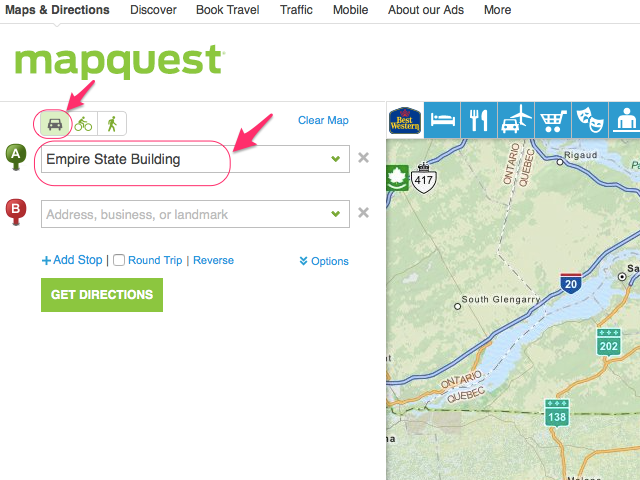
Setting up a complex trip on MapQuest requires a specific workflow because the initial search bar only accepts a origin and a final destination.
- Go to MapQuest and open the route planning or directions interface.
- Enter your starting location and your final end point, then generate the initial directions.
- Locate the Add Stop button within the sidebar summary.
- Type in the cities, specific addresses, or landmark names for your intermediate stops. MapQuest will append them to the bottom of your destination list.
- Use the drag-and-sort handles next to each destination to reorder your waypoints into a logical geographic sequence. Failing to reorder manually will result in inefficient zig-zag driving paths.
- Review your final itinerary, check the total mileage, and print or send the directions to your mobile device.
For official mobile support and navigation apps, you can check resources like MapQuest to access live updates on your phone while traveling.
MapQuest Limitations Every Traveler Should Know
While MapQuest handles basic multi-stop planning well, it has distinct constraints that adventurous travelers need to keep in mind.
- The 26-Stop Hard Cap: You cannot exceed 26 stops on a single route. If you are planning an elaborate cross-country journey with dozens of micro-stops, you will have to split your trip into multiple saved segments.
- Manual Sequencing Required: MapQuest does not automatically optimize or reorder your dropped pins into the most efficient geographical path. If you enter stops out of order, you must manually drag them into place, or your route will feature inefficient backtracking.
- Desktop vs. Mobile Experience: While you can access MapQuest on mobile browsers, complex trip building is significantly easier on a desktop screen where you can visualize the entire regional map and manage stop lists without screen crowding.
To explore broader geographic mapping data and official travel advisories, consult resources such as U.S. Department of Transportation for major infrastructure updates affecting interstate travel.
Common Road Trip Planning Mistakes to Avoid
Even with a detailed route planned out on MapQuest, travelers frequently run into avoidable pitfalls that derail their schedules.
- Overpacking the Daily Schedule: Trying to drive eight hours while squeezing in four major sightseeing stops guarantees exhaustion. Build a buffer of 30 to 60 minutes into every stop to account for parking, crowds, and slow service.
- Ignoring Offline Backups: Relying entirely on digital tools can leave you stranded when you hit dead zones in remote national parks or mountain passes. Always print out critical emergency directions or download offline map data.
- Failing to Verify Seasonal Road Closures: Mapping software often assumes mountain passes or scenic byways are open year-round. Always cross-reference your route against local park or state transportation department websites before departure.
Frequently Asked Questions
Does MapQuest cost money to use?
No, MapQuest is a free web and mobile mapping service supported by advertising. You can plan routes, look up directions, and calculate fuel costs without paying a subscription fee.
Can MapQuest automatically optimize my stop order?
Unlike advanced logistics software, MapQuest requires you to manually reorder your destinations. It adds stops in the order you input them, so you must arrange them geographically using the drag-and-drop feature.
How many stops can I add to a single MapQuest trip?
You can include up to 26 total stops on a single route, which includes your starting location, intermediate waypoints, and final destination.
Is an internet connection required while using MapQuest on the road?
Yes, MapQuest requires an active data connection to load live traffic updates, reroute around accidents, and display real-time map tiles.


