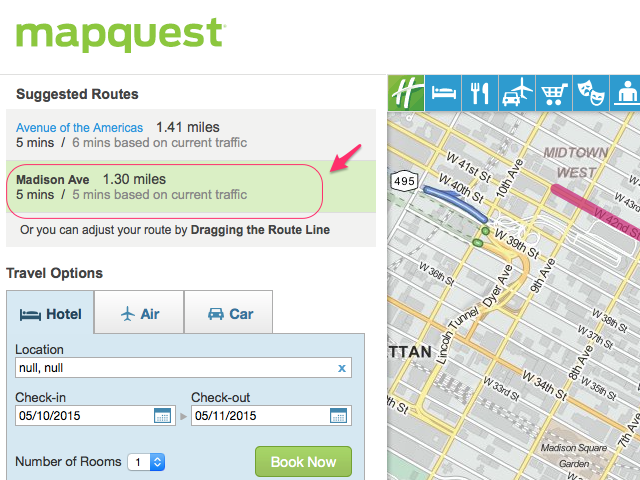
Mastering MapQuest directions goes well beyond typing in a start point and a destination. While many drivers treat it as a basic digital map, the platform packs hidden features that rival dedicated fleet software and modern GPS apps. Whether you're planning a multi-stop road trip or trying to avoid expensive toll roads during your morning commute, knowing how to leverage its advanced tools changes how you travel.
Finding the fastest route requires understanding how MapQuest processes live traffic, stop sequences, and custom preferences. Instead of settling for the default path, you can configure route settings, reorder destinations automatically, and sync trips seamlessly between your desktop and mobile device. Let's break down how to use these insider strategies to navigate like a professional.
Building and Optimizing Multi-Stop Routes
If you're running errands or planning a complex trip with multiple stops, the standard single-destination search box won't cut it. MapQuest allows you to add up to 26 stops per route, making it one of the most flexible free planners available online.
To build an efficient multi-stop trip, use the desktop Route Planner tool rather than tapping addresses into a phone screen one by one. You can choose from three input tabs: line-by-line entry, copy-and-paste blocks, or importing a CSV file.
- Line-by-Line: Best for fewer than 10 stops where you need precise autocomplete matching.
- Copy/Paste: Ideal if you have a prepared list of addresses from an email or document.
- CSV Import: Perfect for large routes or when you need to attach specific notes to individual waypoints.
Once your addresses are entered, check the box to re-order stops automatically. MapQuest evaluates the distance and traffic conditions to sequence your waypoints for either the shortest time or the shortest distance. Keep in mind that the system locks your first and last stops in place—only the intermediate pins move during optimization.
Customizing Route Preferences and Avoidances
Default GPS routes often route drivers onto congested highways or toll roads that drain your wallet. Before you click to view your final directions, expand the options menu to fine-tune your travel parameters.
You can toggle specific preferences to tailor the journey to your exact needs:
- Avoid Tolls: Keeps you on local or state highways, saving money on frequent commutes.
- Avoid Highways: Forces the planner to route through surface streets, which works well for scenic drives or avoiding severe highway accidents.
- Avoid Ferries or Unpaved Roads: Essential if you're driving a vehicle with low clearance or towing a trailer.
For professionals tracking expenses, you can also enable the IRS reimbursement feature within the route settings. MapQuest multiplies your total route mileage by the standard business mileage rate to calculate estimated cost recovery instantly.
Cross-Device Sync and Mobile Navigation
Planning a long road trip on a small mobile screen invites typos and missed turns. A reliable workflow involves planning your route on a desktop browser and accessing it on your phone when you step into the car.
By logging into your free MapQuest account, any route you save on your computer syncs automatically to the mobile application. When you're ready to drive, open the app, pull up your saved trip, and tap start navigation for turn-by-turn voice guidance.
If you prefer checking your upcoming turns visually rather than listening to voice prompts, swipe up from the bottom navigation panel. This expands a detailed list showing every upcoming road name and turn in sequence, letting you review the path ahead at a glance.
Finding Points of Interest Along the Way
Long drives require fuel stops, food breaks, and occasional lodging. Instead of exiting navigation to search separately, use the layers bar and point-of-interest (POI) search features built directly into the interface.
- Fuel Price Comparison: Search for nearby gas stations to compare local prices before you pull off the exit.
- Food and Dining: Browse restaurant menus, check ratings, and reserve tables directly through integrated partners like OpenTable and Grubhub.
- Lodging Deals: Explore nearby hotels and view nightly rates without leaving the mapping environment.
Common Mistakes to Avoid
Even experienced users run into friction points if they don't format data correctly. Watch out for these frequent pitfalls:
- Incomplete Addresses: Omitting ZIP codes or failing to include apartment numbers can cause geocoding errors, dropping your pin miles away from the actual destination. Always verify locations visually on the map before finalizing.
- Ignoring Offline Limitations: MapQuest relies on an active internet connection to pull live traffic updates and reroute effectively. If you're driving through remote areas with spotty cellular coverage, keep a printed copy of your step-by-step directions as a backup.
- Overloading Waypoints: While the 26-stop limit is generous, packing too many tight urban stops into a single route can confuse automated time estimates. Build buffer time into your schedule to account for unexpected delays.
You can check official platform updates directly through the MapQuest Website or download the official software via the Google Play Store to test these features on your next trip.
Frequently Asked Questions
Can I use MapQuest without an internet connection?
No. MapQuest requires an active cellular data connection to fetch real-time traffic data, render satellite imagery, and calculate live directions. If you lose service, active navigation may freeze or fail to update rerouting options.
How many stops can I add to a single MapQuest route?
You can add up to 26 stops per route. This includes your starting location, up to 24 intermediate waypoints, and your final destination.
Can I edit my route after starting navigation?
Yes. You can add, remove, or rearrange stops directly from the mobile app while on the go, and the system will automatically recalculate your ETA and turn-by-turn guidance.
Why is my calculated route different from the actual drive time?
Estimated travel times rely on current traffic speeds and historical averages. Unexpected road construction, accidents, or heavy congestion can increase your actual arrival time, which is why checking live traffic layers before departure is recommended.


