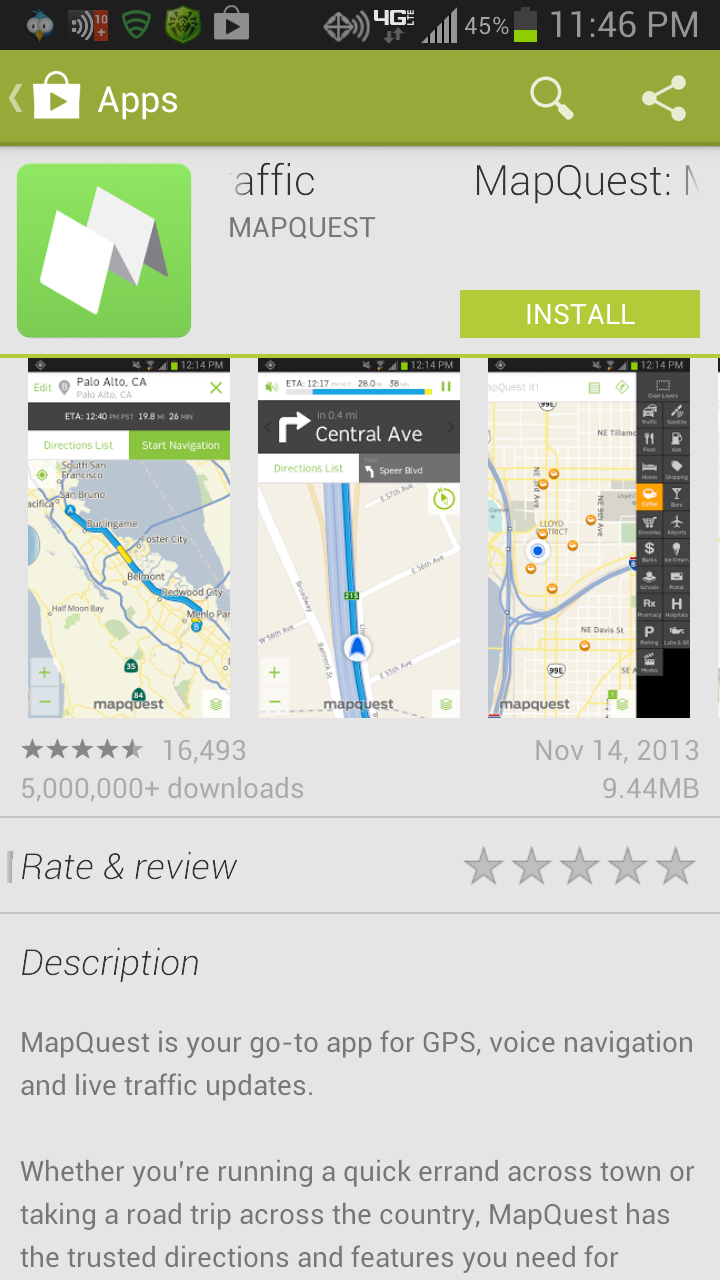
Mastering multi-stop travel requires more than pinning random destinations on a standard mapping screen. If you're managing field service appointments, planning a cross-country road trip, or organizing daily deliveries, using MapQuest directions efficiently can save hours of wasted fuel and transit time. While most drivers view mapping platforms as simple turn-by-turn tools, the platform's dedicated route planner offers hidden depth for anyone handling up to 26 stops per trip.
Understanding how to structure your stop inputs, leverage automated sequencing, and avoid common geocoding traps turns a basic trip into a streamlined operation. Let's break down how to get the most out of the system without falling for common routing inefficiencies.
Setting Up Multi-Stop Routes on MapQuest
Building a route with multiple destinations starts on the dedicated MapQuest Route Planner interface. You aren't locked into typing addresses one by one if you have a long list ready. The platform provides three distinct input modes: line-by-line entry, bulk copy-and-paste, and direct file imports via CSV or XLS formats.
- Line-by-Line Entry: Best for short trips under ten stops where you need autocomplete verification to catch typos immediately.
- Copy and Paste: Ideal when you've compiled a list of addresses from an email or a spreadsheet and want to paste them all at once.
- Spreadsheet Import: The go-to method for larger routes, letting you upload a clean CSV file containing separated columns for street, city, state, and zip code.
When entering locations manually, always include complete ZIP codes. Vague street names or missing postal codes force the geocoder to guess, which frequently places your pin miles away from the actual destination.
The Mechanics of Automated Route Optimization
Entering your stops in chronological order rarely yields the most efficient path. Traffic patterns, road layouts, and geographic sprawl mean that a manually sequenced list often results in backtracking.
To fix this, look for the optimization toggle in the route settings panel. Checking the box to re-order stops lets the algorithm analyze your destination list and rearrange the sequence for maximum efficiency. You can optimize specifically for the shortest time or the shortest distance, depending on whether you're trying to beat rush-hour traffic or conserve fuel on back roads.
Keep a critical rule in mind: the system leaves your starting point and final destination exactly where you put them. It only reorders the intermediate waypoints between stop A and your final stop. If you need your ending point to change based on overall efficiency, you'll need to manually adjust your anchor points before running the calculation.
Customizing Route Preferences Before You Drive
Default settings rarely fit every driving scenario. Before you hit generate, dive into the route options menu to tailor the path to your specific vehicle and driving style.
- Avoidances: Toggle switches to bypass highways, toll roads, or unpaved surfaces if you're driving a commercial van, towing a trailer, or simply want a scenic drive.
- IRS Reimbursement Calculation: If you're driving for work, enable the mileage tracking and reimbursement feature to automatically estimate trip expenses based on standard business rates.
- Cross-Device Sync: Save your routes to a registered account so you can transition seamlessly from planning on a desktop monitor to navigating on a mobile phone.
Common Route Planning Mistakes to Avoid
Even with automated optimization, small oversights can ruin an otherwise well-planned itinerary. Watch out for these frequent pitfalls:
- Overlooking the Stop Limit: The platform caps individual routes at 26 stops. If you're managing 40 daily stops for a delivery route, you'll need to split your manifest into two separate geographic clusters.
- Ignoring Local Peak Hours: Time estimates assume standard flow. If you plan a multi-stop route through a dense urban center right at 8:00 AM, the estimated durations will fall apart. Build buffer time into tight schedules.
- Failing to Verify Pins: Always look at the map preview before heading out. If an address is formatted weirdly, the pin might land on the back alley of a commercial park instead of the front entrance.
Frequently Asked Questions
How many stops can I add to a single MapQuest route?
You can add up to 26 stops per route. This capacity exceeds standard consumer limits on apps like Apple Maps, making it useful for small-scale field operations and intensive road trips.
Can I change my starting location after optimization?
Yes, but you must manually update your starting address in the first input field. The optimization tool locks your first and last stops in place while rearranging everything in between.
Does MapQuest offer real-time traffic rerouting?
Yes, the mobile navigation mode integrates live traffic updates to adjust your turn-by-turn directions if accidents or congestion block your original path.
Is there a mobile app for multi-stop planning?
You can build and view routes using the official mobile applications available on Google Play and the Apple App Store, though building long lists is generally faster on a desktop browser.



