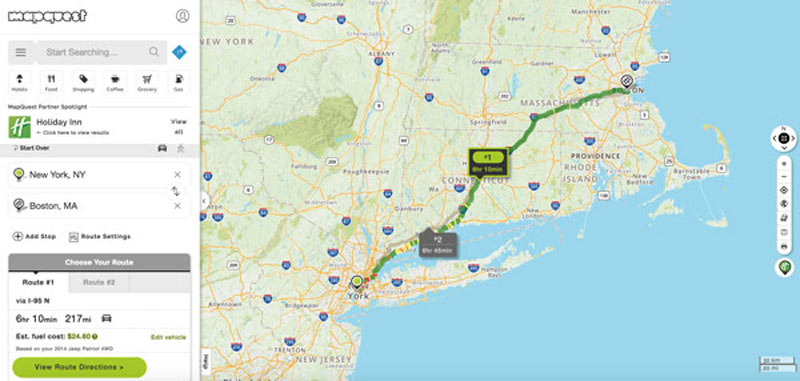
Getting from point A to point B efficiently requires understanding how mapping platforms process travel data. MapQuest remains a reliable choice for drivers looking for web-based route planning, multi-stop management, and turn-by-turn guidance without extra software costs. Setting up your journey correctly helps avoid common routing errors, excessive fuel consumption, and unexpected traffic delays.
Mastering MapQuest involves more than typing an address into a search box. Knowing how to configure route settings, adjust stop sequencing, and fix geocoding errors transforms a standard trip into an optimized drive. Let's examine how to use the platform's core tools to your advantage.
Setting Up Multi-Stop Routes Efficiently
When your trip involves multiple destinations, manual entry can become messy if you don't use the dedicated Route Planner tool. MapQuest allows you to input up to 26 locations per route, making it practical for field service work, deliveries, or complex road trips.
To build a multi-stop route cleanly:
- Open the MapQuest Route Planner tool.
- Choose your input method based on how prepared your data is: line-by-line typing, a direct copy-paste list, or a CSV/XLS file import.
- Enter addresses completely, including ZIP codes, to ensure the geocoding engine places pins accurately.
- Check the box to re-order stops automatically if you want the system to arrange your destinations by the shortest time or distance.
Note that the platform keeps your first and last stops fixed by default. If you need your ending point to change during optimization, you'll want to adjust your destination field before hitting the calculation button.
Customizing Route Preferences and Avoidances
Every driver has different priorities, whether it's minimizing fuel costs, avoiding tolls, or steering clear of major highways. MapQuest lets you toggle specific preferences before you lock in your directions.
Access your route settings to customize the path:
- Highway Avoidance: Useful if you're driving a vehicle unsuited for high-speed interstates or want a more local drive.
- Toll Avoidance: Helps you bypass paid turnpikes, though it may increase estimated travel time.
- Optimization Goal: Switch between shortest distance and shortest time depending on whether you're trying to save gas or beat the clock.
Comparing these options side-by-side on the desktop interface before sending the directions to your mobile device saves time on the road.
Troubleshooting Common Routing Frustrations
Even advanced mapping platforms occasionally run into data hurdles. Address lookup errors usually happen due to formatting issues or missing metadata.
If MapQuest fails to recognize a specific address, try these fixes:
- Search for a nearby commercial landmark or intersection instead of the exact street number.
- Verify that the city spelling and state abbreviation are correct, and drop a pin manually on the map interface to capture exact coordinates.
- Clear your browser cache or switch to the mobile app if the desktop interface fails to load real-time traffic layers.
Frequently Asked Questions
Can I import a list of addresses from Excel into MapQuest?
Yes. The Route Planner tool features an import option that accepts spreadsheet files or copy-pasted text lists, which speeds up planning for routes with more than five stops.
Does MapQuest automatically update my route if traffic changes?
The app monitors real-time traffic data and provides alerts or alternative path suggestions if congestion builds up ahead.
Is MapQuest free to use for commercial delivery routing?
Basic route planning and turn-by-turn navigation are free, though businesses with heavy routing demands often pair it with specialized logistics software.
How do I reverse a route once it's created?
You can use the reverse route icon on the interface to flip your starting and ending points instantly without re-typing your stops.


