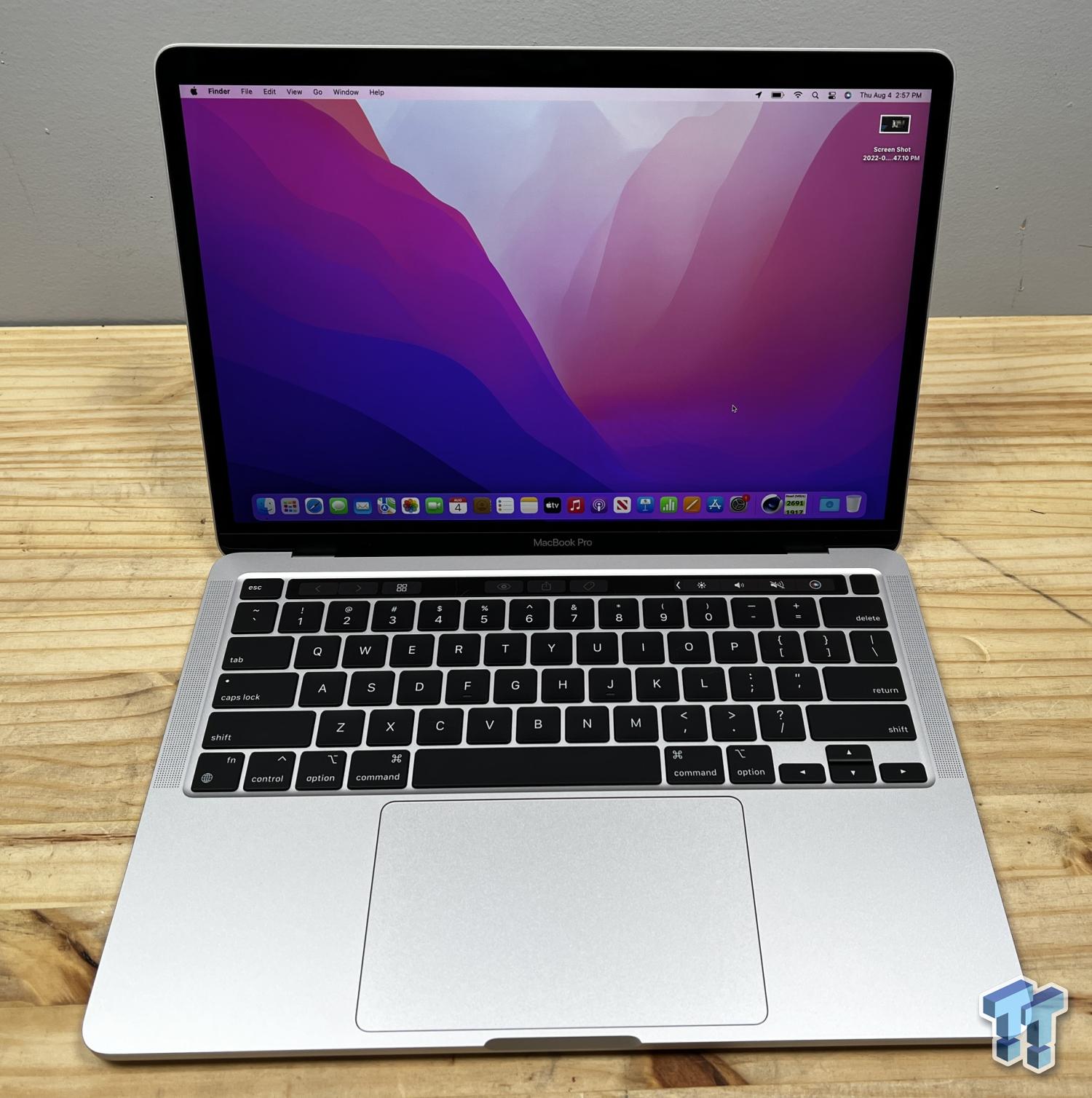
The screen on your laptop doesn't generate its own illumination. Instead, a complex array of LEDs, diffusers, and optical films pushes light through liquid crystals to create the images you see. On modern MacBook Pro models, this backlight system represents a masterclass in optical engineering, balancing extreme peak brightness against thermal limits in an ultra-thin chassis. Let's look at how this technology actually functions, why it fails, and what separates standard panels from advanced mini-LED implementations.
Understanding how your screen illuminates helps you diagnose hardware problems, manage battery life, and appreciate why replacement costs run high when things break.
Anatomy of Modern Laptop Backlights
The optical stack inside a portable computer is surprisingly dense. When you open your lid, light begins its journey at a row of miniature light-emitting diodes situated along the edge of the panel or arrayed directly behind the display matrix.
Early displays relied on cold cathode fluorescent lamps, but modern hardware uses specialized white or blue-tinted LEDs. These diodes output intense, directional light that must be scattered evenly before it reaches the LCD layer.
The Light Guide Plate and Optical Films
Raw LED output looks harsh and uneven. To solve this, manufacturers route light through a light guide plate, a transparent acrylic sheet featuring thousands of microscopic laser-etched dots. These dots scatter photons outward across the entire screen area.
Right after the light guide plate, a series of specialized films takes over:
- Diffusion sheets: Soften the scattered light, smoothing out hot spots and creating a flat field of luminance.
- Prism sheets: Direct photons toward your eyes, cutting down on sideways light leakage and boosting perceived brightness without drawing extra power.
- Polarizing layers: Align light waves so they can pass cleanly through the liquid crystal and color filter glass.
Without this multi-layered choreography, your screen would show bright stripes near the LEDs and dark patches in the center.
Mini-LED and Liquid Retina XDR Evolution
Apple shifted high-end portable displays toward Liquid Retina XDR technology, which changes the backlight game entirely by swapping edge-lighting for a dense matrix of mini-LEDs.
Instead of a few dozen LEDs lighting the edges, newer MacBook Pro models pack thousands of microscopic diodes divided into independent dimming zones. If you're watching a movie with a starfield against a black night sky, the system turns off the LEDs behind the dark regions entirely. This yields deep, inky blacks that rival OLED panels while avoiding burn-in risks.
Peak brightness ratings on these models reach up to 1,000 nits for full-screen sustained brightness and 1,600 nits for HDR highlights. Driving that much power through a portable chassis requires careful thermal management, which is why your display controller scales back brightness automatically if the internal temperature climbs too high during heavy video rendering tasks.
Common Backlight Failures and Diagnostics
When your display suddenly goes black while the computer is still running, the problem usually stems from the backlight circuit rather than the graphics processor. You can test this easily: take a flashlight in a dark room and shine it directly against the glass of your turned-on screen at an angle. If you can faint ghosts of your desktop icons or mouse cursor, your LCD panel works fine, but the illumination subsystem has failed.
Common failure points include:
- Blown fuse on the logic board: Power spikes or liquid spills often short the backlight fuse, cutting off the high voltage rail required to drive the LEDs.
- Flex cable fatigue: The ribbon cable connecting the display to the main board runs through the hinge. Opening and closing the lid thousands of times can fracture fragile copper traces, causing backlight flickering or total blackout at specific angles.
- Thermal degradation: Continuous operation near maximum brightness in restricted airflow environments can degrade solder joints on the LED driver chips.
According to repair data shared by iFixit, modern display assemblies are serialized and laminated tightly, meaning component-level fixes on individual backlight films are nearly impossible for everyday users. A failed backlight usually forces a complete display clamshell swap.
Energy Efficiency and Smart Luminance Control
Backlight illumination remains one of the single largest drains on your laptop battery. To keep runtime high, Apple pairs hardware sensors with aggressive software dimming algorithms.
Ambient light sensors located near the camera measure room illumination in real-time. If you step outdoors into bright sunlight, the system overrides user settings momentarily to pump extra current into the LED array, raising brightness to max. Conversely, working in a dim room drops power consumption significantly.
You can check your current display power draw via macOS Activity Monitor under the Energy tab. Keeping manual brightness below seventy percent in indoor environments preserves battery cycles and lowers thermal stress on the display adhesive and drivers.
Frequently Asked Questions
What causes backlight bleed on a MacBook Pro?
Backlight bleed happens when light escapes around the edges of the display bezel due to uneven pressure on the LCD panel or minor misalignments in the internal diffusion layers. It's most noticeable when viewing dark scenes in a pitch-black room.
Can a software update fix a flickering backlight?
Sometimes. If flickering occurs intermittently right after an operating system upgrade, it's often a GPU driver handshake bug. However, persistent hardware flicker tied to physical movement of the screen hinge points to a failing display cable.
Why do MacBook Pro repairs cost so much for backlight issues?
Because Apple fuses the LCD, glass, aluminum housing, and LED backlight layers into a single cohesive unit, technicians cannot replace just a burnt-out strip of LEDs. They have to swap the entire display assembly.
How can I maximize my MacBook Pro display lifespan?
Avoid keeping static high-contrast images on screen for days at a time, keep brightness at moderate levels indoors, and avoid slamming or gripping the screen lid tightly by the corners when closing it.



